Appearance
March 2024
Websites translation
You can now use the TRANSLATE mode to localize the content of your websites and landing page briefs.
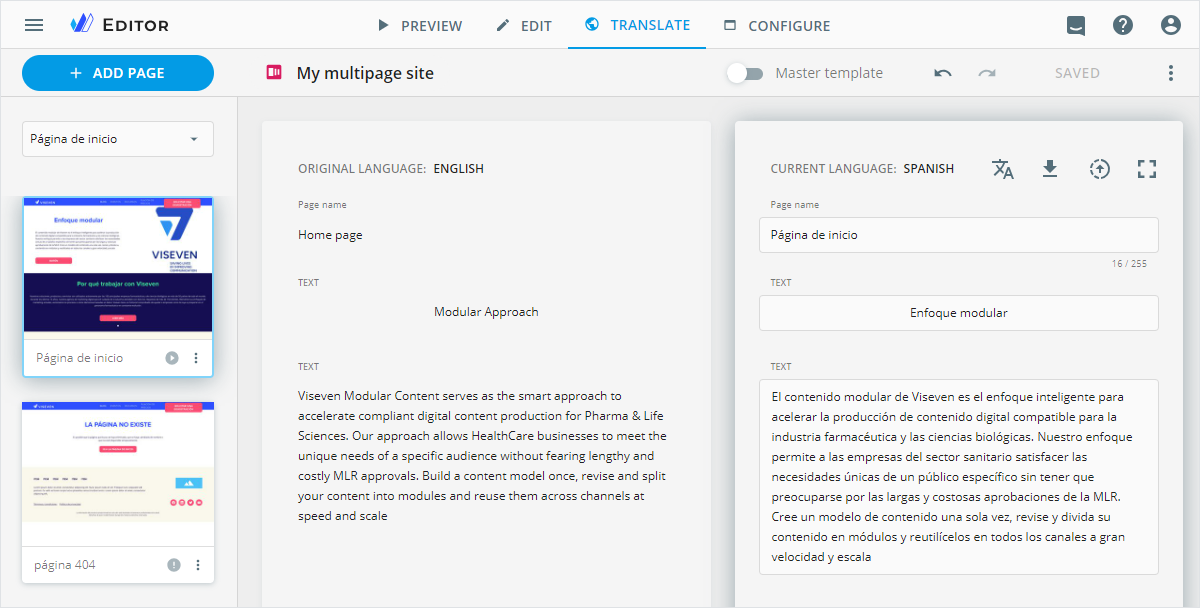
For a better user experience, we improved the WYSIWYG editor performance, field mapping, and labeling of text-based components in the original and current language areas.
Multiple subject lines
Configuration required
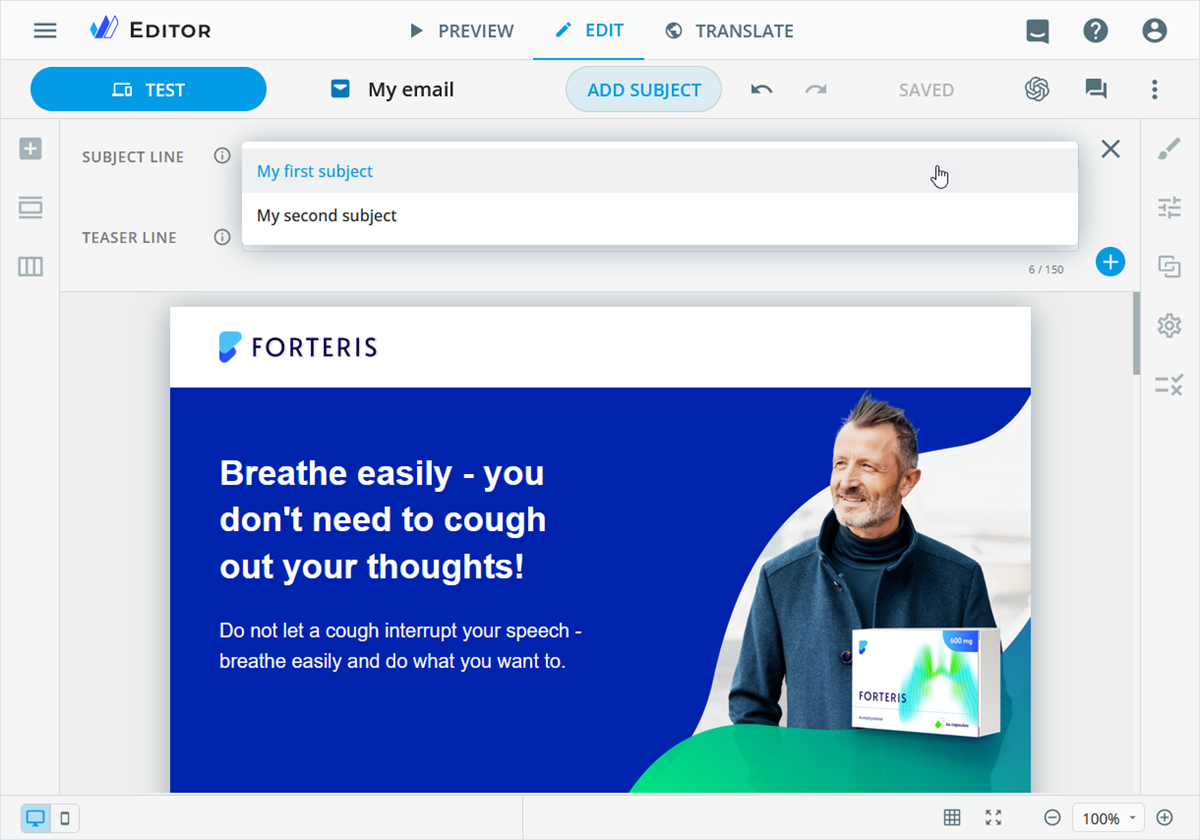
Add several subjects in eWizard Editor to provide recipients with a concise and compelling preview of the email content. You can localize all subject lines in the TRANSLATE mode. All added subjects are displayed on the DETAILS step during the email publication to SFMC, Veeva Vault interactive, and in the resulting Veeva Vault PDF file for approval.
Code snippets
Configuration required
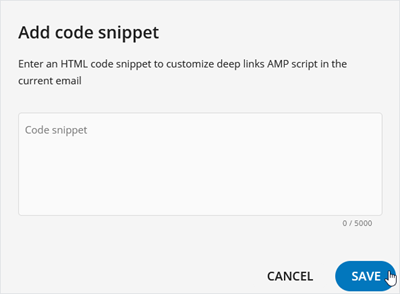
Use code snippets to create and edit deep links on the Settings tab of your email for any target system. The links provide direct access to web content, improving engagement and user satisfaction.
Improvements
Editor
You can now customize the table component by reordering columns and rows, merging cells, and aligning the content on the Properties tab. The enhanced styling options allow you to set fill and border for rows and columns. On the content item layout, you can resize the table columns and rows.
The list of added email fragments on the Properties tab is sorted alphabetically, considering digits and letter cases. In the PREVIEW mode and Viewer, fragments are displayed in the alphabetical order on the email layout.
Set the orientation of placeholder columns for the item mobile version with the
Rearrange columns for Mobile viewcheckbox on the Properties tab. Available for emails, their briefs and fragments, websites, and landing page briefs.The
Text orientationoption is no longer available in the WYSIWYG editor for text-based components.When you select a module with business rules in the
Assetspopup, the business rules are displayed on theDetailspanel sorted by their module and atom levels.You can format the reference style in the REFERENCES component for emails and websites. The list style is formatted together with the text.
Publisher
Added new checkboxes for you to manage linkage of references and anchors when publishing modules with claims to Veeva Vault interactive.
Viewer
In eWizard, you can now approve email fragments along with the rep-triggered email they're linked to. The linked fragments are highlighted on the content item layout in eWizard Viewer.
Planner
In the Campaign planning and Operations & delivery widgets:
When creating entries with the
+ ADD NEWbutton, theResponsiblefield is automatically filled in with your username in theCreate newpopup.On the CHECKLIST tab of the item Details page, the user assigned to the task can edit its name and description, change the deadline and the assigned member.
The item owner and responsible person receive an email notification when the item deadline expires.
Administrator panel
From this version on, the administrator can do the following configurations.
In the
USER MANAGEMENT→SYSTEM:Activate the use of code snippets in the
Merge tags and linkssection.Digital assetssection:Predefine the default setting for publishing modules to Veeva Vault interactive: publish as new or update existing ones.
Restrict publishing modules without defining element types for assets.
In the
Viewersection, configure thefragmentsPreviewobject to view the email with linked fragments in Viewer when approving the Veeva Vault interactive document in eWizard.Content approval settings→Veeva Vaultsection:Adjust the
fragmentobject to trigger the approval process of the Veeva Vault interactive document with related email fragments in eWizard.Configure the
approveInEWizardarray to turn on/off theView to approveoption separately for e-Detailers, emails, and email fragments.
Turn on/off the following permissions:
Rearrange columns for Mobile viewto show/hide the respective checkbox on thePropertiestab. Available for emails, their briefs and fragments, websites, and landing page briefs in theUSER MANAGEMENT→Permission sets→UP EDITORsection.Update production assetto show/hide theUpdateoption in the item more menu on the Details page. Available in theUSER MANAGEMENT→Permission sets→PLANNERsection.Add several subjectsto show/hide the+button for adding subject lines to your email in Editor. Available in theUSER MANAGEMENT→Permission sets→UP EDITORsection.Increase subject length limitfor multiple subject lines. Available in theUSER MANAGEMENT→Permission sets→UP EDITORsection.