Appearance
May 2024
eWizard banners
Configuration required
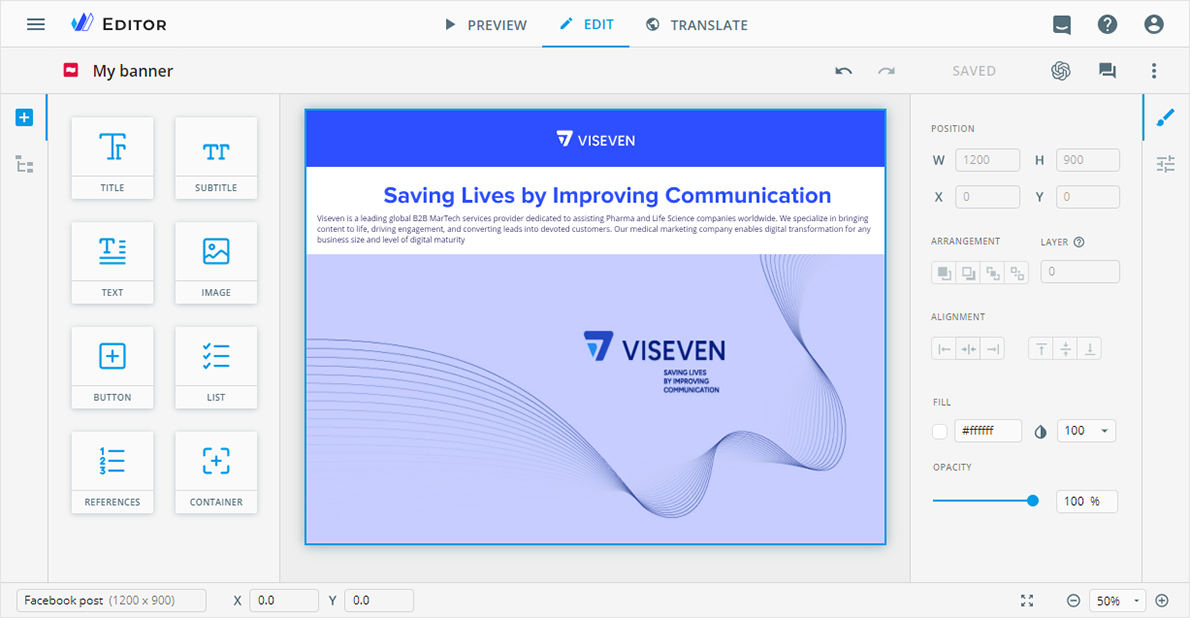
Meet a new content item type in eWizard—banners. Use banners to provide concise information about your brand and direct the target audience to your website. Banners placed on high-traffic websites reach your target audience across different screens and devices.
In eWizard Editor, you can customize banners of the required type and size based on the intended use. Deliver a ready-made banner to the target system with the Publisher service. You can also export the banner as PDF and an image in PNG or JPEG format.
Improvements
Editor
With the enhanced EVENT component, you can now schedule the time frame of your upcoming event, accurately reflecting its duration.
Added fixed placeholders for the header and footer in the Master template mode. Available for multipage sites.
Library
The updated Converter interface enhances your experience when converting PDF files to e-Detailers or website briefs.
Centralized tagging
You can now view the numbering of slides, fragments, and tag containers within the content item structure to streamline tagging, navigation, and orientation.
Planner
In the Campaign planning and Operations & delivery widgets:
Unfolded campaigns remain in their state when you refresh the page, view the entry details, or switch between widgets, allowing you to navigate through campaigns easily.
Users receive an email notification when checklist tasks are assigned to them.
Now, you can't close the
Create new,Edit details,Make a copy, andUpdatepopups with a click outside their area.
Administrator panel
From this version on, the administrator can do the following configurations.
Turn on/off banner publication for the target system in the
eWizard NavigateandVeeva Vault as PDF for approvalsections. Available in theUSER MANAGEMENT→PUBLISH MANAGERsection.Activate the required target system for selection in the
Create new bannerpopup. Available in theUSER MANAGEMENT→SYSTEM→Merge tags and linkssection.Create workflows for the banner content item type in the
USER MANAGEMENT→WORKFLOWS→Manage workflows→Workflowssection.Add web actions for banners in the
Web actionssection of theLibraryadministration panel.Turn on/off the
Bannerspermission in theUSER MANAGEMENT→Permission sets→UP CONTENTsection. Available also in theNAVIGATE→Channel Configurationsection.Set up tagging fields to automatically fill with
Not definedorDoesn't applyif the metadata is on the database file blacklist. Available for content item copies with country-specific metadata, except forGlobalorMASTER.Configure data extraction from the database file to automatically tag broadcast emails with metadata assigned to them in SFMC.