Appearance
February 2024
Business rule improvements
Configuration required
Use the new configuration for business rules to streamline your approval process. The enhanced configuration supports business rules on two levels:
Atom level—applicable to the module assets.
Module level—applicable to an entire module.
View the business rule details to check any violations on atom and module levels.
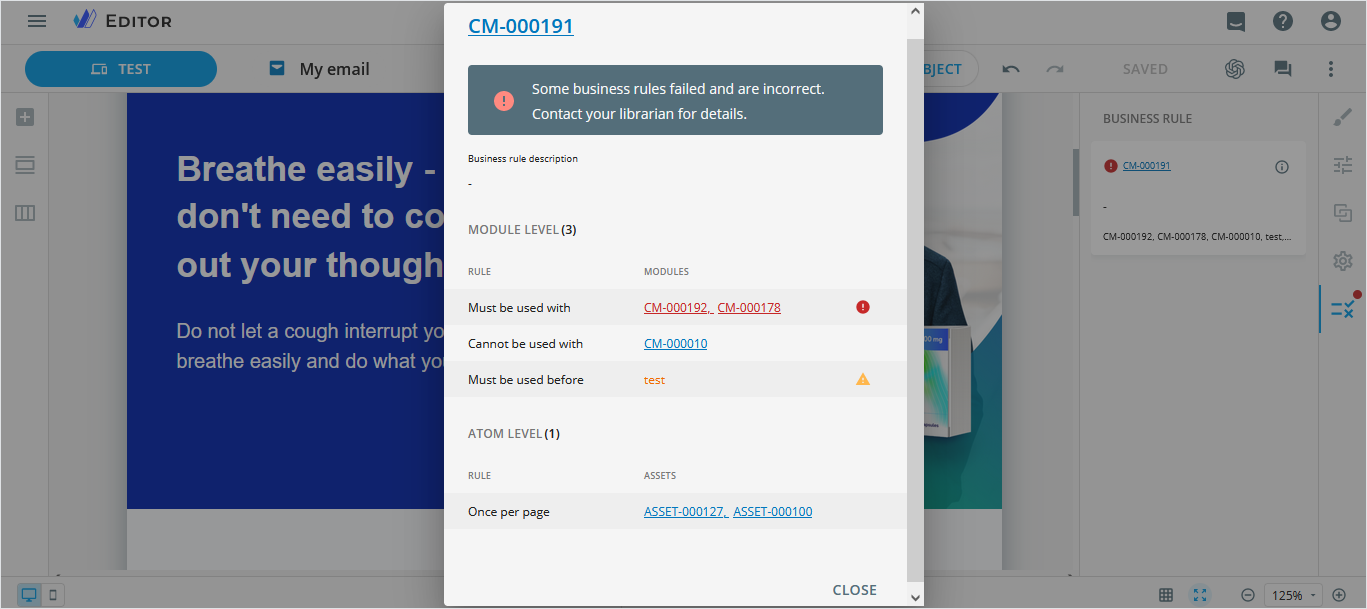
When publishing items to Veeva Vault as interactive or PDF for approval, you can view Error report with business rule violations.
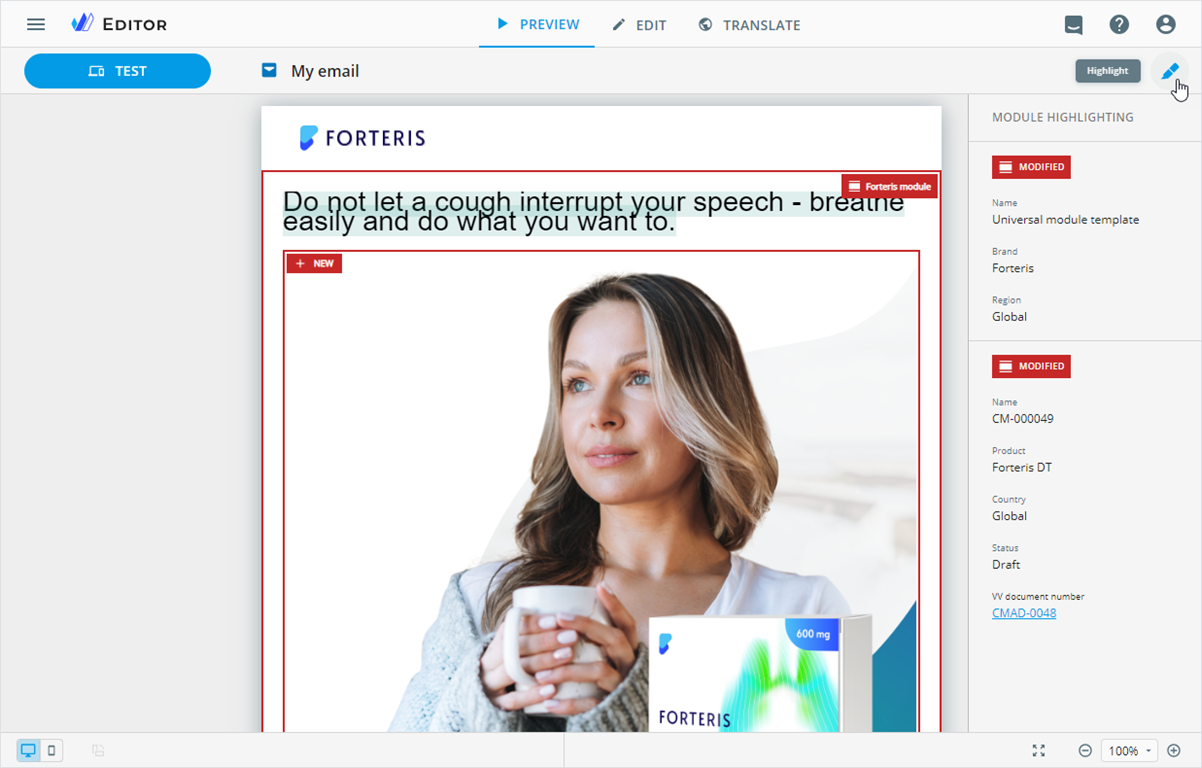
Module highlights in NaviGate modules
Configuration required
Changes to NaviGate modules are now highlighted in the Editor PREVIEW mode and in the resulting PDF file after the item publication or export.
Improvements
Editor
The item layout keeps the selected scale when you switch between the EDIT and PREVIEW modes. The scale is also preserved when you navigate e-Detailer slides and multipage site pages.
You can view the history of your AI generator requests.
When you upload the XLIFF file for translation, eWizard detects ISO 639-2, ISO 639-3 language codes, and BCP 47 language tags and converts them into two-letter language codes.
Publisher
To SFMC: Publish email fragments to the target system.
Planner
On the ATTACHMENTS tab of the item Details page, you can upload a ZIP archive with InDesign Package. Available within the Campaign planning and Operations & delivery widgets. For tasks, you can publish your ZIP archive with InDesign Package to Veeva Vault with the Push to MLR option.
Administrator panel
From this version on, the administrator can do the following configurations.
In the
USER MANAGEMENT→PUBLISH MANAGERsection, configure thepublishOptionsobject to set the storage path for images added to emails and email fragments published to SFMC.In the
USER MANAGEMENT→SYSTEM→Digital assetssection:Configure support of business rules on the atom level.
Set up NaviGate module highlighting.
Turn on/off the
Open in Librarypermission in theUSER MANAGEMENT→Permission sets→PLANNERsection.