Appearance
November 2024
Modular content version 2.0
Configuration & template update to ModCon 2.0 required
Introducing ModCon 2.0—a game-changer in streamlined content creation. eWizard now supports both ModCon 1.0 and ModCon 2.0, offering shared core functionality but with ModCon 2.0 providing a more structured and flexible content creation process.
You can pull content modules on the MODULES tab in eWizard Editor, preserving the layout, customization, references, and claims. If no suitable module exists, simply add a default block and pull assets from Veeva Vault PromoMats, eWizard Library, or your device.
With ModCon 2.0, content modules are automatically generated from blocks added in eWizard Editor when publishing a content item to Veeva Vault PromoMats. As a result, you can start content creation immediately without initiating a module first. This streamlined approach eliminates extra steps, making effortless reuse of content modules across different content items in eWizard.
eWizard—Bynder integration
Configuration required
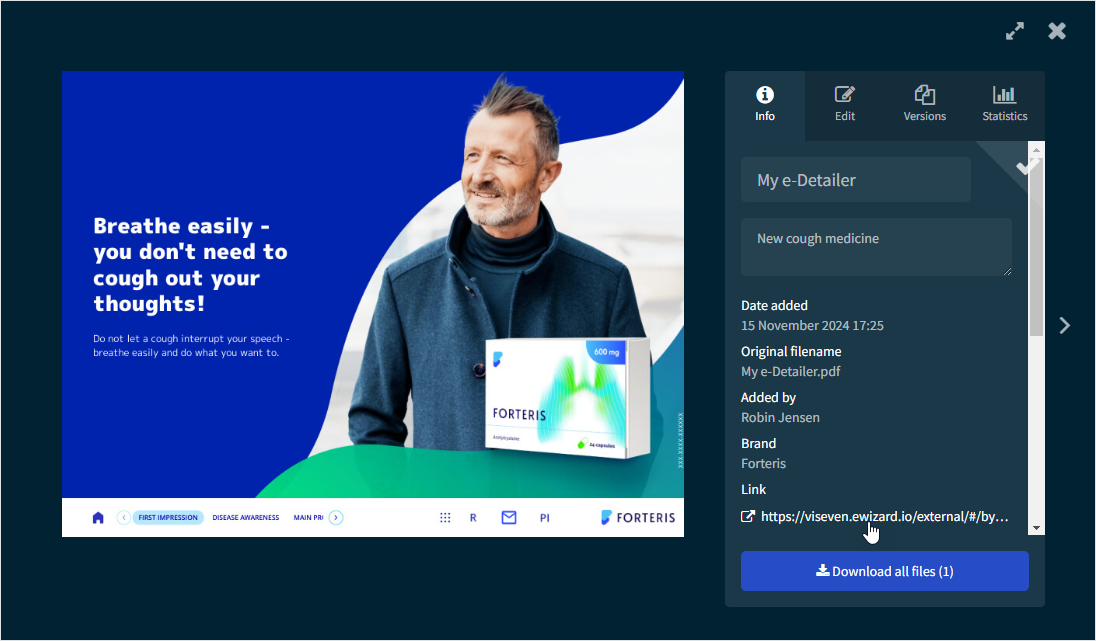
eWizard is now integrated with Bynder. This integration allows you to do the following across both platforms:
Convert or copy PDF documents from Bynder to save them as e-Detailers in eWizard. The resulting e-Detailer inherits metadata from the source PDF document.
Upload the PDF document of an eWizard item to Bynder.
Add image and video assets from Bynder to eWizard content items.
Track usage of the source PDF document from Veeva Vault PromoMats and media assets from Bynder on the
Relationshipspage in Veeva Vault PromoMats. Available for the PDF Bynder document saved as e-Detailer in eWizard and published to Veeva Vault PromoMats.
Improvements
Library
Redesigned the
Create newpopup with theTEMPLATEsection now positioned on the left. This emphasizes template selection as the first step before entering metadata and improves overall user experience during the content item creation.You can now filter emails by type: broadcast, rep-triggered, and email fragments.
Planner
In the Campaign planning and Operations & delivery widgets:
When creating broadcast emails, select users and groups in the
Production Partnercustom metadata field to share the content item for collaboration. Production partners are assigned the role of the responsible person. The metadata field can be configured to match your business requirements in any Planner entry.You can now launch the approval process of e-Detailers, rep-triggered emails, and email fragments in Veeva Vault PromoMats and their sync with Veeva CRM from eWizard Planner.
eWizard—Contentful
Use the Publish interactive to Veeva button in Contentful to send presentations directly to Veeva Vault PromoMats. This action saves the Contentful presentation as an e-Detailer in eWizard Library and starts the publication process.
Administrator panel
From this version on, the administrator can do the following configurations.
Ensure the ModCon 2.0 approach implementation:
Manage the visibility of the
MODULEStab in Editor for different content items. TheView Modules tabpermission in theUSER MANAGEMENT→Permission sets→UP EDITOR→Blockssection.Allow parallel module publication to the internal eWizard storage when publishing it to Veeva Vault PromoMats as PDF. For this, add the
contentModuleobject in theUSER MANAGEMENT→PUBLISH MANAGER→Publish→Veeva Vault Settingssection.In the
USER MANAGEMENT→PUBLISH MANAGER→Publish→Veeva Vault PDF Settingssection:Configure the
contentBlocks,contentModules, andmapClassificationobjects to add theBLOCKS,MODULES, andASSETSsteps for the content item bulk publication.Establish the parent-child linkage for the reused module from Veeva Vault PromoMats (parent) and the newly published module (child) with the
parentDocumentLinkingobject.
Set up the eWizard and Bynder integration feature:
In the
USER MANAGEMENT→SYSTEM→Edit in eWizard→Byndersection, configure the metadata mapping for the Bynder PDF asset and its resulting eWizard e-Detailer.Adjust the
CONTENT FACTORYtab of theAssetspopup in theUSER MANAGEMENT→SYSTEM→Digital assets→Admin UP→Digital assets→BYNDERtab.Configure the
bynderobject to link the source PDF document from Veeva Vault PromoMats and the Bynder assets to the resulting PDF document in Veeva Vault PromoMats. Available in theUSER MANAGEMENT→PUBLISH MANAGERsection for content items published to Veeva Vaults PromoMats as PDF for approval.Turn on/off the
View Bynder tabpermission in theUSER MANAGEMENT→Permission sets→UP EDITOR→Digital Assets pop-upsection.
Ensure the implementation of the feature to approve documents from Veeva Vault PromoMats in eWizard Planner:
In the
USER MANAGEMENT→SYSTEM→Content approval settings→Veeva Vaultsection:Customize
Content approval settings.Activate the feature in the
servicesobject.Customize the
ignoreApprovalRegionsarray to deactivate the feature for content items with the listed country metadata.
Select the
SYSTEM TRANSITIONcheckbox in theTRANSITIONSsection when creating a workflow. This locks the workflow status for manual selection, ensuring it's system-assigned for content items. Available in theUSER MANAGEMENT→WORKFLOWS→Manage workflows→Workflowssection.Turn on/off the
Approvepermission in theUSER MANAGEMENT→Permission sets→PLANNERsection.
Configure the
settingsobject to place theTEMPLATEsection on the left in theCreate newpopup.Customize the
Production Partnermetadata field to share the Planner content item for collaboration with users and groups.Trigger the dev build processing in Editor to update the email build and ensure framework compliance. Turn on/off the
Run dev buildpermission in theUSER MANAGEMENT→Permission sets→UP CONTENTsection.Turn on/off the following permissions:
Filter by email typesin theUSER MANAGEMENT→Permission sets→SERVICES→Content Librarysection.Link fragments warningin theUSER MANAGEMENT→Permission sets→UP EDITOR→Componentssection. Available for email fragments linked to an email.