Appearance
Preview
In the PREVIEW mode, you can see the changes made to the content item right in eWizard Editor. Also, you can test the links, user forms, actions, and animation effects added in the EDIT mode. It helps ensure that the content item works and displays as designed.
To switch to this mode, click PREVIEW on the modes panel.
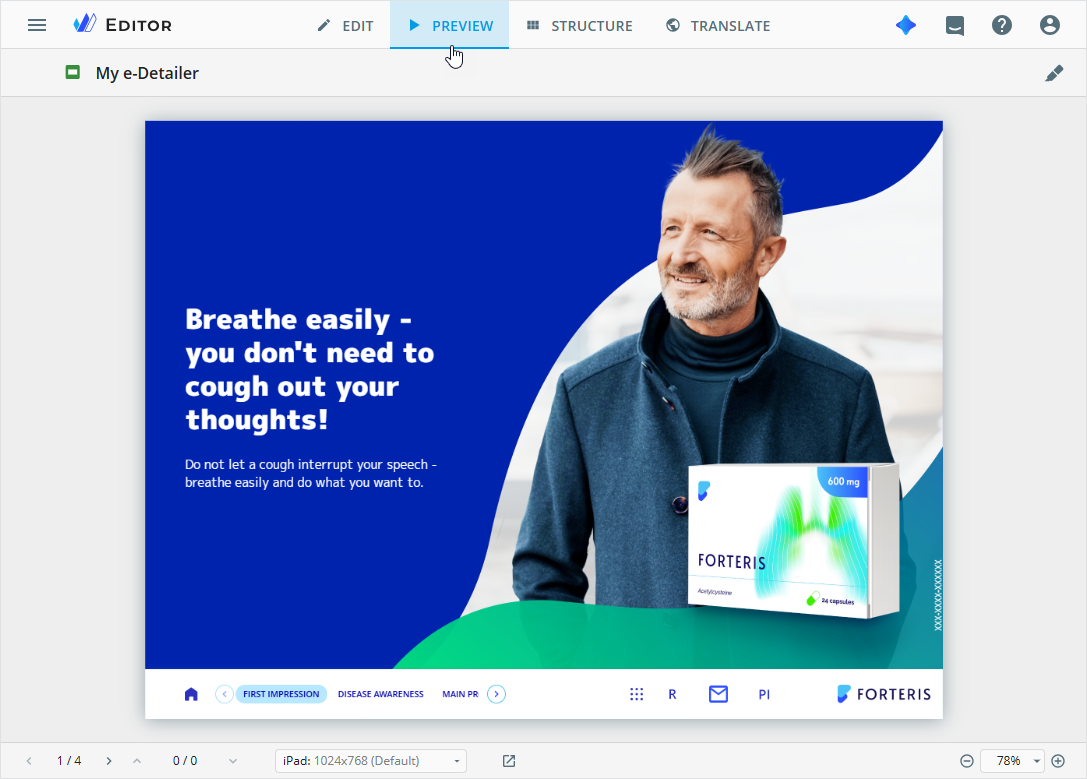
Here, you can apply the following controls:
| Control | Action |
|---|---|
 / /  , ,  / /  | Navigate between the content item slides and subslides. |
 | Select a target device with the indicated screen resolution to see how the e-Detailer, e-Detailer brief, or portfolio e-Detailer displays on that device. Content items display as follows: • Stretched layouts expand to fill the screen of the selected device. • Unstretched layouts preserve their original template settings. You can also validate content in Viewer. Note: Contact the administrator to add the required devices to the list. |
 | Open the live preview of the latest content item version in a new browser tab. |
 | Adjust the layout using zoom controls, or select Adaptive view, Full size, Fit to screen, Fit to width from the zoom list. e-Detailers, their briefs, and portfolio e-Detailers scale as follows: • Stretched layouts—resize proportionally to fill the screen of the selected device. • Unstretched layouts—automatically fit the screen proportionally, while zooming adjusts the view. |
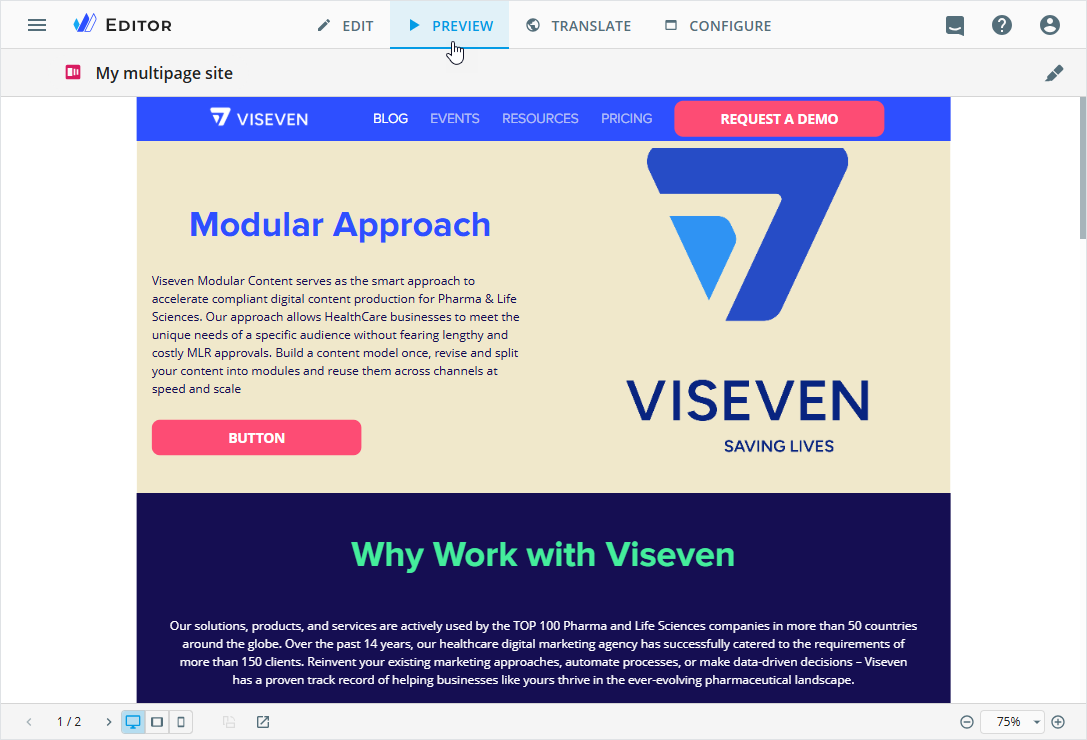


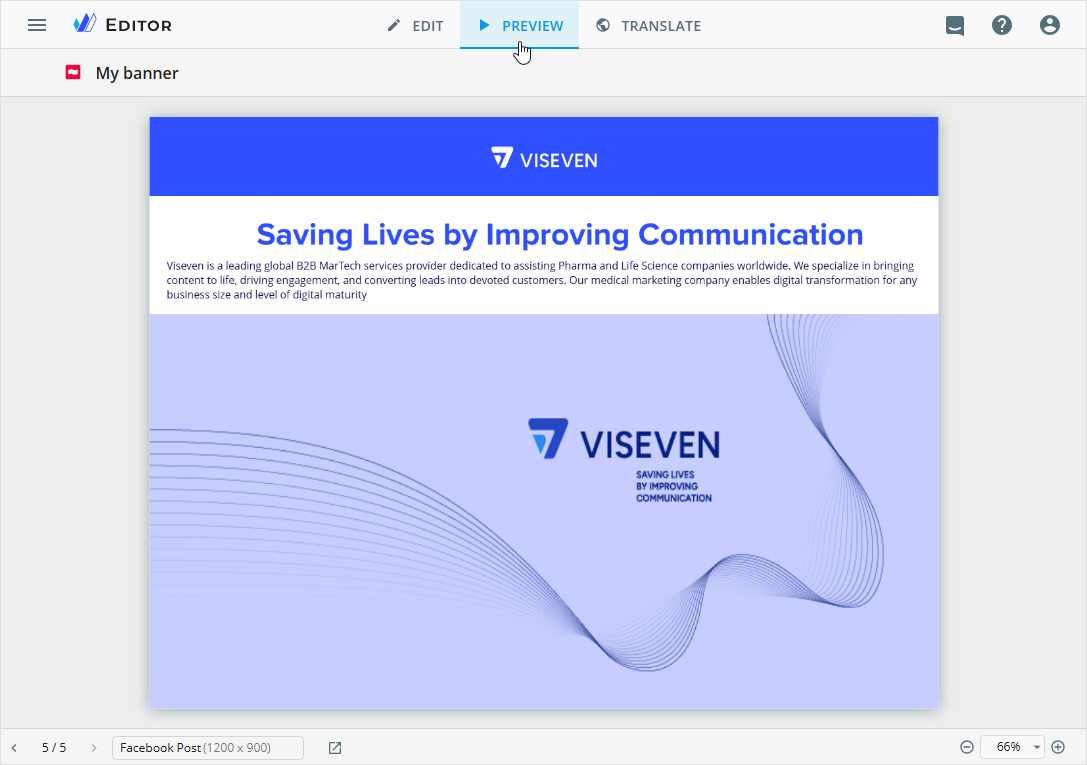

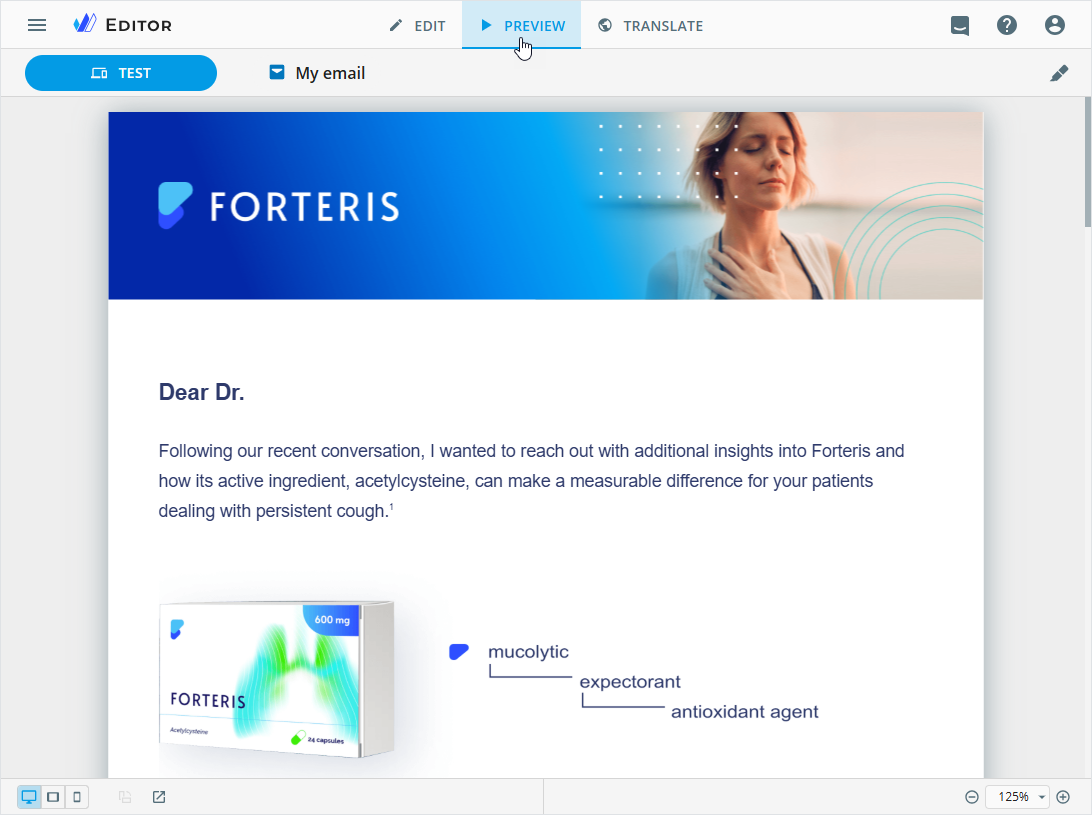
Module highlight in Preview
In the PREVIEW mode, you can check all changes applied to the modules added to your content item. For this, click  in the upper-right corner of the quick access toolbar.
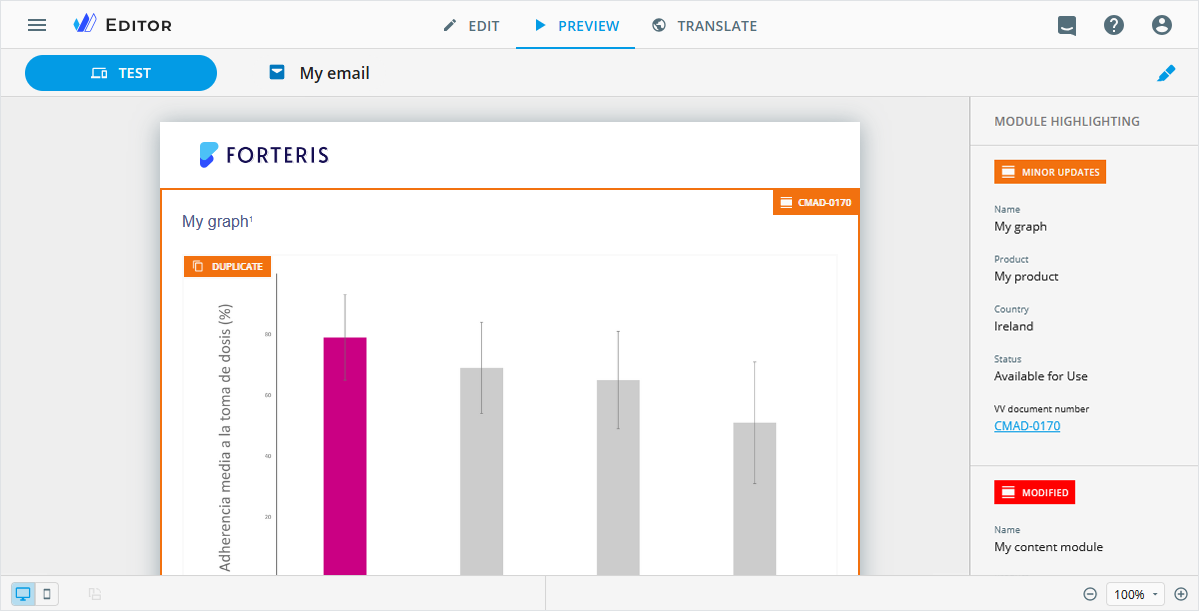
On the MODULE HIGHLIGHTING sidebar, you can find the module modification statuses and other metadata. The component highlights are displayed on the layout.
Contact your administrator to configure the name and color of the modification status and set the module metadata displayed in the MODULE HIGHLIGHTING sidebar.
To view the changes in a specific module, scroll through the MODULE HIGHLIGHTING sidebar and select the required module. It automatically fits into the central area of the layout.
e-Detailers
When navigating between e-Detailer slides, activate the Highlight option for each slide.
To go to other Editor modes, click EDIT, STRUCTURE, and TRANSLATE on the modes panel.