Appearance
August 2024
Comment sync in eWizard Planner
Configuration required
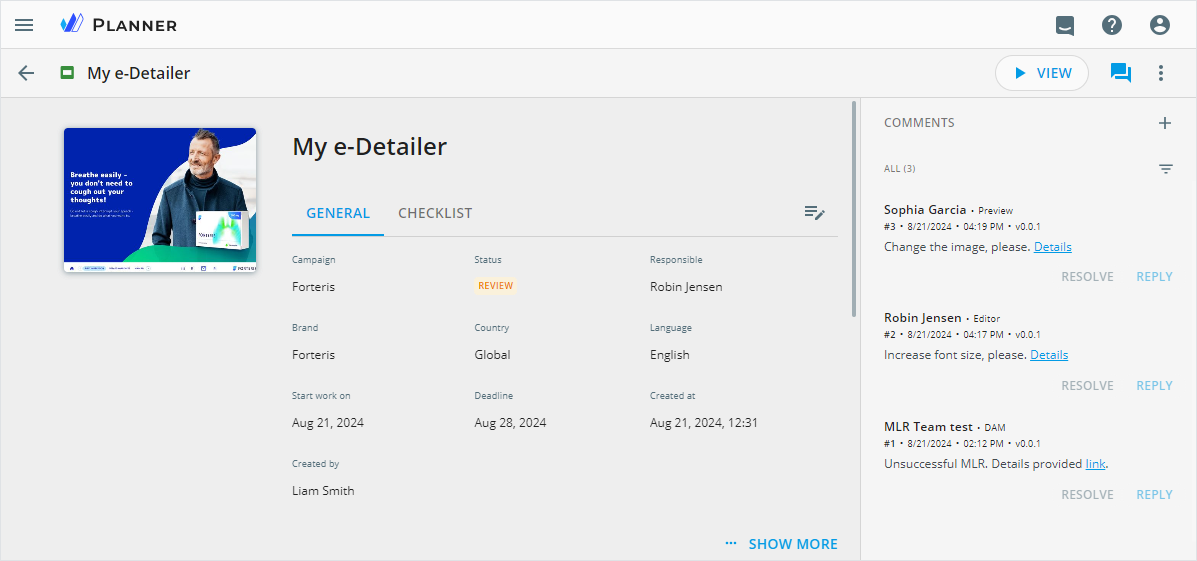
Meet enhanced comment synchronization between Veeva Vault PromoMats and eWizard Planner, Editor, and Viewer. The comment consistency streamlines collaboration on content development and MLR approval. In Planner, you can find both the PDF document link and the eWizard service of the comment source on the content item Details page.
Event tagging
Configuration required
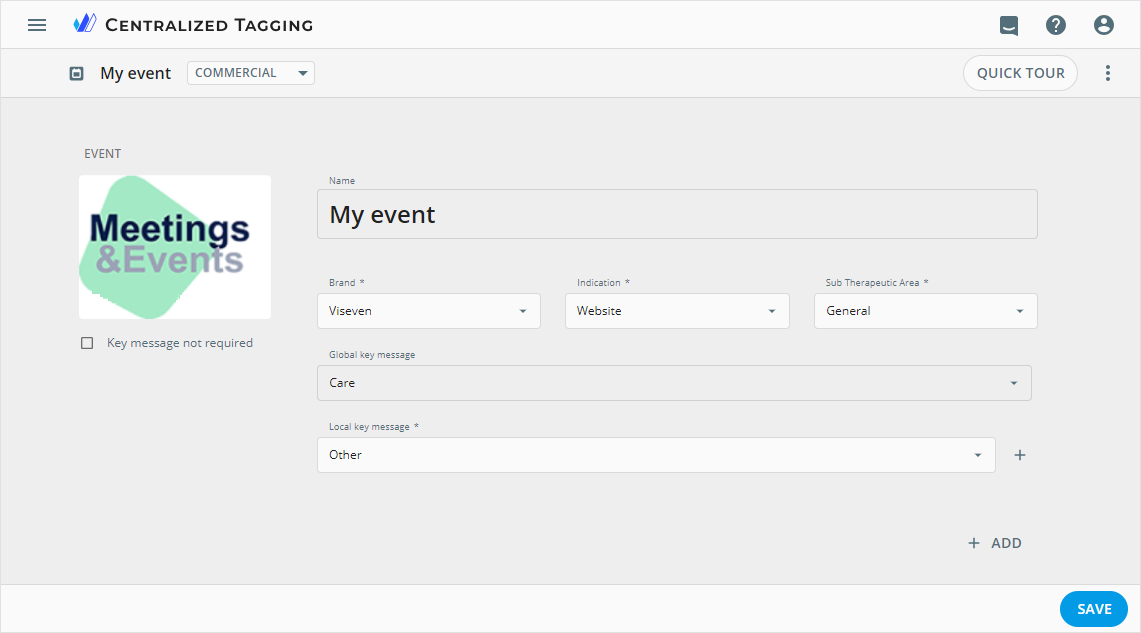
In eWizard, you can now tag events created within the ON24 platform to streamline their search, management, organization, classification, and analysis. Centralized tagging ensures the inheritance of event metadata tags across multiple placeholders in Veeva Vault PromoMats.
e-Detailer content zooming
Configuration required
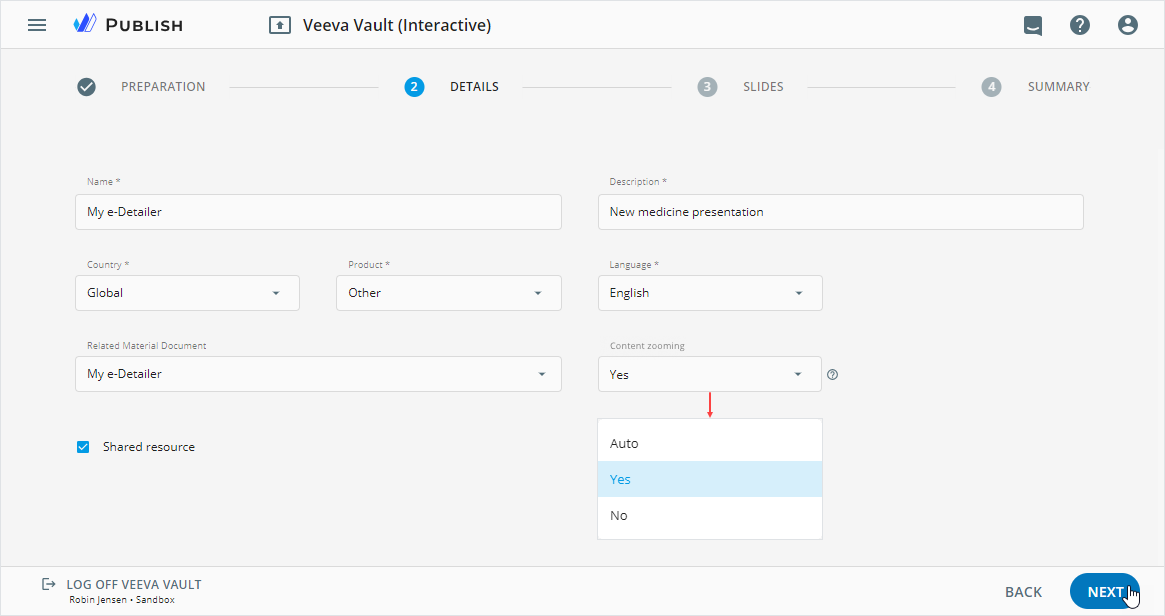
You can now configure pinch-to-zoom gestures to scale your e-Detailers on target devices in Veeva CRM with the Content zooming option. This functionality is available when:
Exporting e-Detailers to formats compatible with Veeva Vault PromoMats and Veeva CRM.
Publishing e-Detailers to Veeva Vault PromoMats as interactive on the
DETAILSstep.
Improvements
Editor
Select several content elements—blocks, placeholders, or components—on the content item layout or the Tree tab to move, delete, or duplicate them. Available also for inner elements of the compound components like carousel, form container, and others.
Upon the latest banner enhancements, you can now do the following:
- Select several sizes when creating banners in Library and Planner.
- Add empty and template-based banners in eWizard Editor.
- Preview the banner thumbnail, duplicate, rename, and delete it on the Navigation tab.
- Copy and paste several banner components to the layouts within multisize banners in eWizard Editor.
- View and navigate between different banner sizes in Viewer.
- Export multisize banners as separate files for the PNG or JPEG format and as a single file for the PDF format.
Viewer
In eWizard, along with the e-Detailer, you can now approve slides and documents added within the Related Shared Resource section on the RELATIONSHIPS tab in Veeva Vault PromoMats.
Centralized tagging
In eWizard, you can now add and edit links to AEM websites in the
Paste your website linkpopup.To optimize access to AEM website tagging, we implemented request queuing. You're notified if your request is being processed.
Publisher
You can now send the landing page to SFDC along with added assets of up to 2 GB each. Upon republishing, all previously published files are automatically deleted from SFDC.
Planner—Veeva Vault PromoMats
Comments added to the document in Veeva Vault PromoMats are synced with the related Planner task and ZIP archive containing the InDesign package. Available for documents if the MLR approval process is unsuccessful. Find the link to the PDF document on the content item Details page, in eWizard Editor and Viewer.
Administrator panel
From this version on, the administrator can do the following configurations.
In the
USER MANAGEMENT→PUBLISH MANAGER→Publishsection, configure theallowAutoscalingobject to customize theContent zoomingoption. Applicable to e-Detailers on theDETAILSstep of their publishing to Veeva Vault as interactive. Available also in theExportsection for e-Detailers transformed into formats compatible with Veeva Vault PromoMats and Veeva CRM.In the
USER MANAGEMENT→SYSTEM→Content approval settings→Veeva Vaultsection, configure theedetailerobject to trigger the approval process for the interactive document, its slides, and related shared resources in Veeva Vault PromoMats.Configure the dependency between the selected system metadata values and the set of custom metadata fields in the
Create new,Edit details, andMake a copypopups of eWizard Planner.Turn on/off the
View navigation tab,Duplicate slide,Rename slide,Delete slide,Add slides from templates, andAdd blank slidespermissions for banners in theUSER MANAGEMENT→Permission sets→UP EDITOR→Contentsection.