Appearance
October 2024
MLR Acceleration in Editor
Configuration required
Launch the enhanced MLR Acceleration not only from eWizard Library and Viewer, but also from Editor. With the new flow, you can assess your content, manage the validation results, and fix detected issues during the content item customization.
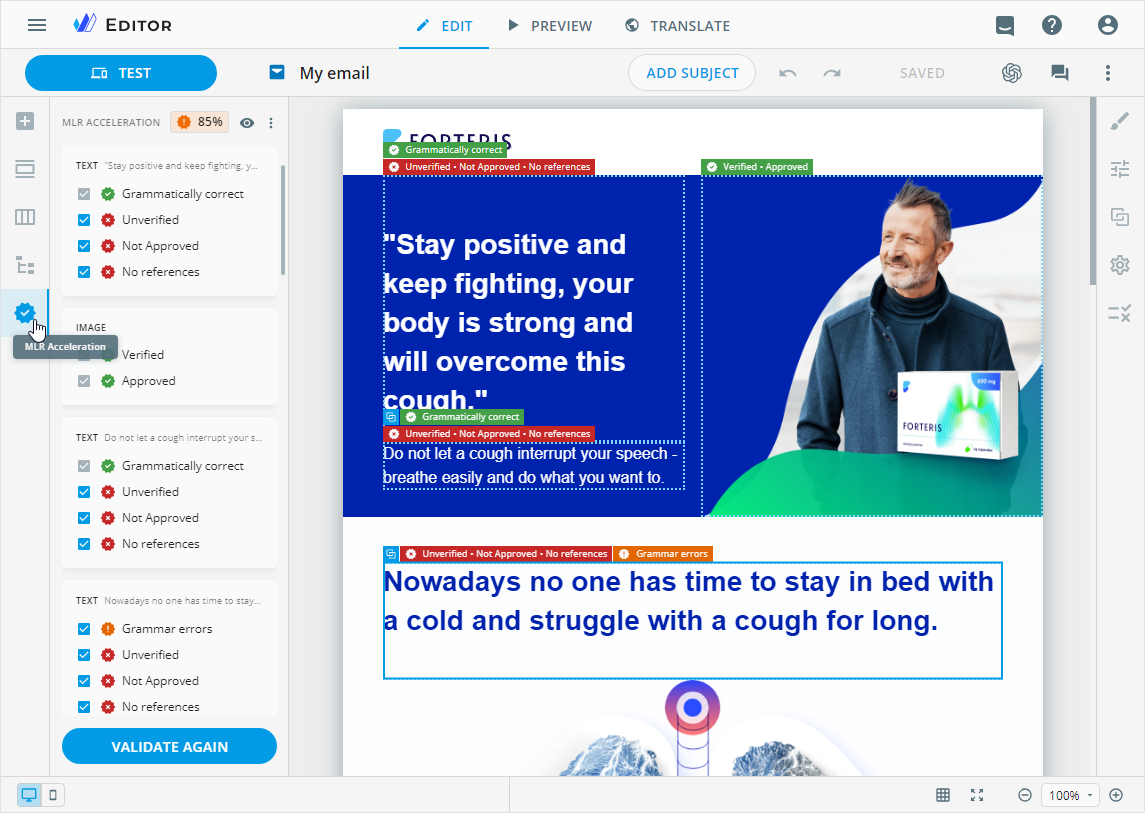
The upgraded MLR Acceleration engine can now analyze the text and image components of your content items, Veeva text assets (claims, reusable texts), and modules, when configured, to predict the likelihood of MLR approval and suggest ways to address potential issues.
The MLR Acceleration score also impacts eWizard Publisher. When publishing a validated content item with less than 80% success, Veeva target system options become unavailable for selection.
AI-suggested tags
Configuration required
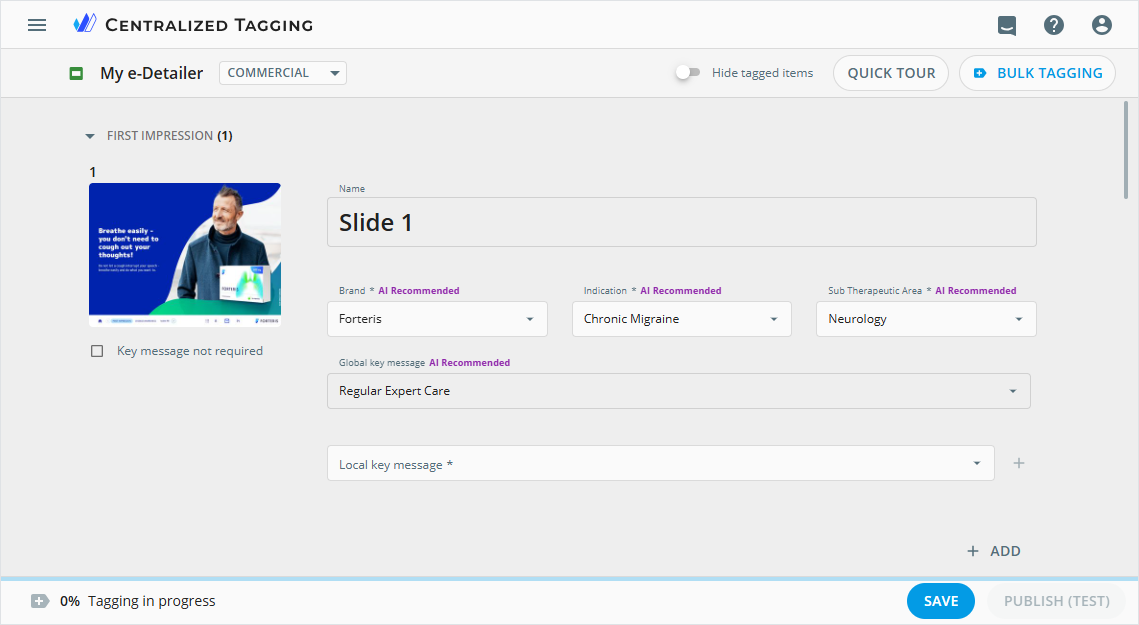
Meet AI-driven automatic population of metadata tagging fields in e-Detailers and emails within eWizard Centralized tagging. The AI tagging engine can also hide key message tagging fields that aren't required. Using AI trained on your business data streamlines the tagging process, reduces manual tagging time, and ensures consistency across tagged content items. You can change any inaccurate AI-populated tags.
Improvements
Editor
View and select the available match text variations of the linked claim on the Properties tab or in the claim details popup. You can also view the linked claim and its details on the
Veeva text assetstab.On the Styling tab, select the
Lock for email displaycheckbox to capture the block, placeholder, or component as an image, ensuring your design is protected from rendering issues across all email clients. Available in emails, email briefs, and fragments.You can now customize email fragments separately for the desktop and mobile versions.
Planner
In the Campaign planning and Operations & delivery widgets:
When copying the content item, select the
Include content from all tabscheckbox to duplicate files and links from the LAYOUTS, ASSET COMPONENTS, ATTACHMENTS, and URL LINKS tabs of the original content item to its copy.The status of the ZIP archive with the InDesign package in Veeva Vault PromoMats is synced with the status of the assignment it's linked to in eWizard Planner.
The content item owner and responsible person receive an email notification when the start work date of the content item approaches.
Administrator panel
From this version on, the administrator can do the following configurations.
Set up the enhanced MLR Acceleration feature:
Turn on/off the
View MLR Acceleration Engine scorepermission in theUSER MANAGEMENT→Permission sets→SERVICESsection.Customize the
MLR Accelerationtab display in Editor for different content items separately in theUSER MANAGEMENT→Permission sets→UP EDITORsection.In the
USER MANAGEMENT→PUBLISH MANAGER→Publish→Veeva Vault PDF Settingssection for each content item type separately:Configure the
mlrValidationobject to turn on/off the MLR Acceleration feature when publishing to Veeva Vault PromoMats as PDF.Configure the
includeMlrResultsandincludeCleanVersionobjects to control the visibility of theInclude MLR resultsandInclude clean versioncheckboxes on the PublisherPREPARATIONstep. For both options, the administrator can specify the default state of these checkboxes.
In the
USER MANAGEMENT→SYSTEM→User interfacesection:Customize the
Support textandSupport linkvalues for the eWizard authorization page in theBrandingsection.Set the
contact_supportandsupport_linkkeys for the Publisher authorization popup in the required service within theUP brandingsection.
Configure the
copyItemsFlowobject to show/hide theInclude content from all tabscheckbox in theMake a copypopup for Planner content items.Specify the Veeva Vault PromoMats statuses in the
mlrStatusesToCopyLayoutarray for which ZIP archives with InDesign package are copied. Applicable to Planner content items when theInclude content from all tabscheckbox is selected in theMake a copypopup.Set the
useMatchTextVariationskey to turn on/off the selection of match text variations in the claim linked to the text fragment on thePropertiestab. Available in theEditor administrationpanel →Digital assetssection →VEEVA VAULTtab.Adjust the
upcoming_scope_notificationobject to send email reminders about an upcoming start date for a Planner content item.Turn on/off the following permissions:
Auto-taggingin theUSER MANAGEMENT→Permission sets→SERVICES→Taggingsection.Lock for email displayto show/hide the respective checkbox on theStylingtab. Available for emails, their briefs and fragments in theUSER MANAGEMENT→Permission sets→UP EDITOR→Components,Blocks, andPlaceholderssections.