Appearance
July 2024
MLR Acceleration in eWizard
Configuration required
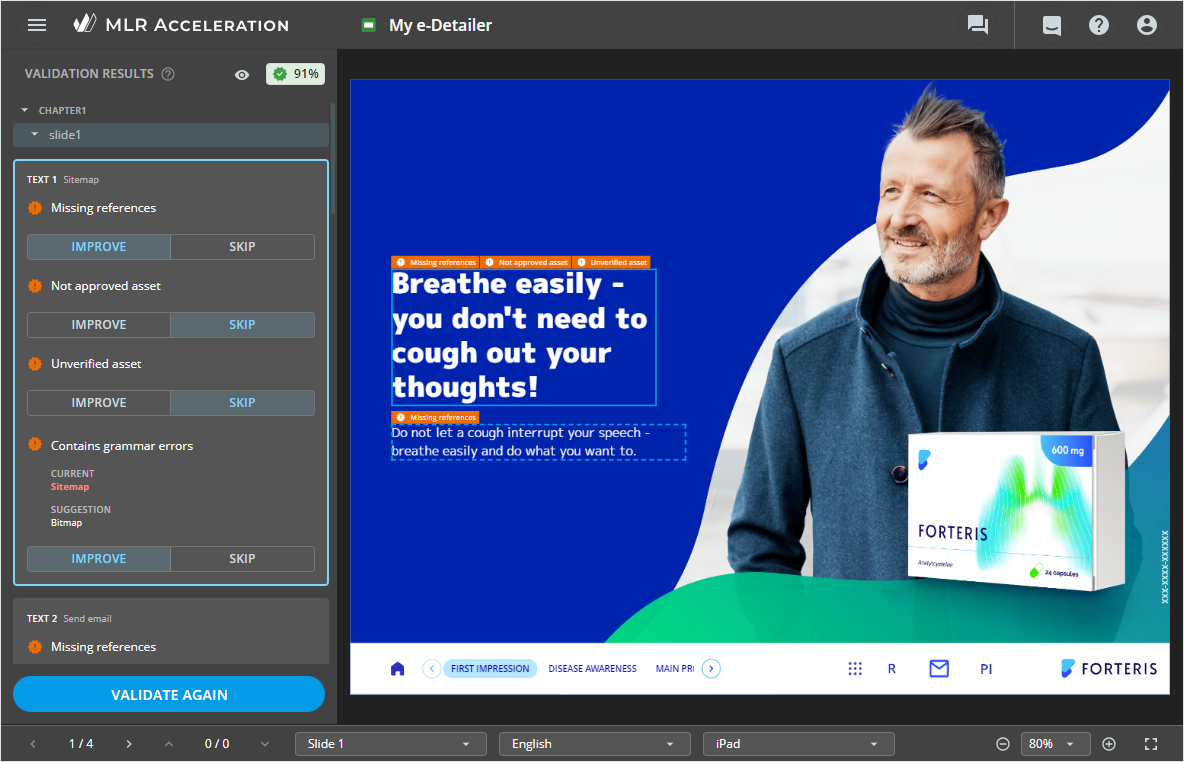
Streamline your content approval process with MLR Acceleration introduced in eWizard. You can now validate your content item to automate and reduce the time required for medical, legal, and regulatory approval in Veeva Vault PromoMats.
With the MLR Acceleration engine, text-based components are analyzed according to the predefined set of rules, building predictions of approval probability levels. After the validation, you can view the detected issues, their details, suggestions for improvement, and manage the results.
Linking shared fragments to fragment components
Configuration required
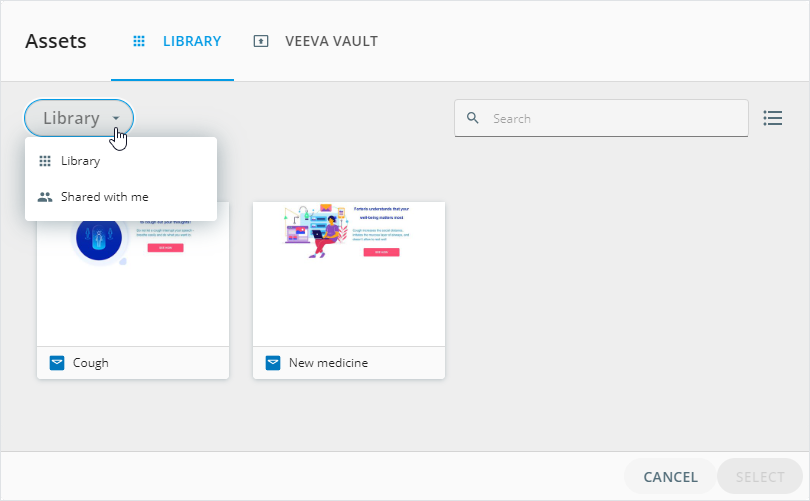
Use the FRAGMENT component in eWizard Editor to add fragments from the Shared with me Library space to your emails and email briefs. Upon the publication of the email with linked shared fragments to Veeva Vault PromoMats, you can:
Approve this email in eWizard.
Find the linked shared fragments as separate documents and as fragments of the published email within the
Related Email Fragmentssection on theRELATIONSHIPSpage in Veeva Vault PromoMats.
Content access control in Planner
Configuration required
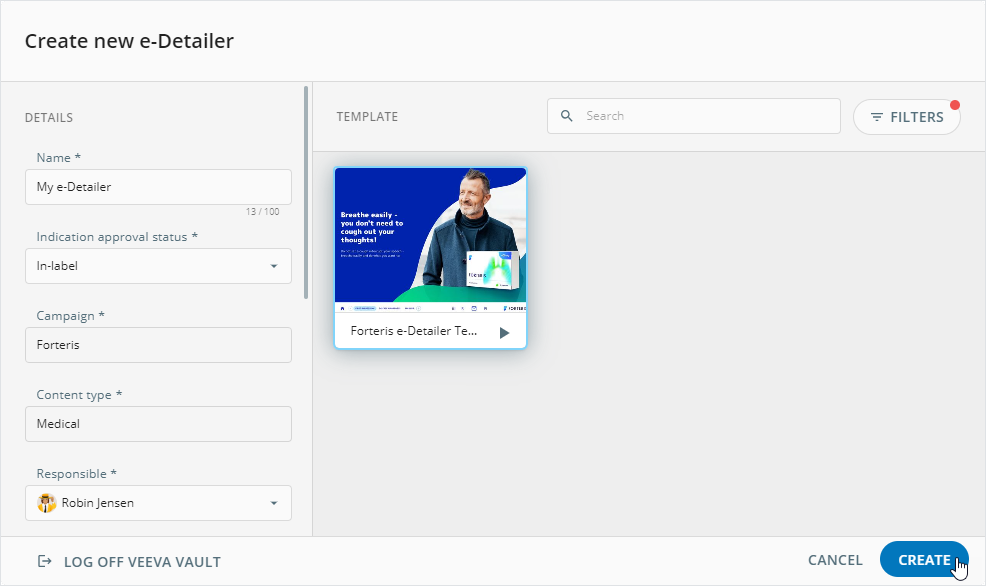
In eWizard Planner, you can now manage access to entries presenting products and services pending the approval for general use and promotion by regulatory authorities. When creating an entry or editing its details, specify the required content type and indication approval status metadata. The value selected in the Indication approval status field limits the list of responsible users you can assign to the content item or checklist task and Planner users who have access to the content item.
Improvements
Modular approach
Implemented module asset sorting during publication to Veeva Vault PromoMats as interactive. On the ASSETS step, all module assets are split into the MODIFIED, NOT MODIFIED, and NEW sections based on the changes made in Editor.
Editor
Now, you can customize images separately for the desktop and mobile versions of your content items with the
Show in DesktopandShow in Mobilecheckboxes on the Properties tab. Available for emails and their briefs, websites, landing page briefs, and messenger ads.Use the color picker to set an image as the background for placeholders, blocks, and components in emails, their fragments, and briefs. You can also set
ALTERNATIVE COLOR BACKGROUNDfor email clients that don't support background images. Setting different images as the background for the desktop and mobile versions of your content item is also available.When editing content items, you can also browse for Library assets from the Shared with me space.
You can automatically translate your e-Detailer, email, and website content with the XTM translation management system integrated with eWizard.
Publisher
To Veeva Vault PromoMats as interactive:
When publishing a rep-triggered email, metadata fields of the linked fragments are automatically populated with values inherited from the related PDF documents approved in Veeva Vault PromoMats. Configured for the
FRAGMENTSpublication step.Metadata fields of a modified module copy are automatically populated with values inherited from the parent module in Veeva Vault PromoMats. Configured for the
DETAILSpublication step.
Planner
In the Campaign planning and Operations & delivery widgets:
You can create online and offline assets to promote your products and services.
You can create template-based offline assets, customize them in eWizard Editor, and preview offline assets in eWizard Viewer.
Administrator panel
From this version on, the administrator can do the following configurations.
In the
USER MANAGEMENT→PUBLISH MANAGERsection, configure the "inherits_from_parent_module" key to turn on/off the metadata inheritance for a modified module copy published to Veeva Vault PromoMats.Configure the
firewallarray to turn on/off the content items control in Planner.Adjust the
providerkey in thecontentTranslateobject to customize the third-party translation management system.Turn on/off the following permissions:
View MLR Acceleration Engine resultsandRun validation and edit MLR Acceleration Engine resultsin theUSER MANAGEMENT→Permission sets→SERVICESsection.View imagein theUSER MANAGEMENT→Permission sets→UP EDITOR→Color Pickersection. Available for emails, email fragments and briefs.View Shared with me tabin theUSER MANAGEMENT→Permission Sets→UP EDITOR→Digital Assets popupsection.