Appearance
AI text generator
The AI generator feature in eWizard Editor allows you to generate text variants in a wide range of topics for text-based components like text, title, button, table and others.
To use AI generator in eWizard Editor, contact your administrator.
The functionality of AI generator is incorporated into eVa AI. However, only one can be configured for use in Editor.
You can generate possible text variants for customizing your item content in the following way:
Click the
AI generatorbutton.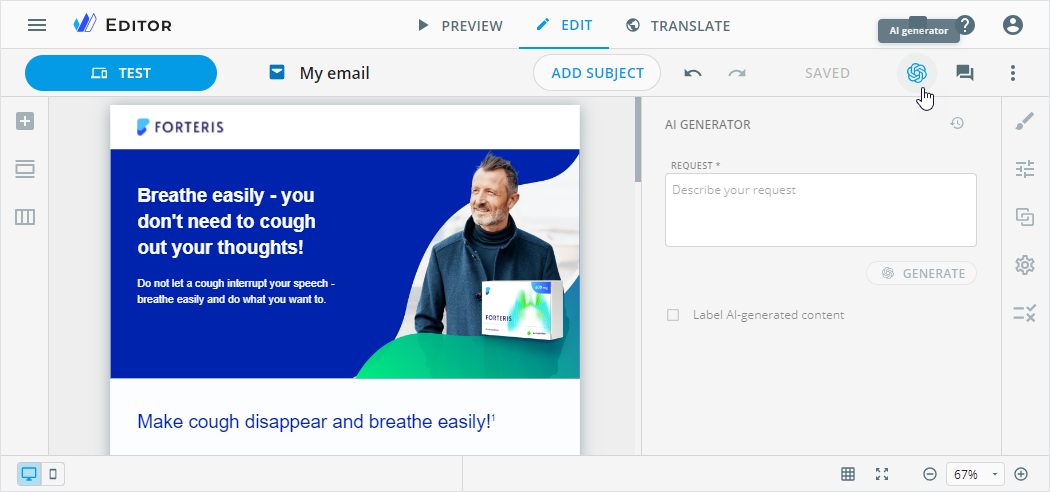
Enter your prompt to process by AI in the
REQUESTfield.Click the
GENERATEbutton or hit Enter on your keyboard.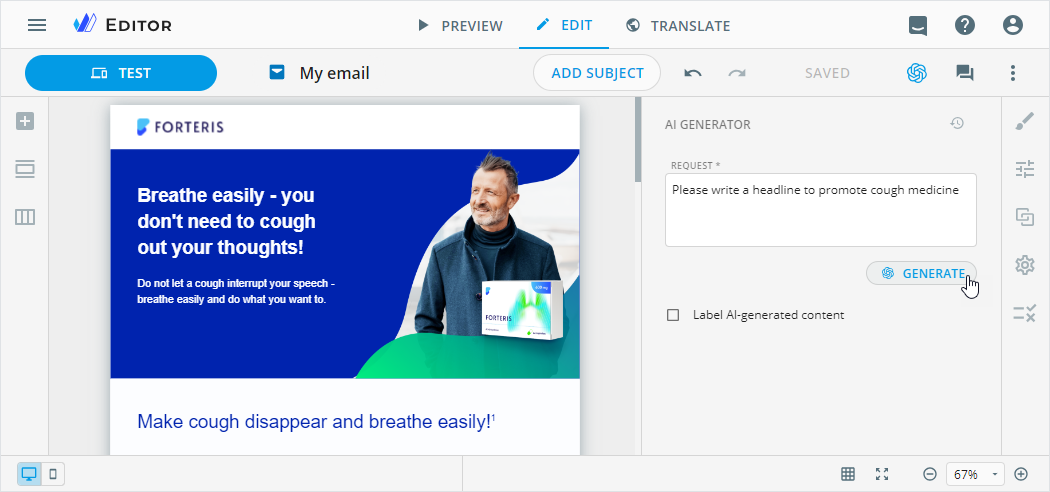
As a result:
the text suggestions from AI generator appear in the
GENERATED VARIANTSsection [1].the
Label AI-generated contentcheckbox becomes selected [2], and a matching disclaimer is added at the bottom of your content item layout [3].
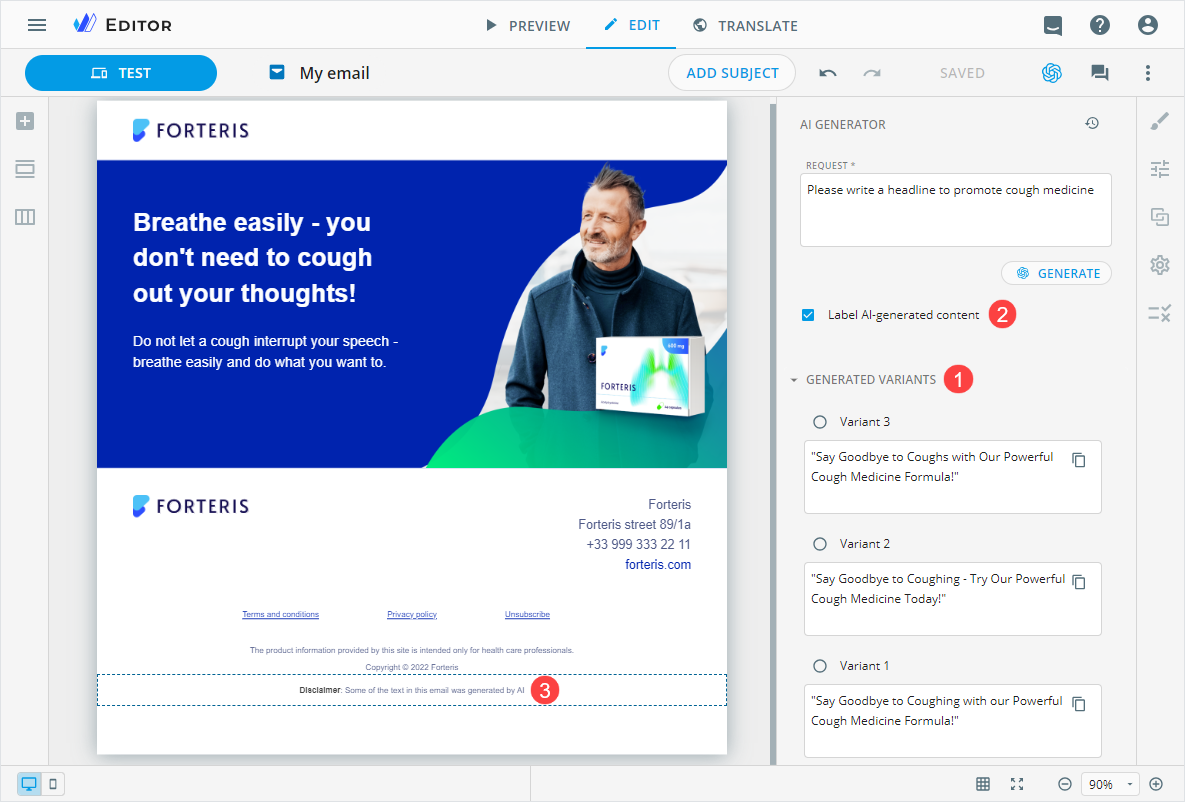
You can modify the disclaimer as a text component and change its styling to match your requirements.
e-Detailers and their briefs
The disclaimer text box appears only on the slide that contains the AI-generated text. You can find it as a text component on the Tree tab.
If none of the AI-generated suggestions match your requirements, click GENERATE MORE to get more variants to your request.
To apply an AI-generated variant to your text-based component:
Select this component on the content item layout.
On the
AI GENERATORsidebar, select the radio button of the suggested variant card to add the AI-generated text onto the content item layout.
You can also copy the AI-generated variant text from its card and paste it into the selected component.
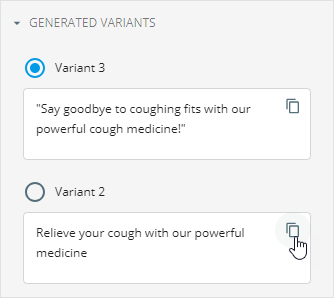
eWizard Editor allows you to edit the AI-generated variants on their cards or on the content item layout.
To view the request history, click  .
.
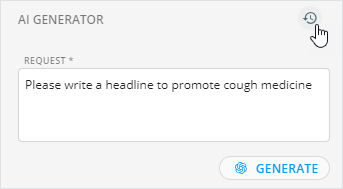
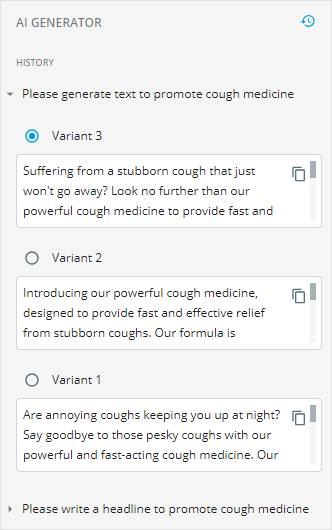
As a result, you can view all requests you made to the AI generator. Collapse or expand each request to apply the selected variant.