Appearance
December 2023
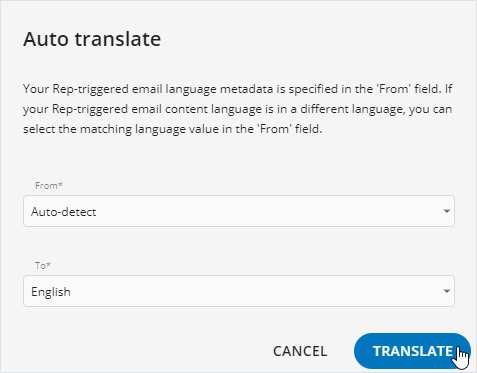
Language autodetection
When auto translating an item in Editor, select Auto-detect for eWizard to identify the content language and ensure the correct translation result.
e-Detailer metadata sync in external systems with eWizard
Configuration required
Experience automatic synchronization of e-Detailer metadata between Veeva Vault and SFDC in eWizard. You can apply the Create in eWizard or Convert in eWizard options to the PDF document in Veeva Vault and publish the resulting item to SFDC.
In eWizard Publisher, activate sync between Veeva Vault and SFDC with the respective checkbox.
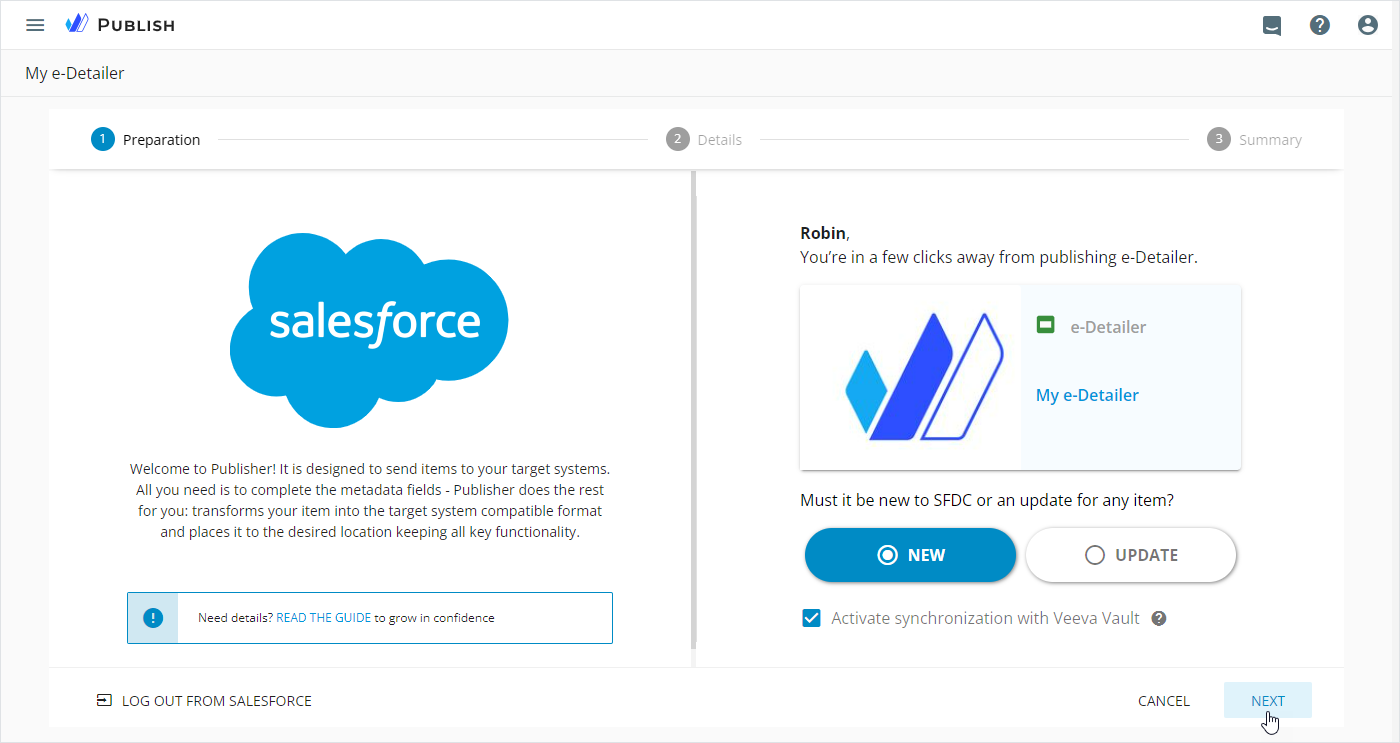
After the target system sync, your e-Detailer updates the metadata in SFDC that matches the values assigned in Veeva Vault.
Slide reuse in e-Detailers
Configuration required
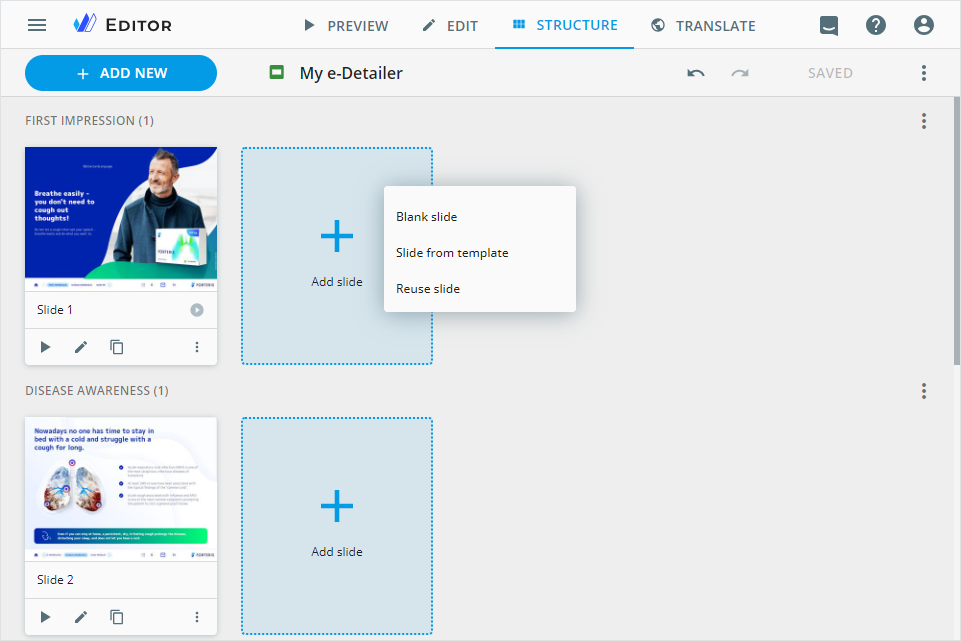
The Reuse slide feature allows you to add slides from other e-Detailers of the same brand. The added reused slides preserve all links, claims, references, and footnotes assigned to them in the source e-Detailer. You can add the reused slides with the + ADD NEW button on the quick access toolbar and the Add slide placeholder in the Editor STRUCTURE mode.
Modular approach
You can add blocks with preconfigured element types to modules. When publishing the item to Veeva Vault interactive, the element type is displayed in the Reusable text type field in Veeva Vault.
Improvements
Editor
Redesigned Editor interface with vertically placed controls on the elements and customization panels to enhance user experience.
Now, you can use the table component to organize your content in e-Detailers, websites, and messenger ads. Add text to tables in all item types; include images and buttons in tables for websites and messenger ads. You can also customize the styling of cells, rows, and columns for desktop and mobile views.
When styling text in eWizard Editor, the changes apply to claims added from NaviGate or Veeva Vault with the Assets popup.
Set the website layout width on the Settings tab.
The default website preview fits the screen.
Open the external PDF files in eWizard Viewer and use all the features available there.
Publisher
To Salesforce Marketing Cloud: After the email publication, view eWizard tokens automatically replaced with matching values.
NaviGate
Improved the calendar picklist in NaviGate.
Administrator panel
From this version on, the administrator can do the following configurations.
In the
USER MANAGEMENT→SYSTEMsection:Configure the
mappingobject to filter templates in theCreate newpopup by metadata assigned to the Veeva Vault PDF document in theContent settings→Veeva Vaultsection.Set the regular expression
Valueand turn on/off theRegexpcheckbox for Veeva Vault merge tags. Available in theMerge Tags and Links→Listsection.Configure the
syncFieldsobject for metadata in theVeeva Vault—Salesforce sync settings→e-Detailerssection.
In the
USER MANAGEMENT→WORKFLOWSsection:Customize Planner item workflow depending on its type and metadata in the
Manage workflows→Workflowssection.Set up responsible user filtering by brand, market, role for MLR workflow in the
USER FILTERING & ROLE MAPPINGof theWorkflowssection.Customize text and background colors for active, inactive, approved, rejected, future status states of NaviGate channels and media in the
Statusessection.
In the
SYSTEM→Digital assetssection:Configure if eWizard Editor text styles automatically apply to claims added from NaviGate or Veeva Vault with the
Assetspopup.Set up the saving flow for the element type metadata.
Turn on/off the following permissions:
Add reused slidesfor e-Detailers and their briefs in theUSER MANAGEMENT→Permission sets→UP EDITORsection.
For Planner:
Customize metadata field display and their order on the entry Details page in the
fieldsobject.Configure data extraction from the customer database file to use as metadata field values.
Set the sync time for e-Detailer metadata between Veeva Vault and SFDC in Amazon Web Services.