Appearance
Assign users
eWizard content sharing enhances internal collaboration, productivity, and communication, contributing to more informed and efficient content reuse.
With the Assign users feature, you can share eWizard items and folders with your colleagues for collaboration. For this, you can grant your colleagues roles relating to the content item/folder.
The content item/folder shared in such a way becomes a project. As a result, your colleagues obtain certain permissions relating to the content item/folder. Further, they can work on this project in collaboration.
Content items and folders you're sharing differ in assignment features:
| Project | Assignment features |
|---|---|
| Content item | A selected user role can be assigned to an individual user, several users, or a user group. |
| Folder | Multiple user roles can be assigned to different users at the same time. |
To assign users to your project:
Unfold more options of the required content item/folder.
Click
Share➝Assign users.
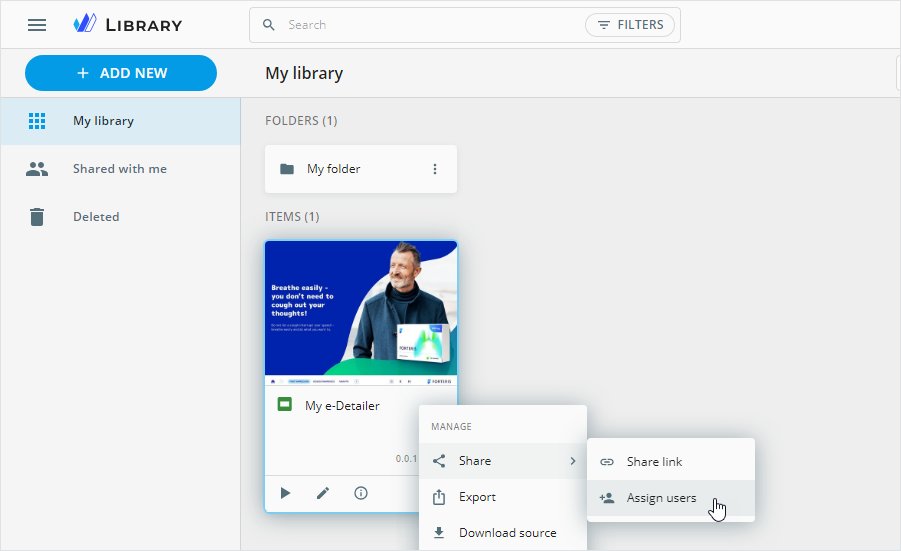
In the popup that appears:
Select the role you want to assign.
Enter user email (or several email addresses) or user group name you need to assign your project to.
Click
ASSIGN.
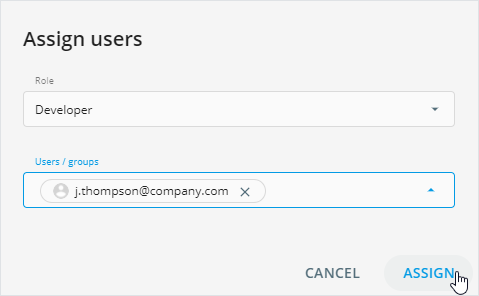
As a result, assigned collaborators receive an email notification about being added to this project and can find the given content item/folder in their Shared with me space in Library.
To remove the project from the Shared with me space, click Leave the project in its more options.
Find the item access rights and user roles on the Details page of the content item.
To check the folder access rights and user roles assigned:
Unfold its more options.
Select
Assign users.In the
Assign userspopup that appears, click to open the list of collaborators and view their roles in this project.
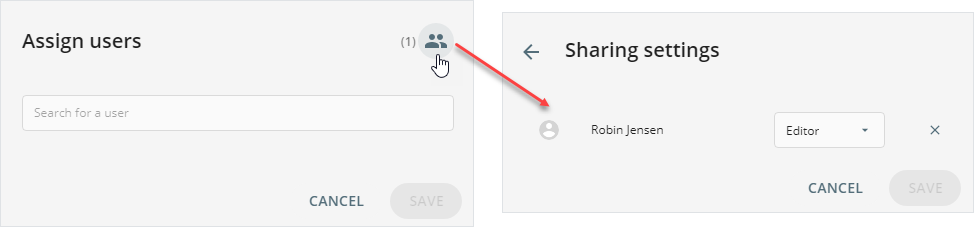
In the Sharing settings popup, you can also assign a different role to collaborators if required.
Owners and collaborators with appropriate permissions can add content items/folders or upload items to the shared folder. These newly added content items become available to all other collaborators according to their user roles.
If the owner deletes the shared folder or any content item within this folder, all collaborators lose their access.
The shared items and folders moved to other folders preserve their individual item and folder permissions.
All user roles in eWizard are customizable. Address your requests on the role–permission model in eWizard to eWizard Support.
Find the example of permissions applicable to user roles in the following table.
| Permission | Editor | Publisher | Viewer | Translator |
|---|---|---|---|---|
| View | + | + | + | + |
| Edit | + | + | ||
| Translate | + | + | ||
| View details | + | + | ||
| Share link | + | |||
| Assign users | ||||
| Download source | + | |||
| Upload new version | + | |||
| Publish | + | |||
| Deploy | + | |||
| Send test email | + | + | ||
| Edit details | + | + | + | |
| Make a copy | + | |||
| Leave the project | + | + | + | + |