Appearance
Bynder integration details
Bynder is a digital asset management (DAM) platform for centralized storage, management, and sharing of assets. It allows you to create, update, group, preview, and distribute assets. The platform also provides tools for version control, metadata tagging, and collaborative editing.
The eWizard—Bynder integration streamlines content creation, enhances team efficiency, and reduces operational costs. It is designed to work with files in PDF, PPT, and PPTX formats. With this integration, you can do the following:
Save PDF, PPT, and PPTX files from Bynder to eWizard as e-Detailers.
Manually upload the PDF, PPT, or PPTX versions of your eWizard content items to Bynder.
Add assets from Bynder to eWizard content items.
Track usage of the following in Veeva Vault PromoMats:
Document Informationpage. View the source Bynder file used to create the e-Detailer. This applies to PDF, PPT, and PPTX files saved as an e-Detailer in eWizard and published to Veeva Vault PromoMats.Relationshipspage. See the source document from Veeva Vault PromoMats and related media assets from Bynder. This is available for PDF, PPT, and PPTX files saved as an e-Detailer in eWizard, with Bynder assets added in eWizard, and then published to Veeva Vault PromoMats as PDF for approval.
Contact your administrator to configure the integration between eWizard and Bynder.
Prerequisites
The eWizard–Bynder integration streamlines your content management workflow by establishing a direct connection between files in Bynder and e-Detailers in eWizard. When a new PDF, PPT, or PPTX file is added to Bynder, it's automatically assigned a unique URL link in eWizard. Clicking this link from the file preview window in Bynder launches either the content item copy creation or the e-Detailer conversion flow in eWizard.
Moreover, the file uploaded to Bynder can originate from the e-Detailer previously published from eWizard to Veeva Vault PromoMats as PDF for approval. In this case, you can add the Veeva Vault document number to the PDF, PPT, or PPTX you're uploading to Bynder.
The Veeva Document Number metadata field can be populated automatically if you have the external synchronization between Veeva Vault PromoMats and Bynder configured in your environment.
External ID
If the Veeva Document Number value isn't a stable identifier in the Bynder file—eWizard e-Detailer connection for your ecosystem, the linkage can instead be established using the External ID metadata value. Unlike Veeva Document Number, the External ID value remains consistent and ensures accurate relationship mapping.
Contact eWizard Support to configure the linkage of the Bynder file—eWizard e-Detailer connection through External ID.
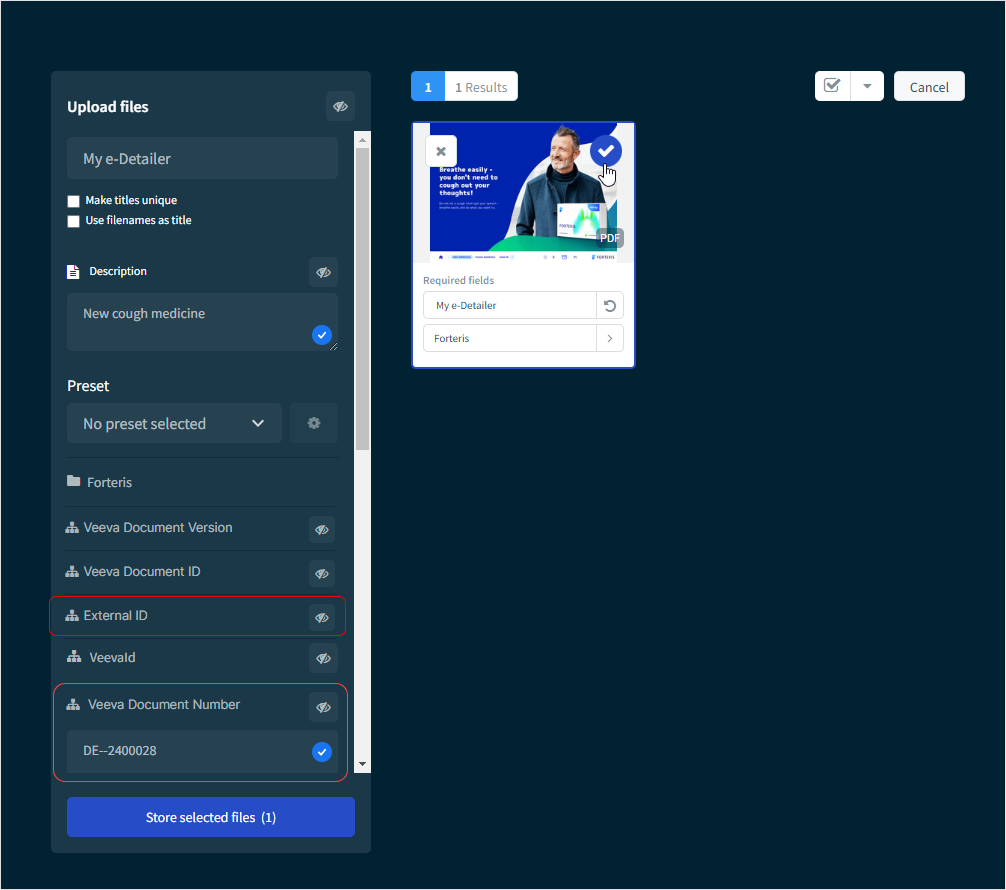
The state of the Veeva Document Number / External ID metadata field determines how a file from Bynder is saved as an e-Detailer in eWizard:
PDF files can follow either the conversion or creating copy flow.
PPT and PPTX files follow only the conversion flow.
Regardless of the method used, the result is the same: the e-Detailer appears in eWizard Library with a unique source Bynder file identifier. It's transferred to the resulting document upon publication to Veeva Vault PromoMats.
In Bynder, files appear as a result of either their manual upload or, if configured, after a sync of approved documents from Veeva Vault PromoMats.
Conversion flow
The conversion flow is applicable to PDF files from Bynder that aren't originated from eWizard and if the Veeva Document Number / External ID metadata field matches any of the following criteria:
The field is empty.
The field contains an incorrect document number / external ID from Veeva Vault PromoMats.
The field contains a document number / external ID from Veeva Vault PromoMats that's not linked to any content item in eWizard.
PPT and PPTX files from Bynder follow the conversion flow regardless of their origin or the value of the Veeva Document Number / External ID metadata field.
To initiate the conversion:
In Bynder, open the PDF, PPT, or PPTX file.
In the file preview window, click the eWizard link on the
Infotab.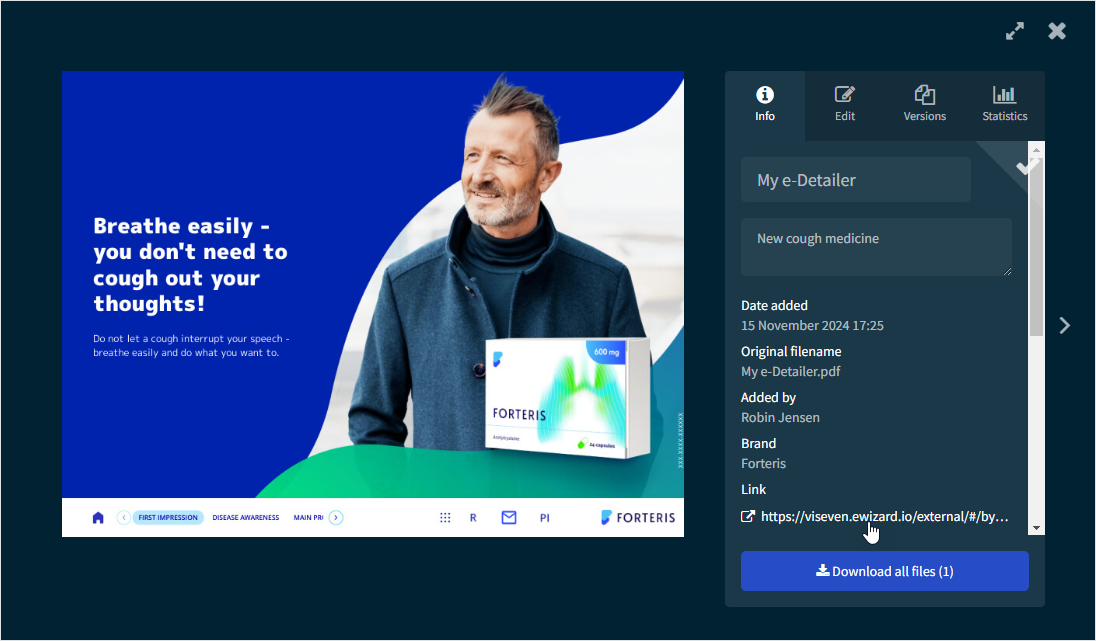
In the
Convertpopup, clickCONVERT.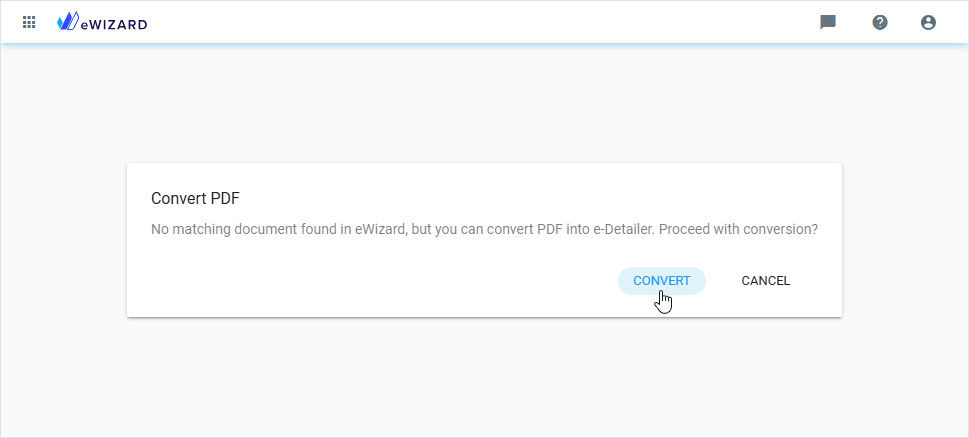
eWizard Converter opens on the
DETAILSstep. The metadata fields are automatically populated with values inherited from the source PDF, PPT, or PPTX file from Bynder. You can change the autopopulated values, if required.Proceed with the conversion process.
Please note that currently eWizard Converter transforms PDF, PPT, and PPTX files into
e-Detailers, but not emails. You can convert any Bynder PDF, PPT, or PPTX file into eWizard e-Detailer only.
As a result, find the newly converted e-Detailer and the PDF, PPT, or PPTX copy of the Bynder source file in your Library.
Creating copy flow
The copy creation flow works for any eWizard content item and isn't limited to e-Detailers like conversion. When the source content item already exists in eWizard and has its PDF material in Veeva Vault PromoMats, a PDF file is created in Bynder with the already assigned Veeva document number / External ID. In this case, the PDF Bynder file is saved as the content item copy in eWizard.
If the PDF material appeared in Veeva Vault PromoMats before the eWizard–Bynder integration is configured in your eWizard environment, the copy creation flow doesn't start. Contact eWizard Support for assistance.
To start creating the content item copy:
In Bynder, open the PDF file.
In the PDF preview window, click the eWizard link on the
Infotab.In the
Create copypopup, clickCONTINUE.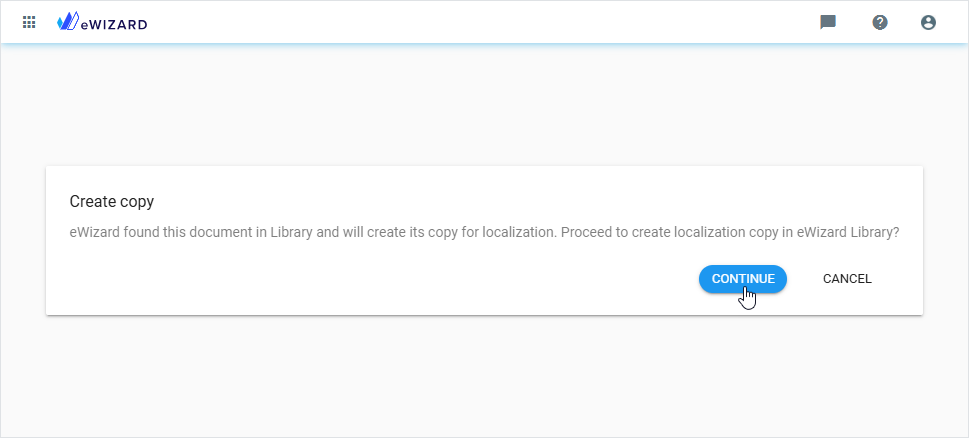
As a result, the created content item copy appears in eWizard Library, inheriting the name of its source from eWizard and the metadata from the related PDF Bynder file.
Content versioning
When creating the content item copy from a Bynder PDF file, eWizard identifies not only the original source content item but also the exact content version used for publication. By matching the Veeva document ID and version stored in Bynder, the system ensures you always copy the precise version that was used to generate the PDF—regardless of the original VVPM document version.
Additional scenarios
Saving a PDF, PPT, or PPTX file from Bynder as an e-Detailer in eWizard by different users
eWizard allows several users to make an e-Detailer copy of a PDF file from Bynder or convert PDF, PPT, or PPTX files into e-Detailers in eWizard Library.
Publishing the e-Detailer copy created from the PDF Bynder file to Veeva Vault PromoMats as PDF for approval
When you add media assets from Bynder to the e-Detailer copy and publish this copy to Veeva Vault PromoMats as PDF for approval, the linked source PDF document from Veeva Vault PromoMats and the media assets from Bynder are displayed on the
Relationshipspage in Veeva Vault PromoMats.