Appearance
PDF into e-Detailer
Once you upload the PDF source file from your device:
On the
PAGESstep, select the required pages for their conversion.By default, all pages of your PDF are selected for conversion. To convert specific pages, clear the
Select all pagescheckbox and select the required ones.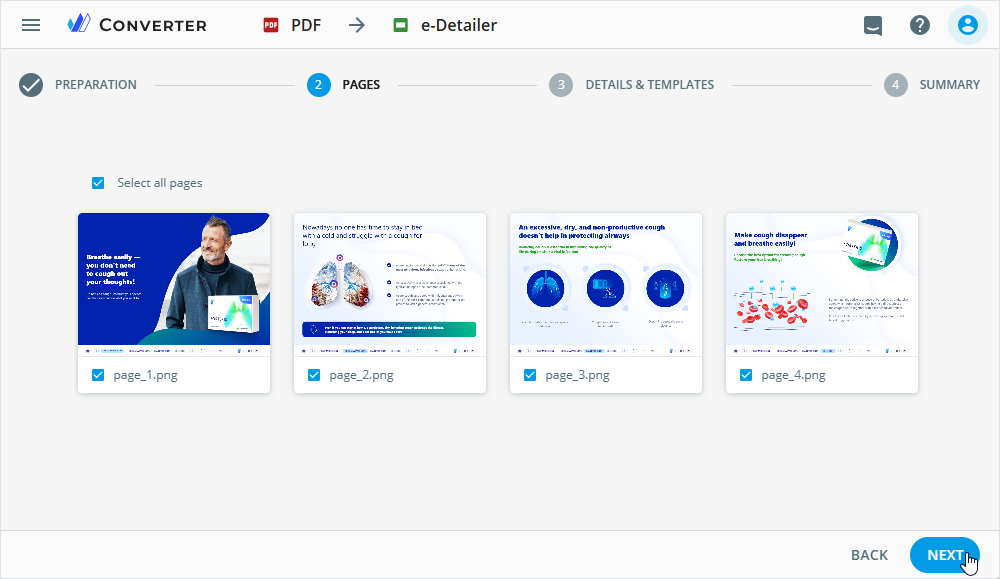
Click
NEXT.You're redirected to the
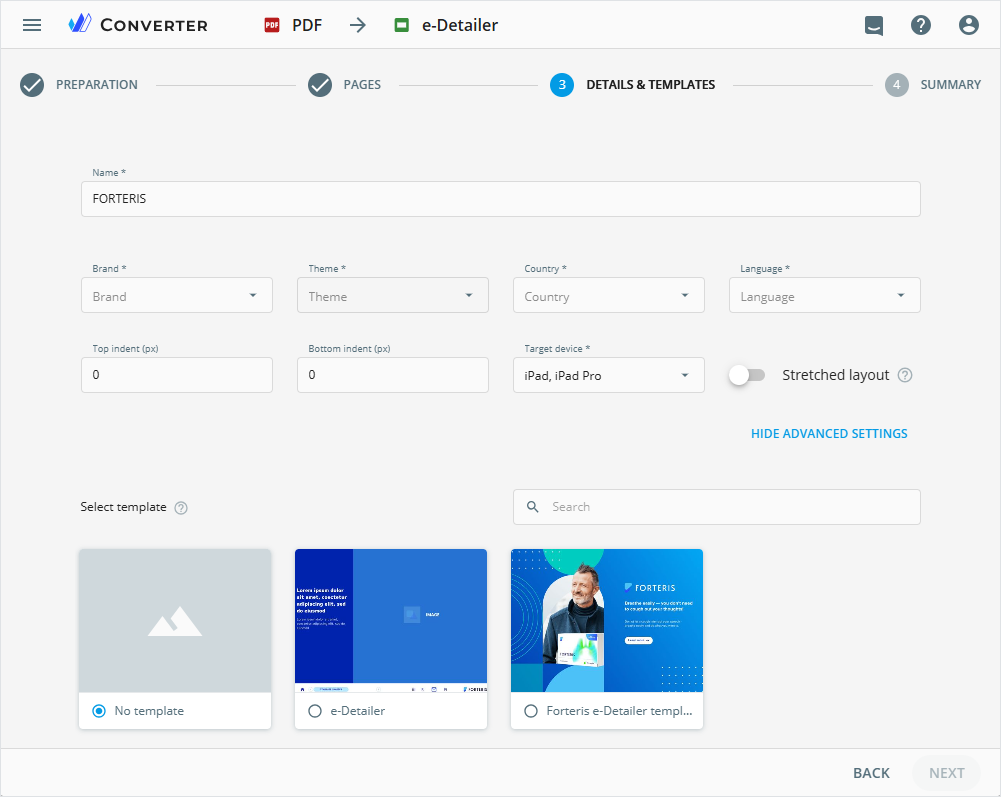
DETAILS & TEMPLATESstep, where you can:Select a template to proceed with the conversion. Depending on availability, the following scenarios apply:
No matching templates.
If no templates are available for your PDF pages,
No templateis selected by default. As a result, the default template with a dark background is applied. You can't change this in eWizard Editor later.Matching templates available.
If templates are available, you can select a template from the list or use the search box to find a specific one. After selection, metadata fields are automatically populated with the template values.
Click
SHOW ADVANCED SETTINGSto reveal all metadata fields. Here, you can manage the following fields and their values:Field Action Notes NameEnter a name of the converted e-Detailer. The field is prepopulated with the uploaded PDF file name. BrandSelect a brand for the converted e-Detailer. The behavior of the Brandfield depends on the selected template:
• When the selected template has only one brand, the field is prepopulated and can't be changed.
• When the selected template is dynamic—several brands are available—a default brand is preselected. You can select another brand from the dropdown list available for the template.
• WhenNo templateis selected, or if the template has no brands assigned, theBrandfield displays the full list of available brands.ThemeSelect a theme for the converted e-Detailer. The behavior of the Themefield depends on the selected brand and template:
• When themes are available for the brand, the default theme is automatically preselected in theThemefield. When several themes are available for the brand, you can select a theme from the dropdown list.
• When the selected template has no theme assigned, theThemefield remains empty and locked.CountrySelect a country for the converted e-Detailer.
• When a template is selected, the field is prepopulated with the assigned country. You can change the value. For this, select the required country from the dropdown list.
• WhenNo templateis selected, the field is empty, and you can select the required country from the dropdown list.LanguageSelect a language of the converted e-Detailer. The behavior of the Languagefield depends on the selected template and its assigned language metadata. You can change the preselected language. For this, select the required language from the dropdown list.Top indent/Bottom indentSet the indent values for the pages to convert. The sum of both field values mustn't exceed 767 pixels. Target deviceSelect target devices suitable for the converted e-Detailer. • When a template is selected, the Target devicefield automatically locks and is prepopulated with the template dimensions.
• WhenNo templateis selected, theTarget devicefield becomes a dropdown list with devices configured at the instance level.
• When no existing device matches the PDF size, theTarget devicefield is automatically set toCustom.The Stretched layout toggle inherits its state—on or off—from the selected template settings. You can change the toggle state if required.
Click
NEXT.On the
SUMMARYstep, check the conversion details and clickCONVERT.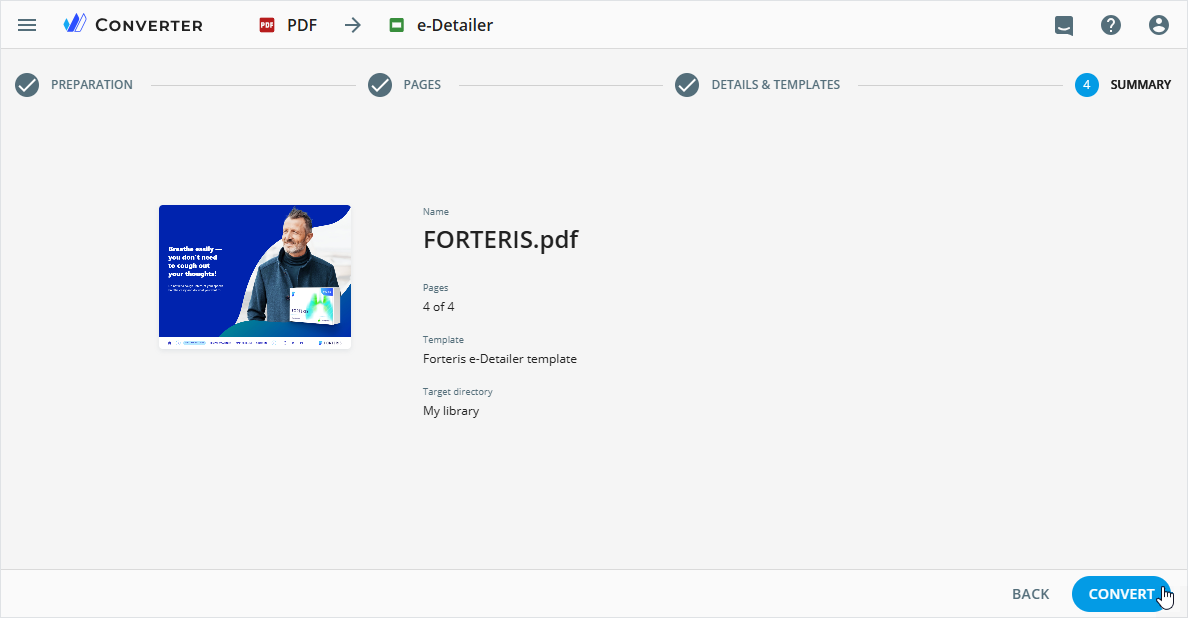
Once the e-Detailer is converted with the template applied, you can add all available template slides to its structure when editing.
PDF requirements for conversion
Keep the source presentation simple for the best results. Complex PDF elements can affect the conversion process and the resulting e-Detailer. You can customize and animate your converted e-Detailer later within Editor, if required.
The resulting e-Detailer preserves active links added to its source PDF file. In Editor, components with links are identified as buttons. To view or edit such links in the e-Detailer, open the Actions tab and click  .
.
Each line of text from a PDF file is converted into a separate text component in the resulting e-Detailer.
To avoid conversion issues:
Make sure that the source PDF file has a minimum size and a resolution matching the future e-Detailer target device.
Check all links and actions assigned to the PDF elements in a browser or Adobe Acrobat.
Use standard web fonts so the resulting e-Detailer or website brief is displayed correctly.
eWizard supports PDF files created with the following tools:
Adobe InDesign
Adobe Illustrator
Acrobat Pro
Affinity Designer
eWizard doesn't support PDF files created with Adobe Photoshop.
PDF layers, images, text, buttons, and links must meet the following requirements:
 A single layer for a background, a movable or an animated element
 Complex backgrounds with multilayer bit-mapped and/or vector graphics, or their combinations must be merged into a single raster layer in the JPG or PNG format.
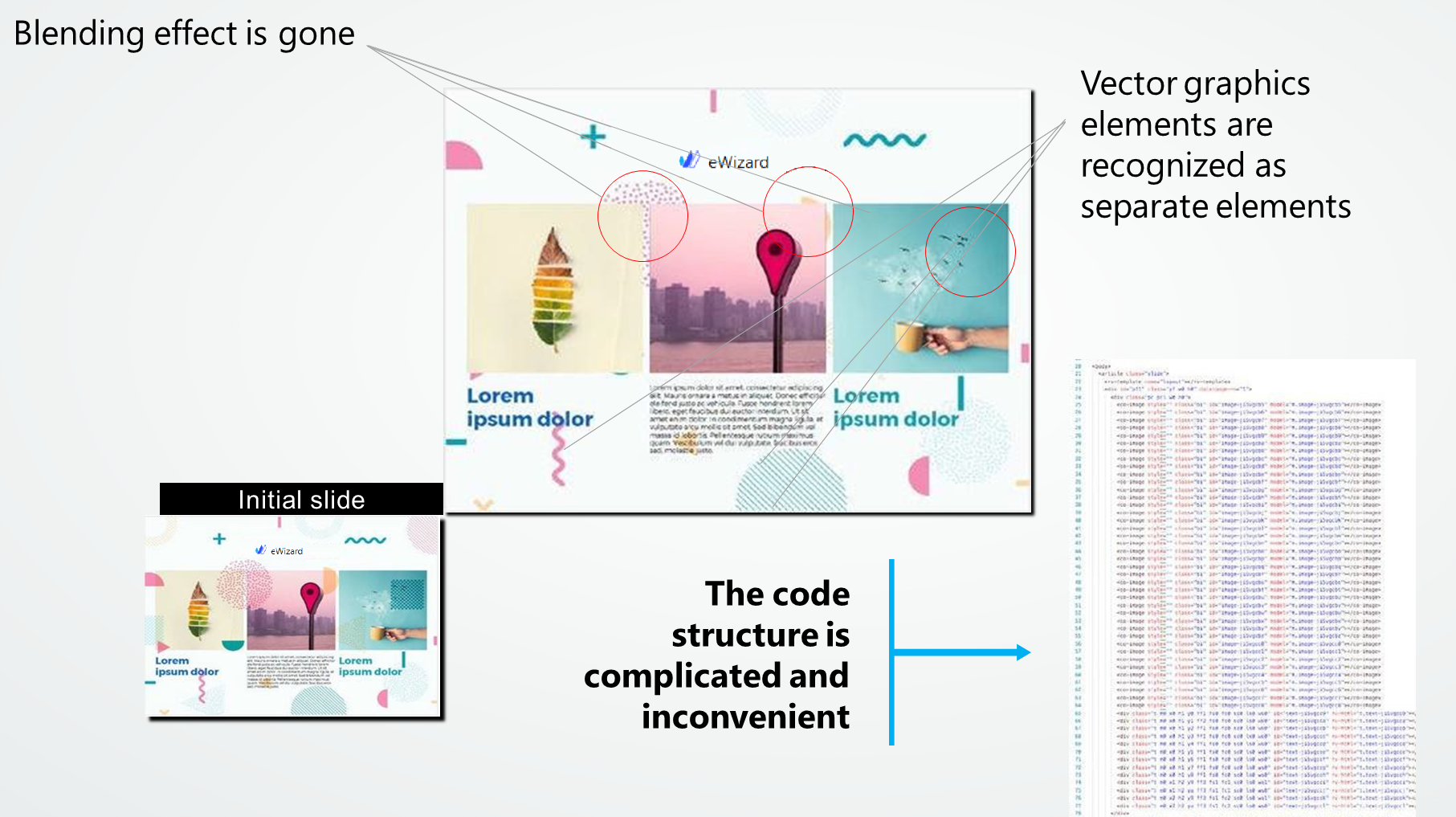
The more layers a mock-up contains, the more complex the resulting code structure is.
A popup as an individual slide with no background
To avoid the bulk of elements on the slide, place every popup on an individual slide without additional background.
 No optional content groups and hidden layers
All hidden layers become visible in the resulting e-Detailer.
No element groups
Upon conversion, these groups are split into separate elements.
No blending
It's ignored by Converter. If you need to use blending, merge everything into a single raster layer before conversion.
No groups of layers
All groups of layers must be merged in a single layer.
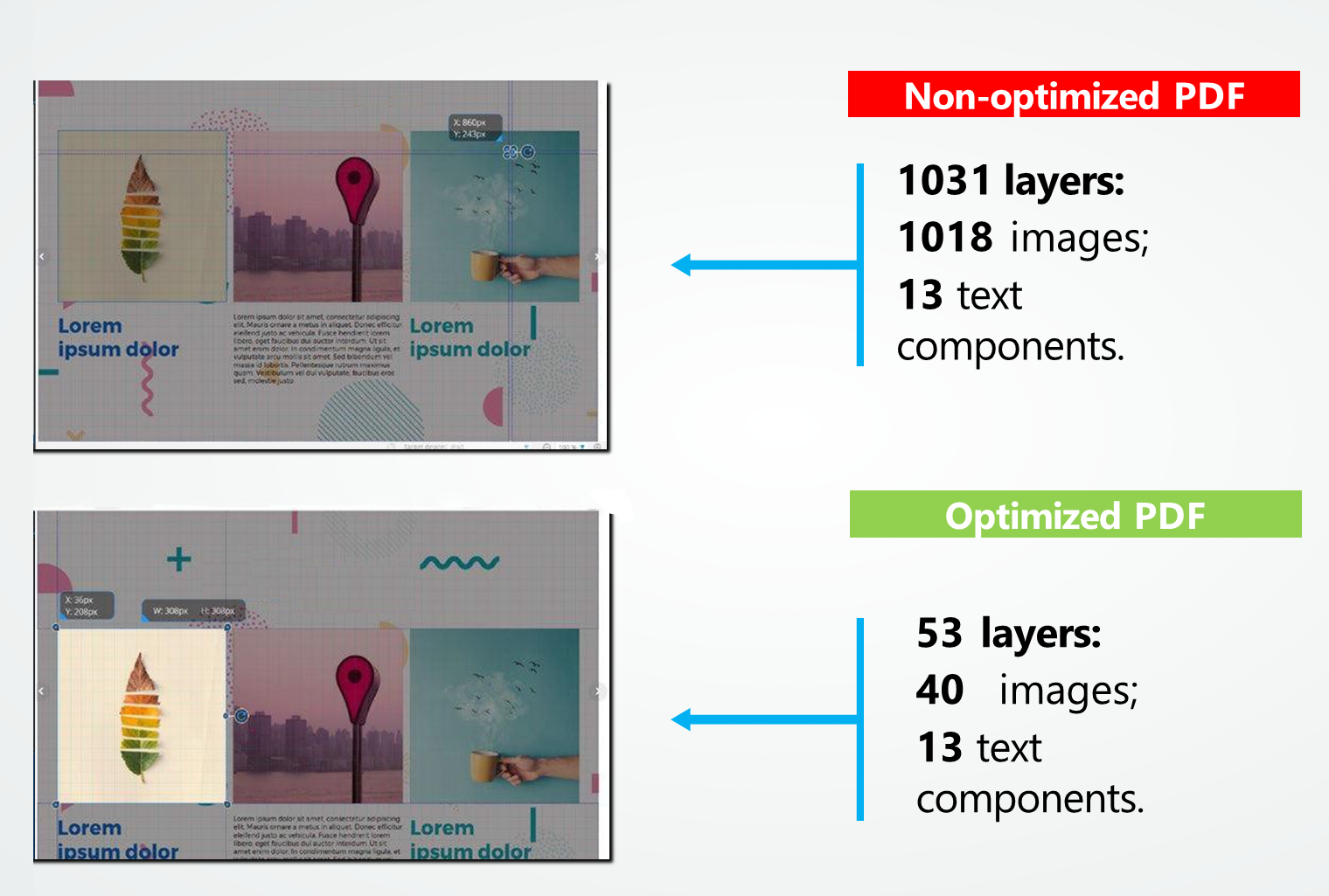
An example of a non-optimized PDF:
An example of an optimized PDF:
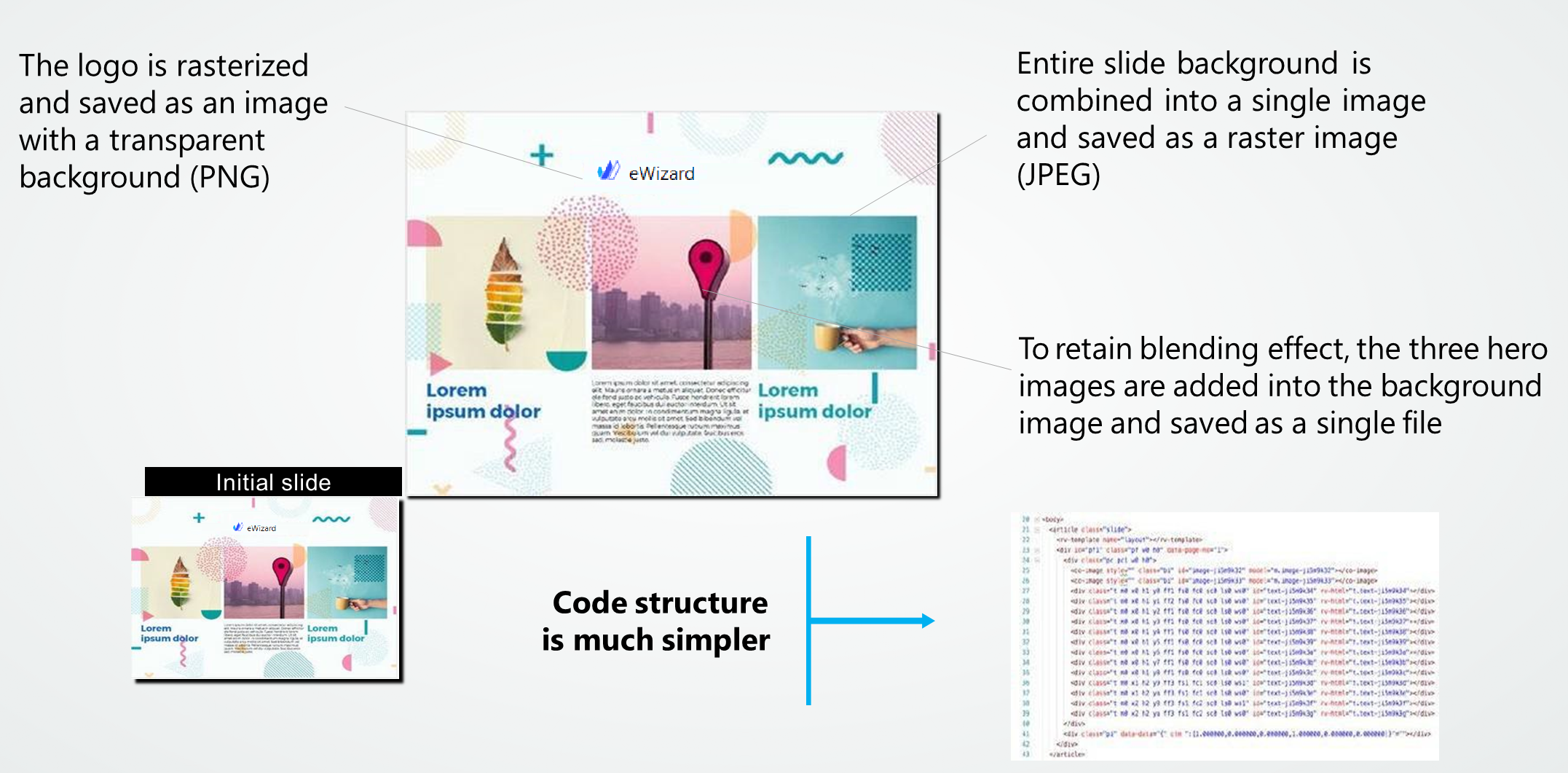
Use these recommendations to keep minimum of layers and images in PDF files.