Appearance
eWizard.js v5.21.2 and eWizard CLI v0.33.1
August 2022
New in eWizard.js
Install components from CodeArtifact
You can now install e-Detailer, email, and site components from CodeArtifact.
Use the wiz install command to install components:
sh
wiz install @[SCOPE]/[COMPONENT_NAME]Here:
[SCOPE]: the CodeArtifact scope of your project. For example, the eWizard.js global CodeArtifact repository uses the item types as the scope:edetailer,email,site.[COMPONENT_NAME]: the name of the component in the eWizard.js repository. For example,wiz-button.
eWizard CLI checks the global CodeArtifact repository and the repository of the instance you are logged in to, for example, https://viseven.ewizard.io.
For more information, see Install components and wiz install [options]
Footnotes
You can add footnotes with explanations for the wiz-text component in e-Detailers. The footnotes are stored in the common/i18n/footnotes.json file. You can use predefined symbols and letters from symbol groups, or custom symbols for your footnotes. For example, footnote_1, uses the lowercase letters from the upper-alpha:
json
// ./common/i18n/footnotes.json

{
  "eng": {
    "footnote_1": {
      "symbol": {
        "type": "upper-alpha",
        "mark": ""
      },
      "text": "<p>My text</p>"
    }
  }
}
To use a footnote in the template, add the footnote ID within the <sup> tag on the slide:
html
<!-- ./slides/[SLIDE_ID]/index.vue -->

<i18n>
{
  "eng": {
    "wiz_text_e58f": "<p>My text 3<sup footnotes=\"footnote_1\"></sup></p>",
  }
}
</i18n>
For more information, see Footnotes and Localization of footnotes.
Fix spaces in email lists
Fixed the extra spaces in the ordered and unordered lists in emails for a correct display in email clients.
Compare this CSS in legacy emails:
css
ul, ol {
  margin: 0 0 0 40px;
  padding-left: 0;
}
and the fixed CSS:
css
ul, ol {
  margin-top: 0;
  margin-bottom: 0;
  padding-left: 40px;
  padding-inline-start: 40px;
}

ul li, ol li {
  margin: 0;
}
The eWizard.js email builder applies the fixed email styles when you export or publish emails in eWizard.
Block icons in emails
eWizard Editor can generate icons for blocks in your email automatically. Add this code to the ./settings.json file and upload the zipped project to eWizard:
json
{
  "screenshoter": {
    "icons": {
      "blocks": {
        "enabled": true
      }
    }
  }
}
You can change the icons width, skip automatic icon generating for specific blocks, and generate monochrome (black-and-white) icons. For more information, see Blocks in eWizard.js projects.
eWizard CSS styles for Veeva Vault merge tags
The eWizard.js builder for Veeva Vault checks if an email has Veeva Vault tokens or merge tags for the calendar events like attendee name:
{{EM_Attendee_vod__c.Attendee_Name_vod__c}}
These tokens are specific for the Veeva Vault target system. If your email has these tokens, the builder replaces Veeva Vault CSS styles with the eWizard CSS styles when generating an HTML for the Veeva Vault target system.
These are the eWizard CSS styles that replace the Veeva Vault styles:
css
.template-html-container th {
    white-space: unset;
}
.lgt-reskin.veeva-lgtn .template-html-container * {
  font-size: unset;
  color: unset;
  font-family: unset;
}
.veeva-lgtn.lgt-reskin #veeva-app .template-html-container * {
  font-family: unset;
}
New in eWizard CLI
wiz update
With the wiz update command, you can update GitLab and npm dependencies in the package.json file of your project. The new command features different options to make updates more specific.
For details, see wiz update [options]
eWizard CLI update for macOS
With the new update, you can install the latest version of eWizard CLI on the macOS laptops with M1 chip. In particular, the issues with the sharp Node.js module for the wiz thumbs and wiz screen block CLI commands are fixed.
Documentation updates
Tags
We've added documentation tags to make searching for articles easier. Click a tag to see other related topics:
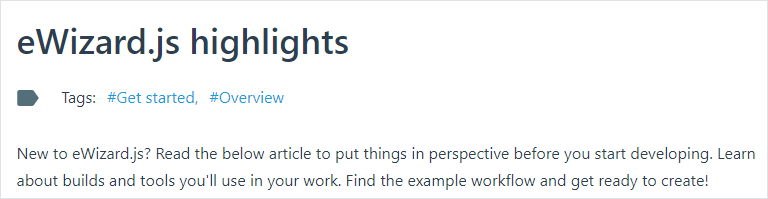
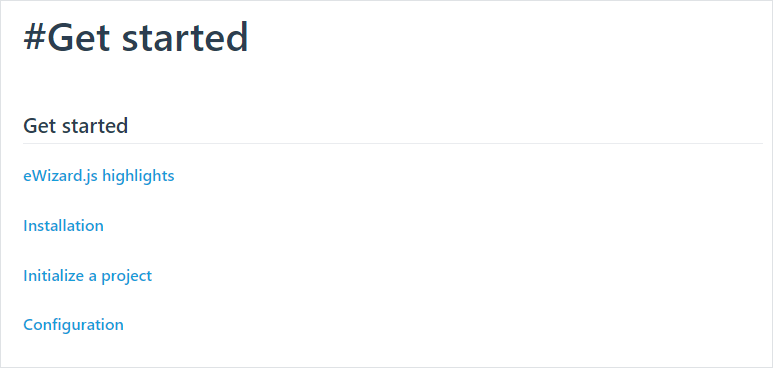
Check out all available tags in the Tags article.