Appearance
Localization
eWizard.js supports localization in e-Detailers, emails, and sites using the Vue.js i18n plugin. With eWizard Editor, you can translate the item texts into different languages.
Localization settings
Configure the localization settings for each item type in the ./settings.json file.
json
// ./settings.json

"localization": {
  "current": "eng",
  "original": "ukr",
  "langs": [
    "eng",
    "fra",
    "ukr"
  ],
  "country": "United Kingdom",
  "fallbacks": [
    "ukr",
    "fra"
  ]
}
In the ./settings.json file, you can configure localization for other languages.
Set the
currentandoriginallanguages.currentis the target language into which you translate. After the translation, your item text is displayed in this language. You select thecurrentlanguage when creating your item in the eWizard platform. The language code must have a three-letter ISO 3 format (for example,eng,deu, orukr).originalis the source language from which you translate. Theoriginallanguage is thecurrentlanguage from the previous version of your item. English is the default original language in the eWizard platform.
If you select a language as
currentin the eWizard platform, the previouscurrentlanguage becomes theoriginallanguage.Add the localization languages to the
langsarray to display the text of your item in this language when you select it in the eWizard platform.langsis the list of the localization languages you've added for your item in the eWizard platform. When you select the language with available localization in the eWizard platform, your item displays in this language.
Add languages to
fallbacks.fallbacksis the list of the fallback languages selected as thecurrentlanguage in the eWizard platform in the previous versions of the item. Fallback languages are used for localization if there's no localization available for thecurrentlanguage. eWizard.js uses theoriginallanguage as the primary fallback language, if there's no localization available for thecurrentlanguage. If some text isn't localized for thecurrentororiginallanguage, eWizard.js uses the next fallback language from the list.
Set the localization country in
country. This field doesn't impact the localization.
Fallback languages
When you make a copy of your item or select a new current language when editing item details in the eWizard platform, eWizard.js sets the previous current language as the original language. The original language becomes a primary fallback language. The fallbacks array in the ./settings.json file includes the list of such fallback languages.
eWizard.js uses the fallback languages for localization purposes. If there's no localization available for the current language, eWizard.js uses the original language as a fallback language for localization. If this language doesn't have localization, eWizard.js uses the next fallback language that has localization.
For example, your email is localized into English, French, and Ukrainian but isn't localized into Italian. When you set Italian as the current language and English is the original language, eWizard.js uses the English localization for the Italian language. If some text isn't localized in the original language, eWizard.js uses the next fallbacks language with localization (Ukrainian) for displaying the email text.
json
// ./settings/json

"localization": {
  "current": "ita",
  "original": "eng",
  "langs": [
    "eng",
    "fra",
    "ukr"
  ],
  "country": "Italy",
  "fallbacks": [
    "eng",
    "ukr",
    "fra"
  ]
}
Upon uploading your item to the eWizard platform for translation, the original language is used as the fallback language when there's no localization available for the current language. The change of the current language updates the item version.

Localization i18n tag
To localize the text on your items layout, use the <i18n></i18n> tag in the slide index.vue file or the App.vue file for emails or landing pages.
html
<!-- ./slides/default/index.vue -->

<i18n>
{
	"eng": {
		"text": "Welcome to the slide!"
	},
	"fra": {
		"text": "Bienvenue dans la diapositive!"
	}
}
</i18n>The <i18n></i18n> tag includes the objects for the localization languages using a three-letter ISO 3 code (for example, eng, deu, or ukr). Each language has key-value pairs for the localization strings. Add the localization key to the <template></template> tag as $t—an extended Vue instance method. You can use the key defined by the $t method for all the localization languages in the i18n tag with the string value translated for each language.
For example, to add localization for the button text to a slide of your e-Detailer:
Add the button text key as the
:textattribute with the$tmethod to thewiz-buttontag in the template.html<!-- ./slides/slide1/index.vue --> <template> <wiz-slide class="slide-1 editable-block"> <wiz-button id="button" :text="$t('buttonText')" class="pa button"></wiz-button> </wiz-slide> </template>Add the key-value pair to each localization language in the
<i18n></i18n>tag.html<!-- ./slides/slide1/index.vue --> <i18n> { "eng": { "buttonText": "<p style=\"line-height:20px;text-align:center;\"><span style=\"color:white;font-weight:bold;font-size:17px\"><b>Button text</b></span></p>" }, "fra": { "buttonText": "<p style=\"line-height:20px;text-align:center;\"><span style=\"color:white;font-weight:bold;font-size:17px\"><b>Texte du bouton</b></span></p>" }, "deu": { "buttonText": "<p style=\"line-height:20px;text-align:center;\"><span style=\"color:white;font-weight:bold;font-size:17px\"><b>Schaltflächentext</b></span></p>" } } </i18n>If you download the localized item from the eWizard platform, the localization string may include the inline CSS style. Keep the source formatting and translate the text.
Localization of component properties
You can localize the text in the component properties that appears on the eWizard Editor Properties tab. Depending on the property, add the text key to the property attribute in the template.
Alternative text for images
To localize the image alternative text that appears in the eWizard Editor image properties, add the alt attribute to the image template and the key-value pairs for each localization language in i18n.
Add the alternative text key as the
:altattribute with the$tmethod to thewiz-imagetag in the template.html<!-- ./slides/slide1/index.vue --> <template> <wiz-slide class="slide-1 editable-block"> <wiz-image id="image" class="pa image" src="./media/images/dog.png" :alt="$t('dogImage')"></wiz-image> </wiz-slide> </template>Add the key-value pair to each localization language in the
<i18n>tag.html<!-- ./slides/slide1/index.vue --> <i18n> { "eng": { "dogImage": "Dog image" }, "fra": { "dogImage": "L'image de chien" } } </i18n>
List text
To localize the text for the wiz-list component, add the content attribute to the list template and the key-value pairs for each localization language in i18n.
Add the list text key as the
:contentattribute with the$tmethod to thewiz-listtag in the template.html<!-- ./slides/slide1/index.vue --> <template> <wiz-slide class="editable-block"> <wiz-list id="wiz-list-29ad" class="default" :content="$t('wiz_list_1095')"></wiz-list> </wiz-slide> </template>Add the key-value pair to each localization language in the
<i18n>tag.html<!-- ./slides/slide1/index.vue --> <i18n> { "eng": { "wiz_list_1095": "<ul><li style=\"line-height:28px;text-align:left;\">Number one</li><li style=\"line-height:28px;text-align:left;\">Number two</li><li style=\"line-height:28px;text-align:left;\">Number three</li></ul>" }, "fra": { "wiz_list_1095": "<ul><li style=\"line-height:28px;text-align:left;\">Numéro un</li><li style=\"line-height:28px;text-align:left;\">Numéro deux</li><li style=\"line-height:28px;text-align:left;\">Numéro trois</li></ul>" } } </i18n>
Calendar text
To localize the text for the wiz-calendar component, add the month and day attributes to the calendar template and the key-value pairs for each localization language in the <i18n> tag.
Add the calendar month and text keys as the
:monthand:dayattributes with the$tmethod to thewiz-calendartag in the template.html<!-- ./App.vue --> <template> <wiz-wrapper style="width: 100%;" class="editable-block"> <wiz-root class="m-full-width editable-block main" align="center" style="background: rgb(255, 255, 255);width: 100%;"> <wiz-calendar :month="$t('wiz_calendar_ca7b')" :day="$t('wiz_calendar_2e7b')" id="wiz-calendar-c782"></wiz-calendar> </wiz-root> </wiz-wrapper> </template>Add the key-value pairs to each localization language in the
<i18n>tag.html<!-- ./App.vue --> <i18n> { "eng": { "wiz_calendar_ca7b": "<div style='text-align: center;line-height: 26px'><strong><span style='font-size:26px; color:#0084c4;font-family:arial,helvetica neue,helvetica,sans-serif;'>JANUARY</span></strong></div>", "wiz_calendar_2e7b": "<div style=\"line-height:50px;text-align:center;\"><span style=\"white-space:nowrap;\"><span style=\"color:#434345;font-family:arial,helvetica neue,helvetica,sans-serif;font-size:50px;\">26</span></span></div>" }, "fra": { "wiz_calendar_ca7b": "<div style='text-align: center;line-height: 26px'><strong><span style='font-size:26px; color:#0084c4;font-family:arial,helvetica neue,helvetica,sans-serif;'>JANVIER</span></strong></div>", "wiz_calendar_2e7b": "<div style=\"line-height:50px;text-align:center;\"><span style=\"white-space:nowrap;\"><span style=\"color:#434345;font-family:arial,helvetica neue,helvetica,sans-serif;font-size:50px;\">26</span></span></div>" } } </i18n>
Navigation text
To localize the text for the wiz-navigation component, add the name attribute to the navigation template and the key-value pairs for each localization language in i18n.
Add the navigation items text keys as the
:nameattribute with the$tmethod to the<wiz-navigation>tag in the template.html<!-- ./App.vue --> <template> <div> <wiz-root align="center" style="background: #ffffff; width: 700px"> <wiz-navigation :items="[ { name: $t('wiz_navigation_items_name_9520'), link: 'https://viseven.com/', __label: 'Item 1', __id: '25-items-0', }, { name: $t('wiz_navigation_items_name_84c5'), link: 'https://viseven.com/', __label: 'Item 2', __id: '25-items-1', }, { name: $t('wiz_navigation_items_name_4171'), link: 'https://viseven.com/', __label: 'Item 3', __id: '25-items-2', }, { name: $t('wiz_navigation_items_name_66cc'), link: 'https://viseven.com/', __label: 'Item 4', __id: '25-items-3', }, ]" id="wiz-navigation-aa8b" align="center" ></wiz-navigation> </wiz-root> </div> </template>Add the key-value pairs to each localization language in the
<i18n>tag.html<!-- ./App.vue --> <i18n> { "eng": { "wiz_navigation_items_name_9520": "<div><span style=\"color:#2573ba;font-family:arial,helvetica neue,helvetica,sans-serif;font-size:14px;\"><span style=\"text-decoration:underline;\">Terms and conditions</span></span></div>", "wiz_navigation_items_name_84c5": "<div><span style=\"color:#2573ba;font-family:arial,helvetica neue,helvetica,sans-serif;font-size:14px;\"><span style=\"text-decoration:underline;\">Privacy policy</span></span></div>", "wiz_navigation_items_name_4171": "<div><span style=\"color:#2573ba;font-family:arial,helvetica neue,helvetica,sans-serif;font-size:14px;\"><span style=\"text-decoration:underline;\">Contacts</span></span></div>", "wiz_navigation_items_name_66cc": "<div><span style=\"color:#2573ba;font-family:arial,helvetica neue,helvetica,sans-serif;font-size:14px;\"><span style=\"text-decoration:underline;\">Unsubscribe</span></span></div>" }, "fra": { "wiz_navigation_items_name_9520": "<div><span style=\"color:#2573ba;font-family:arial,helvetica neue,helvetica,sans-serif;font-size:14px;\"><span style=\"text-decoration:underline;\">Termes et conditions</span></span></div>", "wiz_navigation_items_name_84c5": "<div><span style=\"color:#2573ba;font-family:arial,helvetica neue,helvetica,sans-serif;font-size:14px;\"><span style=\"text-decoration:underline;\">Politique de confidentialité</span></span></div>", "wiz_navigation_items_name_4171": "<div><span style=\"color:#2573ba;font-family:arial,helvetica neue,helvetica,sans-serif;font-size:14px;\"><span style=\"text-decoration:underline;\">Contacts</span></span></div>", "wiz_navigation_items_name_66cc": "<div><span style=\"color:#2573ba;font-family:arial,helvetica neue,helvetica,sans-serif;font-size:14px;\"><span style=\"text-decoration:underline;\">Se désabonner</span></span></div>" } } </i18n>
Localization of an e-Detailer structure
To localize the e-Detailer slide and chapter name, use the ./structure.json file.
json
// ./structure.json

{
  "slides": {
    "default": {
      "name": "Modèle de diapositive",
      "nameOriginal": "Template Slide",
      "template": "slides/default/index.vue"
    }
  },
  "chapters": {
    "main": {
      "name": "Chapitre modèle",
      "nameOriginal": "Template Chapter",
    }
  }
}nameis thecurrentlanguage name of a slide or chapter.nameOriginalis theoriginallanguage name of a slide or chapter.
When you change the e-Detailer language by making a copy or editing its details in the eWizard platform, eWizard.js uses the slide and chapter names for the current language from the previous version.
Common localization
You can localize the text from all e-Detailer slides, site pages, or email layouts to different languages in one JSON file. This approach allows you to skip localization in the <i18n> tag on each slide. The common localization is the same as translation with Excel in eWizard Editor.
For example, to localize text from all slides:
Create a JSON file in the
common/i18ndirectory. For example,./common/i18n/common.jsonis the default common localization file.You can change the path to the JSON files in the
path.common.i18nobject of the system settings.Make sure the
.ewizard/settings.jsonfile has the correct path to the common localization file.json// ./.ewizard/settings.json { "path": { "common": { "i18n": "common/i18n" } } }Add the original language and all localization languages to the JSON structure.
json// ./common/i18n/common.json { "eng": {}, "fra": {} }Add the path to the common localization file as part of the key on all slide templates.
All keys must be unique. For example, you can't have the
titlekey on different slides.For example, if the original key is
title, the common localization key iscommon.titlewherecommonis the path to thecommon.jsonfile.html<!-- ./slides/slide1/index.vue --> <i18n> {} </i18n> <template> <wiz-slide> <wiz-text :text="$t('common.title')"></wiz-text> </wiz-slide> </template>Don't remove the
<i18n>tag and an empty{}object within this tag to display the e-Detailer in eWizard Editor correctly.Add the key-value pairs to the
common/i18n/common.jsonfile for each language.json// ./common/i18n/common.json { "eng": { "wiz_text_f82b": "My awesome text", "title1": "Multimedia template", "title": "Extended image gallery with text" }, "fra": { "wiz_text_f82b": "Mon texte génial", "title1": "Modèle multimédia", "title": "Galerie d'images étendue avec texte" } }
As a result, the localized text appears on the slides of your e-Detailer that have the keys in their template.
When the current language isn't available in the common.json file, eWizard Editor merges the keys from fallback languages to the common.json file. The languages are displayed in the TRANSLATE tab.
For example, the current language of the template is German. The common.json file in the template has localized text for English, French, and Ukrainian languages:
json
// ./common/i18n/common.json

{
  "eng": {
    "text1": "My text 1"
  },
  "fra": {
    "text2": "Mon texte 2"
  },
  "ukr": {
    "text3": "Мій текст 3"
  }
}
After you add the text to the .vue file, it is displayed in the master template:

When you click TRANSLATE in the master template editing mode, you can see all the text added to the App.vue file of the template:
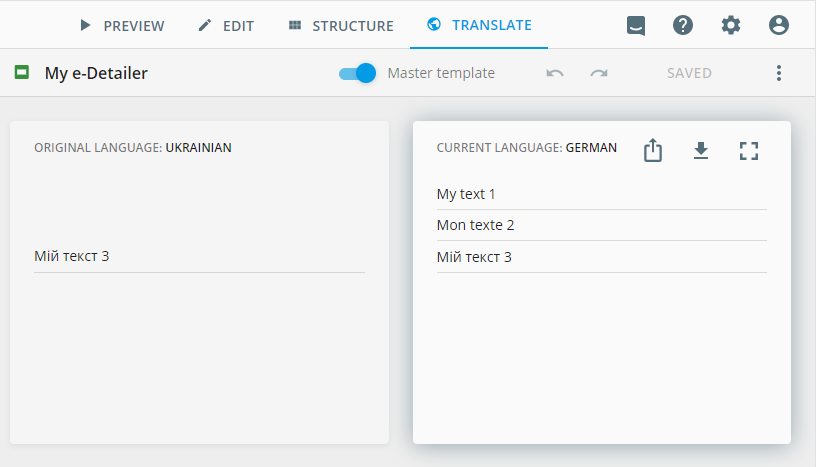
After you edit the text in eWizard Editor, it is saved to the common.json file for the current language, with the same key.
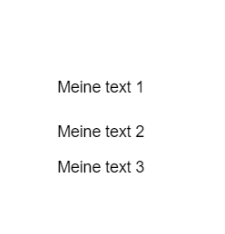
For example, if you change My text 1 to Meine text 1, Mon texte 2 to Meine text 2, and Мій текст 3 to Meine text 3, the final result looks like this on the slide:
After you download the archive, the common.json looks like this:
json
// ./common/i18n/common.json

{
  "eng": {
    "text1": "My text 1"
  },
  "fra": {
    "text2": "Mon texte 2"
  },
  "ukr": {
    "text3": "Мій текст 3"
  },
  "deu": {
    "text1": "<p>Meine text 1</p>",
    "text2": "<p>Meine text 2</p>",
    "text3": "<p>Meine text 3</p>"
  }
}
Translation in eWizard
When you upload an e-Detailer with the common localization JSON file to the eWizard platform, the localized strings appear on the slides but aren't available for translation in the TRANSLATE mode.
To view and edit the localized text, download the Excel or XLIFF file for this e-Detailer in the eWizard TRANSLATE mode.
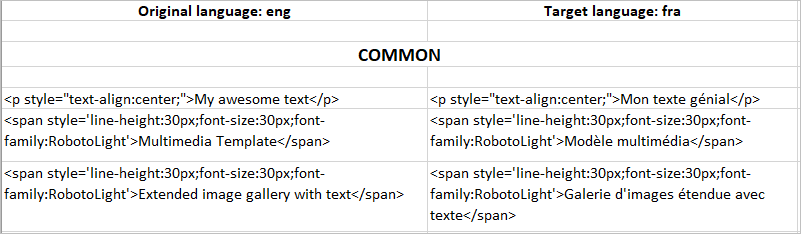
The Excel file you download from the eWizard platform contains the original and current language text strings. Use the common localization JSON file to view and translate the strings for all the localization languages in your e-Detailer.
Localization of e-Detailer master template
Use the Master template mode in e-Detailers to localize the text that appears on all slides. Find the common text added in the master template mode in the e-Detailer ./App.vue file template.
html
<!-- ./App.vue -->

<template>
<wiz-root class="editable-block">
  <wiz-viewer>
    <header></header>
    <footer></footer>
  </wiz-viewer>
  <wiz-text id="wiz-text-7061" class="default" :text="$t('wiz_text_25c9')"></wiz-text>
</wiz-root>
</template>
You can use the <i18n> tag localization in the App.vue file.
html
<!-- ./App.vue -->

<i18n>
{
  "eng": {
    "wiz_text_25c9": "This text appears on all slides"
  },
  "fra": {
    "wiz_text_25c9": "Ce texte apparaît sur toutes les diapositives"
  }
}
</i18n>
Or you can add the text strings with key-value pairs to the ./common/i18n/common.json file.
json
// ./common/i18n/common.json

{
  "eng": {
    "wiz_text_25c9": "This text appears on all slides"
  },
  "fra": {
    "wiz_text_25c9": "Ce texte apparaît sur toutes les diapositives"
  }
}
If you use the common localization JSON file, don't forget to add the path to this file to the App.vue template in the following format:
html
:text="$t('FILENAME.wiz_text_25c9')FILENAME is the name of the file.
For example, for common.json, the path to the file is :text="$t('common.wiz_text_25c9').
Localization of references
Localization of references isn't supported in eWizard Editor and eWizard.js 5.18.0 and later. For more information, see Localization of references in eWizard.js 5.18.0 and later.
You can localize the text of references on the slides. By default, your e-Detailer references for all the languages are stored in the common/resources/references.json file. You can change the path to the reference file in the references property of the .ewizard/settings.json file.
json
// ./.ewizard/settings.json

{
  "path": {
    "common": {
      "references": "common/resources/references.json"
    }
    }
}
In eWizard.js 5.18.0 and later, the default path to the references.json file is common/resources/references.json. For more information, see Localization of references in eWizard.js 5.18.0 and later.
To localize the text of the references on all the slides:
Create a JSON file in the
common/i18ndirectory. For example,./common/resources/references.jsonis the default references localization file.Add the original language and all localization languages with the following JSON structure:
json// ./common/resources/references.json { "eng": { "ref1": { "name": "" }, "ref2": { "name": "" } }, "fra": { "ref1": { "name": "" }, "ref2": { "name": "" } } }ref1is the reference ID on the slide. The number specifies the order of this reference in the list.nameis the reference localization text string.
Add the reference IDs to the key-value pairs in the
common/i18n/common.jsonfile for each language.json// ./common/i18n/common.json { "eng": { "wiz_text_f82b": "<p style=\"text-align:center;\">My awesome text<sup refs=\"ref1\"></sup></p>", "title": "<span style='line-height:30px;font-size:30px;font-family:RobotoLight'>Extended image gallery with text<sup refs=\"ref2\"></sup></span>" }, "fra": { "wiz_text_f82b": "<p style=\"text-align:center;\">Mon texte génial<sup refs=\"ref1\"></sup></p>", "title": "<span style='line-height:30px;font-size:30px;font-family:RobotoLight'>Galerie d'images étendue avec texte<sup refs=\"ref2\"></sup></span>" } }Add the localization text strings to the
common/resources/references.jsonfile for each language.json// ./common/resources/references.json { "eng": { "ref1": { "name": "<p>See the references.json file.</p>" }, "ref2": { "name": "Another reference." } }, "fra": { "ref1": { "name": "<p>Voir le references.json dossier.</p>" }, "ref2": { "name": "Une autre référence." } } }
As a result, the localized list of references appears on the slides of your e-Detailer.
Localization of references in eWizard.js 5.18.0 and later
In eWizard.js 5.18.0 and later, references aren't localized. This means that eWizard Editor displays the list of added references regardless of the language you select. For example, if you make a list of references with the French language selected, the list of references remains without changes after you switch to English.
Now, you can find references in the resources directory. The default path to the references.json file is common/resources/references.json:
json
// ./.ewizard/settings.json

{
  "path": {
    "common": {
      "references": "common/resources/references.json"
    }
    }
}
In eWizard.js, the references.json file with the reference text doesn't have any language keys. Each reference created in eWizard Editor is added with a new key, for example:
json
// ./common/resources/references.json

{
  "ref1": {
    "name": "My first reference."
  },
  "ref2": {
    "name": "My second reference."
  },
  "ref3": {
    "name": "My third reference."
  }
}
Use the wiz update --references command to update the references.json format and move it to the ./common/resources directory.
If you modify an e-Detailer created before 5.18.0 in eWizard Editor, the language is removed from the references.json file.
For example, a references.json file with references in English (eng) and German (deu):
json
// ./common/resources/references.json

{
  "eng": {
    "ref1": {
      "name": "My text"
    }
  },
  "deu": {
    "ref2": {
      "name": "Meine text"
    }
  }
}
After uploading the project and modifying the references in eWizard Editor, the file looks like this:
json
// ./common/resources/references.json

{
  "ref1": {
    "name": "My text"
  },
  "ref2": {
    "name": "Meine text"
  }
}
Localization of footnotes
You can localize the text of footnotes on the slides. Use the common/i18n/footnotes.json file that stores localization of footnotes for all the languages of your e-Detailer. After you upload and edit the template in eWizard Editor, all keys are merged to the footnotes.json file.
To localize the text of the footnotes on all the slides:
Create a JSON file in the
common/i18ndirectory. For example,./common/i18n/footnotes.jsonis the default footnotes localization file.Make sure the
.ewizard/settings.jsonfile has the correct path to the footnotes localization file.json// ./.ewizard/settings.json { "path": { "common": { "footnotes": "common/i18n/footnotes.json" } } }Add the original language and all localization languages with the following JSON structure.
json// ./common/i18n/footnotes.json { "eng": { "footnote_1": { "symbol": { "type": "input", "mark": "&" }, "text": "<p>Footnote 1</p>" }, "footnote_2": { "symbol": { "type": "custom", "mark": "'" }, "text": "<p>Footnote 2</p>" }, }, "deu": { "footnote_1": { "symbol": { "type": "symbols", "mark": "" }, "text": "<p>Anmerkung 1</p>" }, "footnote_2": { "symbol": { "type": "lower-alpha", "mark": "" }, "text": "<p>Anmerkung 2</p>" } } }Each footnote object has the following fields:
[FOOTNOTE_ID]—the footnote ID on the slide.symbol.type—the symbol group used in the footnote. The symbol group defines what symbols you can use for the footnotes.symbol.mark—the symbol that is used for the footnote. Thetypedefines what symbols you can use in your footnote. For example, if you select thea-zgroup in eWizard Editor, you can only use the English alphabet lowercase letters. To enter a custom symbol use thecustomgroup. To enter a custom abbreviation, use theinputgroup.text—the footnote text.
For more information about the fields, see Footnotes.
Add the footnote IDs to the key-value pairs in the slide for each language.
html<!-- ./slides/[SLIDE_NAME]/index.vue --> <i18n> { "eng": { "wiz_text_a98d": "<p>My text 1<sup footnotes=\"footnote_1\"></sup></p>", "wiz_text_e58f": "<p>My text 2<sup footnotes=\"footnote_2\"></sup></p>", }, "deu": { "wiz_text_f688": "<p>Meine text 1<sup footnotes=\"footnote_1\"></sup></p>", "wiz_text_3257": "<p>Meine text 2<sup footnotes=\"footnote_2\"></sup></p>" }, } </i18n>
As a result, the localized list of footnotes appears on the slides of your e-Detailer based on the language you choose.