Appearance
eWizard.js v5.6.0
June 2021
Dynamic themes in emails
With the new dynamic themes feature, you can fine tune the look and feel of your emails based on the selected theme.
Add your custom themes directories to the
themesdirectory in the email project root.Configure the themes and the brand dependencies in the
themes.jsonfile.Set the default and current theme in the
settings.jsonfile.
Upload the email project to the eWizard platform and select themes from the drop-down list in the Create new email pop-up.
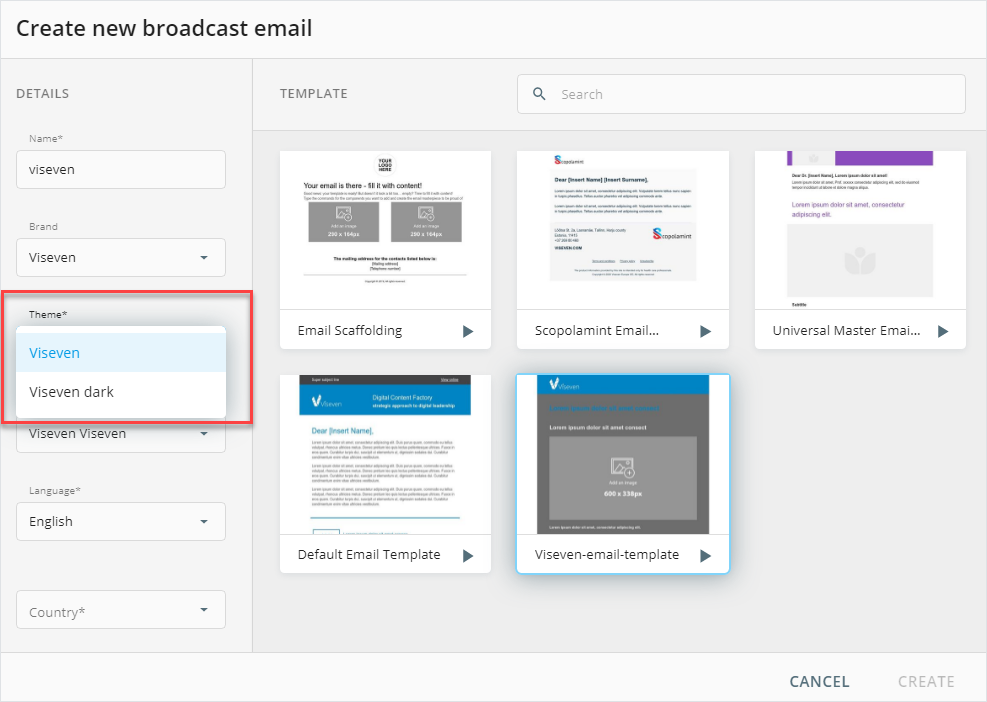
You can make each theme unique using the CSS styles for the brand colors and fonts. Now you don't have to create separate templates—one email template can contain the themes for each brand.
Dynamic list of blocks based on the theme
Configure which blocks are available for selecting on the eWizard Editor Blocks tab based on the selected theme in the blocks-themes.json file.
Default blocks in emails
The default blocks are those that are displayed on the email layout in eWizard Editor by default without selecting them on the Blocks tab. Configure your email default blocks using the defaultBlocks field in the blocks-themes.json file.
Dynamic list of blocks based on the CLM
Use the clm field to configure which blocks are available for selection on the eWizard Editor Blocks tab. This list of blocks is based on the specified CLM system in the blocks-themes.json file.
Dynamic list of components based on the theme
Configure which components are available for selection on the eWizard Editor Components tab based on the specified theme in the components-themes.json file.
Icons for blocks and components based on the theme
Configure which icons to display for blocks and components based on the specified theme in the blocks.json and components.json files respectively.
Enter the path to the icon file in the
pathfield.Add the icon PNG, JPG, or JPEG file to the specified path directory.
The icon filename must be in the following format:
icon-theme.pngwherethemeis the themeidas defined in thethemes.jsonfile.
Paths for icons
Add the path to the icons for components or blocks with different parameters and with different priorities. The following path parameters are available with these priorities:
Use the
iconsPathfield to load all the icons from the component or block directory. This is the highest priority path for icons.Use the
iconfield to load the specific icons from the component or block directory. This is the second priority path for icons.Use the
pathfield to load all the icons from the component or block directory. This is the lowest priority path for icons.
Naming for icons
Use the icon filename to configure which icons to display on the eWizard Editor Blocks or Components tab based on the specified theme, CLM, language, or country:
icon-theme-clm-country-lang.png
Use the values from the theme, clm, country, and langs fields in the settings.json file.
You can't display specific icons for components based on the selected target CLM system. This feature is available only for blocks.
Image styling in email builder
Certain email clients have issues with displaying emails where the image has a noninteger value in pixels. This issue manifests itself as a white line in Outlook. That's why the eWizard.js email builder adds the integer values for the image size and records them to the width and height attributes.
As certain email clients treat inline styles with a higher priority than attributes, the eWizard.js email builder now adds the width and height values to the style attribute. If the values already exist, the builder replaces them with the integer pixel values.
This improvement ensures the consistent look of images in all email clients.
Animation for e-Detailer components
The eWizard.js framework now supports animation for components in e-Detailers. To add animation for the component, add this code to the template markup in the slide Vue instance.
html
<wiz-image
  v-animate.click="{ name: 'bounce', duration: 1000, delay: 1000, loop: 2 }"
></wiz-image>
Where:
nameis the animation name. See this list of supported animation effects.durationis the animation duration in milliseconds. The default duration is 1000 ms.delayis the delay before the animation starts in milliseconds. The default delay is 0 ms.loopis the number of times for animation to play. The default value is 1. You can enter the required repeat number or thetruevalue for the infinite play.clickis the event to start the animation. Use the dot notation after thev-animatedirective. For more information see Directive Hook Arguments. If you don't provide the event, eWizard.js uses the default event. The default event isslideenterto start animation when you open the slide. You can specify any DOM event orslideenter, but eWizard Editor supports only theclickandslideenterevents.
Use the root object keys from the animation effect as the name value. For example, use the rubberBand object key for the rubber animation effect.
Reducing the ID length in the converted e-Detailer
Previously, when you converted a PDF into the e-Detailer, eWizard.js added a long prefix in the assetFileNameTemplate field.
json
// ./settings.json

{
  "clms": {
    "iqvia": {
      "assetFileNameTemplate": "{settings.id}-{settings.id}-vue-template_{structure.slide.id}"
    }
  }
}
When you published this e-Detailer to Veeva Vault, the resulting external ID had more than 100 characters. Veeva Vault has a 100-character limitation for the approved slide.
Now, eWizard.js converts PDF files into e-Detailers with the following format of the assetFileNameTemplate field.
json
// ./settings.json

{
  "clms": {
    "iqvia": {
      "assetFileNameTemplate": "{settings.id}-{settings.name}_{structure.slide.id}"
    }
  }
}
WebP images support for the e-Detailer and email exports
We've added support for the :WebP: image format in builders for e-Detailers and emails. Now you can export your e-Detailers and emails to various target CLM systems with the WebP images that are 26% smaller in size compared to PNG files.
Currently, only the eWizard.js framework supports the WebP format of images. You can't upload the WebP images to eWizard Library yet. To export your e-Detailer or email with images in the WebP format, you must first create your item archive with the wiz archive command using eWizard CLI. Then upload it to eWizard Library and export your e-Detailer or email to the required target system.