Appearance
Installation
In this section, learn how to:
Install eWizard CLI, a command-line interface for eWizard.js.
Log in to your eWizard instance.
To guarantee the stable work of eWizard CLI, use the LTS Node.js version 18 or later. For example, Node.js 18.17.1. Node.js versions 14 and 16 won't be supported in eWizard.js starting November 2023.
Overview
eWizard CLI is a globally installed npm package that provides the wiz commands and options in your terminal. Use eWizard CLI to scaffold a new project with the wiz init command or instantly view changes you add to the project code with the wiz dev --live command.
Prerequisites for Windows
nvm
To check if you have nvm installed:
sh
nvm -vNode.js
To check if you have Node.js installed:
sh
node -vTo guarantee the stable work of eWizard CLI, use the LTS Node.js version 18 or later. For example, Node.js 18.17.1.
You can download Node.js here.
When installing Node.js with an installer, check the Automatically install the necessary tools checkbox.
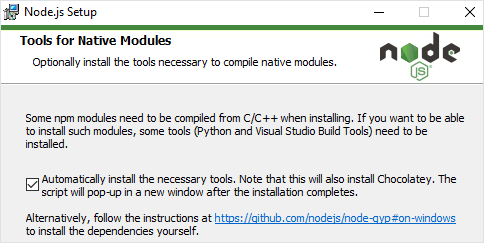
Or you can install Node.js with nvm, for example, version 18.17.1.
For this:
Download the latest version of the nvm installer.
Open PowerShell with admin rights and run:
shnvm install 18.17.1Run:
shnvm use 18.17.1
C++ and Python compilers
To compile native Addon modules for Node.js version earlier than v6.13.0, the node-gyp npm package requires Microsoft Visual C++ build environment and Python compilers.
To set dependencies and configuration, install:
Python 3 isn't supported.
To compile native Addon modules in Windows environment, see Microsoft guidelines.
Git
To check if you have Git installed:
sh
git --versionTo download Git, click here.
Prerequisites for Ubuntu
To install eWizard CLI for Ubuntu, make sure you have the following items installed locally.
curl
To check if you have curl installed:
sh
curl --versionIf curl isn't installed, run:
sh
sudo apt-get install curlNode.js
To check if you have Node.js installed:
sh
node -vTo guarantee the stable work of eWizard CLI, use the LTS Node.js version 18 or later. For example, Node.js 18.17.1.
If Node.js isn't installed, use nvm or binary distribution to install it.
To install Node.js with nvm:
Run:
shcurl -o- https://raw.githubusercontent.com/nvm-sh/nvm/v0.39.1/install.sh | bashInstall the required Node.js version. For example,
18.17.1:shnvm install 18.17.1
To install Node.js with binary distribution:
Run:
shcurl -fsSL https://deb.nodesource.com/setup_18.x | sudo -E bash -Install Node.js:
shsudo apt-get install -y nodejs
Python 2.7
To compile native Addon modules for Node.js version earlier than v6.13.0, the node-gyp npm package requires Python compilers.
To check your python version, run:
sh
python --versionTo install Python:
Run:
shsudo apt install python2Change priority so that the
python2binary executable has priority overpython3:shsudo update-alternatives --install /usr/bin/python python /usr/bin/python2 2shsudo update-alternatives --install /usr/bin/python python /usr/bin/python3 1Switch to the Python 2.7 alternative:
shsudo update-alternatives --config python
Git
To check if you have Git installed:
sh
git --versionTo install Git, run:
sh
sudo apt-get install gitInstall eWizard CLI
To install the eWizard CLI globally on your Windows computer:
sh
npm install -g ewizard-cliTo install eWizard CLI on Ubuntu:
Set dependencies and configuration:
shsudo apt install build-essentialInstall the eWizard CLI npm package:
shsudo npm install -g ewizard-cli
To check your version of eWizard CLI, run:
sh
wiz --versionTo update eWizard CLI to the latest version, run:
sh
npm i -g ewizard-cli@latestTo find out the current version of eWizard CLI, go to eWizard CLI npm package.
Run npm i -g ewizard-cli@0.23.8 to install the specific version of eWizard CLI.
Login
Once eWizard CLI is installed, log in to your eWizard instance.
sh
wiz loginIf it's your first login, enter your eWizard instance:
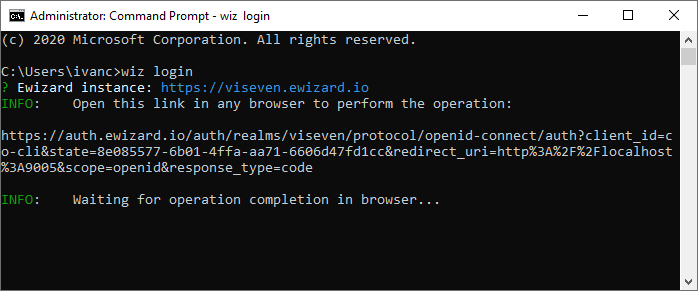
You receive your eWizard instance link with your user name and password credentials. The eWizard instance follows this pattern: https://[company].ewizard.io.
For example, https://viseven.ewizard.io.
The eWizard login window opens in your default browser. Enter your login and password here.
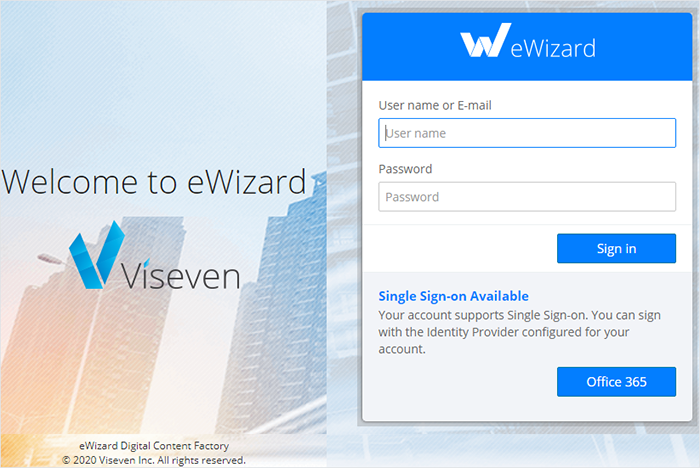
You may close the login window after you've logged in.
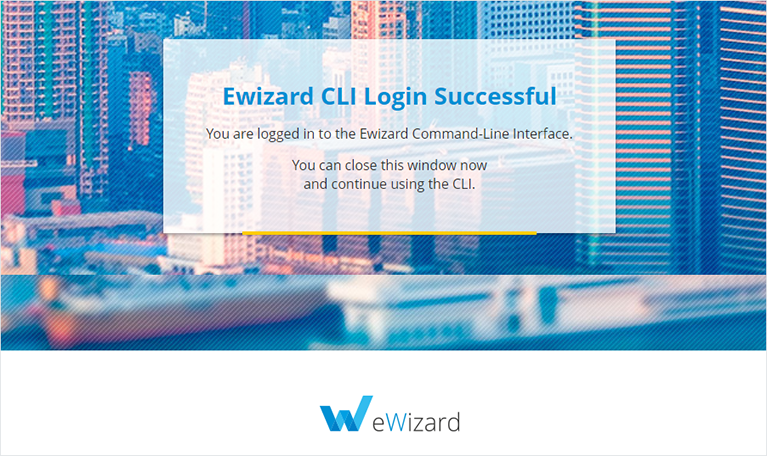
When you log in for the first time, eWizard CLI creates the .wiz service directory in the root directory where you've installed eWizard CLI. This directory contains the config.json file with your eWizard instance URL, token, etc. If you delete this directory, you must log in and enter your instance again.
What's next
Now that you've logged in to your eWizard instance:
Create an e-Detailer
Create an email
Create a site
Create a messenger ad
Create a component
Create a block
Create a module
Continue to eWizard CLI commands for the full list of the CLI commands for creating your projects with eWizard.js.