Appearance
System settings
You can modify the content, path, common resources, plugin, and template settings in the .ewizard/settings.json file.
json
// ./.ewizard/settings.json

{
  "content": {
    "type": "module",
    "subtype": "email"
  },
  "path": {
    "blocks": "node_modules/@blocks",
    "blocksFilename": "blocks.json",
    "blocksManifest": "common/blocks-library/blocks.json",
    "blocksThemes": "common/blocks-library/blocks-themes.json",
    "localBlocks": "common/blocks",
    "componentsFilename": "components.json",
    "componentsManifest": "common/components/components.json",
    "componentsThemes": "common/components/components-themes.json",
    "localComponents": "common/components",
    "modulesFilename": "modules.json",
    "modulesManifest": "common/blocks-library/modules.json",
    "bundle": "build/dev/app.js",
    "rootComponent": "App.vue",
    "themes": "themes",
    "themePaths": {
      "variables": "theme.scss",
      "variablesJson": "theme.json",
      "main": "index.scss"
    },
    "themesManifest": "themes/themes.json",
    "settings": "settings.json",
    "icon": "icon.png",
    "icon2x": "icon@2x.png",
    "preview": "preview.jpg",
    "assets": ".ewizard/assets.json",
    "claims": ".ewizard/claims.json",
    "documents": "documents.json",
    "layouts": "layouts",
    "common": {
      "i18n": "common/i18n",
      "references": "common/resources/references.json",
      "media": {
        "images": "common/media/images",
        "videos": "common/media/videos",
        "pdfs": "common/media/pdfs",
        "fonts": "common/media/fonts"
      },
    "metadata": {
      "purpose": "common/metadata/purpose.json",
    }
  },
  "archive": {
    "ignore": []
  },
  "template": {
    "url": "https://git.qapint.com/ewizardjs/templates/module",
    "version": "7d588cf120f9de211dbf869538d3d079ddf93c14"
  }
}
The .ewizard/settings.json has the following fields:
| Field | Description |
|---|---|
content.type | The project type. |
content.subtype | The content subtype. |
path.blocks | The directory where the blocks are stored. |
path.blocksFilename | The name of the file that defines which blocks appear on the elements panel in eWizard Editor. |
path.blocksManifest | The path to the file that defines which blocks appear in eWizard Editor. |
path.blocksThemes | The path to the file where you can configure which blocks you want to display for the specific theme in the eWizard Editor Blocks tab. For more information, see Define theme-based blocks. |
path.localBlocks | The directory where the local blocks are stored. |
path.componentsFilename | The name of the file that defines which components appear on the elements panel in eWizard Editor. For more information, see Component availability in eWizard Editor. |
path.componentsManifest | The path of the file that defines which components appear on the elements panel in eWizard Editor. |
path.componentsThemes | The path to the file with the component themes. |
path.localComponents | The directory where the local components are stored. |
path.modulesFilename | The name of the file that defines which modules appear on the elements panel in eWizard Editor. |
path.modulesManifest | The path to the file that defines which modules appear on the elements panel in eWizard Editor. |
path.bundle | The path to the file with the development build. |
path.rootComponent | The root file where you edit the module layout. |
path.themes | The directory where the themes are stored. |
path.themePaths.variables | The name of the file with the dynamic theme styles. Each theme has its own file. |
path.themePaths.variablesJson | The name of the file with the dynamic theme variables. Each theme has its own file. |
path.themePaths.main | The main file with the dynamic theme styles. Each theme has its own file. |
path.themePaths.themesManifest | The path to the file that defines what themes are used in the project. |
path.settings | The name of the file with the module settings. |
path.icon | The name of the file with the module icon. |
path.icon2x | The name of the file with the large version of the module icon. |
path.preview | The name of the file with the project preview image. The image is generated automatically, or you can create it manually when you upload the template to NaviGate. NOTE: that your manually created image is automatically updated when you work with it in eWizard (create, upload, or edit it, and modify metadata). When you upload a module with a manually added image to NaviGate, and then add this channel to templates for reuse, the following behavior occurs in eWizard Library: • If you create a new module from this template without changing any metadata, the manually added image will remain. • If you change the module theme or other metadata field, the image will be regenerated. |
path.assets | The path to the file with the asset settings. |
path.claims | The path to the file with the claim settings. |
path.documents | The path to the file that defines what documents are exported as PDFs. |
path.layouts | The directory with the email layouts. |
path.common.i18n | The directory with content localization. For more information, see Localization. |
path.common.media.images | The directory with common images. |
path.common.media.videos | The directory with common videos. |
path.common.media.pdfs | The directory with common PDFs. |
path.common.media.fonts | The directory with common fonts. |
path.common.references | The path to the file that defines which references appear in eWizard Editor. For more information, see References. |
path.metadata.purpose | The path to the file where the purposes are stored. |
path.icons.blocks | The path to the generated block icons. For more information, see Generate icons for blocks. |
archive.ignore | Use the array of glob patters to exclude the files from the archive. |
cli.identifyComponents | When the value is set to true, running wiz archive adds a data-asset-id attribute to all eWizard, Vue, and HTML components in the App.vue file of the template. The default value is false. |
cli.npm.version | The npm version that affects the wiz install and wiz uninstall commands. Available options: latest or legacy. By default, or if the option isn't configured in the template, eWizard selects the version based on the package.json dependencies. For more information, read Latest and legacy npm versions. |
template.url | The link to the repository with the module. |
template.version | The version of the module. |
View all fields in .ewizard/settings.json
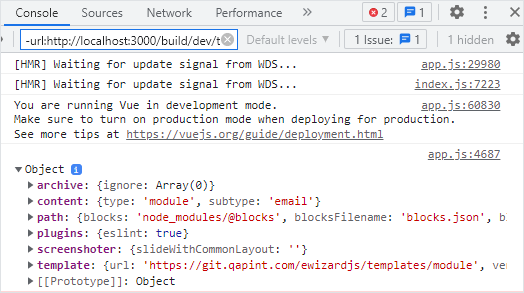
You can check all the fields available in the .ewizard/settings.json in a development build.
To view all fields from the .ewizard/settings.json file, add the console.log method in the App.vue file of your project:
html
<!-- App.vue -->

<script>
export default {
  mounted() {
    console.log(EWIZARDJS.SYSTEM_SETTINGS);
  },
};
</script>
You can see the object with all the fields of .ewizard/settings.json in the browser console after running the wiz dev --live command: