Appearance
Asset settings
With the modular approach, you can add assets to a module as part of a block. In eWizard Editor, you can add assets to a block from Veeva Vault or eWizard NaviGate. You can also add assets to a component from eWizard Library, Veeva Vault, or upload the assets from your device.
As best practice, add assets to the module in eWizard Editor.
Asset configuration file
When you add the assets in eWizard Editor, this service assigns IDs to each asset. The .ewizard/assets.json file stores the assigned IDs and the asset metadata organized by the asset type: a module and the list of all media assets added within the item.
To view the assets.json file:
Add the Veeva Vault assets to your item in eWizard Editor.
Download the zipped email project to your computer.
Open the
./.ewizard/assets.jsonfile.
Depending on the item type, the assets.json file may have a different structure.
json
// ./.ewizard/assets.json

{
    "app": {
        "assets": [
            {
                "assetId": "o19ynehaws",
                "type": "module",
                "version": "2.0",
                "veevaInfo": {
                    "linkedComponents": []
                },
                "localInfo": {
                    "components": {
                        "6wq4ezvo23": {
                            "props": {
                                "text": {
                                    "vaultId": "",
                                    "defaultValue": "",
                                    "name": "",
                                    "type": "text",
                                    "classification": "",
                                    "hyperlink": "",
                                    "alt": ""
                                }
                            }
                        },
                        "kpvg36hzuo": {
                            "props": {
                                "src": {
                                    "vaultId": "",
                                    "defaultValue": "",
                                    "name": "code-viewport",
                                    "type": "image",
                                    "classification": "",
                                    "hyperlink": "",
                                    "alt": "",
                                    "poster": ""
                                }
                            }
                        },
                        "46duqrixf2": {
                            "props": {
                                "src": {
                                    "vaultId": "",
                                    "defaultValue": "",
                                    "name": "My video",
                                    "type": "video",
                                    "classification": "",
                                    "hyperlink": "",
                                    "alt": "",
                                    "poster": ""
                                }
                            }
                        },
                        "oqu4g4tzk6": {
                            "props": {
                                "text": {
                                    "vaultId": "",
                                    "defaultValue": "",
                                    "name": "",
                                    "type": "text",
                                    "classification": "",
                                    "hyperlink": "",
                                    "alt": ""
                                }
                            }
                        },
                        "zauvomjum4": {
                            "props": {
                                "src": {
                                    "vaultId": "",
                                    "defaultValue": "",
                                    "name": "UFO21",
                                    "type": "image",
                                    "classification": "",
                                    "hyperlink": "",
                                    "alt": "",
                                    "poster": ""
                                }
                            }
                        }
                    }
                },
                "navigateInfo": {
                    "6wq4ezvo23": {
                        "actualType": "text",
                        "data": "<div style=\"line-height:29px;text-align:left;\"><span style=\"color:rgb(0,0,0);font-family:Arial, Helvetica, sans-serif;font-size:29px;\">My module title</span></div>",
                        "classification": "",
                        "hyperlink": "",
                        "alt": ""
                    },
                    "kpvg36hzuo": {
                        "data": "./common/media/images/e95272c0-0bba-11ec-8a48-06c02543afe7.png",
                        "actualType": "image",
                        "classification": "",
                        "hyperlink": "",
                        "alt": "",
                        "poster": ""
                    },
                    "46duqrixf2": {
                        "data": "./common/media/videos/682d1750-38be-11ec-a033-2ab36596d197.mp4",
                        "actualType": "video",
                        "classification": "",
                        "hyperlink": "",
                        "alt": "",
                        "poster": ""
                    },
                    "oqu4g4tzk6": {
                        "actualType": "text",
                        "data": "<div style=\"line-height:20px;text-align:center;\"><span style=\"color:rgb(77,77,77);font-family:Arial, Helvetica, sans-serif;font-size:14px;\">This is my module text</span></div>",
                        "classification": "",
                        "hyperlink": "",
                        "alt": ""
                    },
                    "zauvomjum4": {
                        "data": "./common/media/images/37022210-5d7b-11ec-b91a-85800ef85ec4.png",
                        "actualType": "image",
                        "classification": "",
                        "hyperlink": "",
                        "alt": "",
                        "poster": ""
                    }
                }
            },
            {
                "localInfo": {
                    "encodedPath": "./common/media/images/my-image.png",
                    "path": "./common/media/images/my-image.png"
                },
                "type": "image"
            },
            {
                "localInfo": {
                    "encodedPath": "./common/media/videos/my-video.mp4",
                    "path": "./common/media/videos/my-video.mp4"
                },
                "type": "image"
            },
            {
                "type": "image",
                "localInfo": {
                    "tempPath": "https://ewizard-storage-viseven-eu-1.s3.eu-central-1.amazonaws.com/content-uploader/37022210-5d7b-11ec-b91a-85800ef85ec4.png",
                    "path": "./common/media/images/37022210-5d7b-11ec-b91a-85800ef85ec4.png",
                    "relative": "common/media/images/37022210-5d7b-11ec-b91a-85800ef85ec4.png"
                }
            },
            {
                "localInfo": {
                    "encodedPath": "./common/media/images/default-image.jpg",
                    "path": "./common/media/images/default-image.jpg"
                },
                "type": "image"
            }
        ]
    },
    "$localization": {
        "assets": []
    },
    "$references": {}
}:::
Don't change anything in the assets.json file to guarantee the module stable behavior in eWizard. Use eWizard Library, NaviGate, or Veeva Vault services to edit the assets metadata.
Fields description
The assets.json file is an object that includes other objects: the modules and the array lists with assets within these modules. In e-Detailers, each slide is a separate object with its assets. The assets that aren't part of a module have their separate objects with metadata.
The assets.json file has the following fields describing the assets structure:
Field | Description |
|---|---|
app | An object that includes all assets in the Vue file. This field is the name of the item Vue file: App.vue. For e-Detailers, this field is the same as the slide ID, for example default. Each slide is a separate object with its assets. |
assets | An array list of the assets that includes all information about the assets within the object. |
Assets
The project assets are organized by asset type (module, image) and have the following fields:
Field | Description |
|---|---|
type | An asset type, for example module or image. |
assetId | The module ID that's the same as the data-asset-id field of the module block in the template. |
veevaInfo | An object that includes all information about the module or asset from Veeva Vault. |
localInfo | An object that includes local project information about the module or asset. |
version | The module or asset version. The assets that are part of the module have their own version fields. |
navigateInfo | An object that includes all information about the module or asset from eWizard NaviGate. |
platform | The module or asset platform: veeva or navigate. |
Veeva Vault assets
The veevaInfo object includes information about Veeva Vault assets.
Field | Description |
|---|---|
host | The hosting service of the Veeva Vault user. |
id | The module/asset ID assigned in Veeva Vault. |
url | The module/asset URL address in Veeva Vault. |
name | The module/asset meaningful name in Veeva Vault. |
documentNumber | The module/asset document number in Veeva Vault. |
status | The module/asset status in Veeva Vault. |
country | The module/asset country or the list of country codes in Veeva Vault. |
product | The module product in Veeva Vault. |
communicationObjective | An array list of communication objectives in Veeva Vault. |
targetAudience | An array list of target audience in Veeva Vault. |
adoptionLadder | An array list of the product adoption ladders in Veeva Vault. |
expirationDate | The module expiration date in Veeva Vault. |
linkedDocuments | An array list of the linked documents in Veeva Vault. |
linkedComponents | An array list of all module assets that are called linked components in Veeva Vault. The linked components are the same as eWizard components: text, image, or video. |
alt | The asset alternative text in Veeva Vault. |
role | The asset role in Veeva Vault. |
channel | The asset channel in Veeva Vault. |
text | The text with the inline HTML style for the text component in Veeva Vault. |
fullname | The asset full name in Veeva Vault. For the video assets, this field is an object that has the source field. |
hyperlink | The asset hyperlink in Veeva Vault. |
title | The asset title in Veeva Vault. |
sizes | The asset size in kilobytes (kb) and megabytes (mb). |
region | The asset region in Veeva Vault. |
parentProduct | The asset parent product in Veeva Vault. |
approved_for_distribution_date | The approved for distribution date of the asset in Veeva Vault. |
classification | The asset classification in Veeva Vault. |
created_at | The asset creation timestamp in Veeva Vault. |
updated_at | The asset update timestamp in Veeva Vault. |
created_by | The asset author ID in Veeva Vault. |
poster | The asset poster image. |
format | The asset format for the media assets, for example jpeg. |
links | The API links for downloading the asset and its thumb image from the Content Editor storage service for Veeva Vault. This object includes the thumb, download, and view fields. |
rawDocument | An object for the asset raw formats in Veeva Vault. |
actualType | The actual asset type in Veeva Vault. |
filePath | The media asset relative path to the temporary directory in the project. For video assets, this field is an object with the source and rendition fields. |
renditionName | The asset rendition name in Veeva Vault. |
data | The asset AWS or local storage information. |
approvalDocument | The info about the Veeva Vault approval document. |
approvalDocument.id | The ID of the approval document. |
approvalDocument.version_id | The Version ID of the approval document. |
approvalDocument.channel__c | The channel of the approval document. |
approvalDocument.global_id__sys | The combination of the Vault ID and the Document ID of the approval document. For more information, see Global ID fields. |
approvalDocument.link__sys | Used to store a value that identifies an approval document’s content. For example, the document’s global_id__sys field value. For more information, see Link Fields. |
approvalDocument.name__v | The display name of the approval document. Displayed throughout Veeva Vault. |
approvalDocument.status__v | The document Status within it's lifecycle. |
approvalDocument.created_by__v | The ID of the user who created the approval document. |
approvalDocument.document_creation_date__v | The date and time when the approval document was created. |
approvalDocument.file_modified_date__v | The date and time when the approval document was last modified. |
approvalDocument.last_modified_by__v | The ID of the user who modified the approval document last. |
approvalDocument.lifecycle__v | The name of the document lifecycle to assign to the new document. |
approvalDocument.state_stage_id__sys | The Lifecycle State Stage ID of the approval document. |
approvalDocument.stage__sys | The Lifecycle Stage of the approval document. |
approvalDocument.country__v | The ID of the country in Veeva Vault. |
approvalDocument.description__v | The Description of the approval document. |
approvalDocument.product__v | The ID of the product in Veeva Vault. |
approvalDocument.major_version_number__v | The number of the major version of the approval document. For example, if the Version of the document is 0.1, the major version is 0. |
approvalDocument.minor_version_number__v | The number of the minor version of the approval document. For example, if the Version of the document is 0.1, the minor version is 1. |
approvalDocument.document_number__v | The document number of the approval document. |
approvalDocument.source_content_module__v | The ID of the Source Content Module of the approval document. |
approvalDocument.language__v | The Language of the approval document. |
approvalDocument.custom_module_name__c | The Custom Module Name of the approval document. |
approvalDocument.tags__c | The Tags of the approval document. |
Local assets
The localInfo object includes local information about assets and has the following fields:
Field | Description |
|---|---|
components | An object that includes information about all the components within the module. Each component has its ID object, for example g6mi1vbp82. The same component ID is used for navigateInfo. |
props | An object that includes information about all the properties of each component. |
src or text | Depending on the asset type, this field is an object that includes all the properties of a text or media asset. |
vaultId | The asset ID in Veeva Vault. It's the same as the asset id field in the linkedComponents array list. |
defaultValue | The default value of the component property. For more information, see properties for the specific components, for example wiz-text for e-Detailers. |
type | The asset type, for example text or image. |
name | The asset meaningful name. This value is the same as the name field in the linkedComponents array list. |
classification | The Veeva Vault field. The asset classification in Veeva Vault. |
hyperlink | The Veeva Vault field. The asset hyperlink in Veeva Vault. |
alt | The Veeva Vault field. The asset alternative text in Veeva Vault. |
poster | The Veeva Vault field. The asset poster image. |
NaviGate assets
The navigateInfo object includes information about eWizard NaviGate assets. Each asset has the component ID that's the same as in the localInfo object.
Field | Description |
|---|---|
actualType | The asset file type such as text, image, or video. |
data | The asset NaviGate storage information. |
classification | The Veeva Vault field. See the veevaInfo fields description. |
hyperlink | The Veeva Vault field. See the veevaInfo fields description. |
alt | The Veeva Vault field. See the veevaInfo fields description. |
poster | The Veeva Vault field. See the veevaInfo fields description. |
Media assets
The media assets are listed in the assets.json file as individual objects with the following fields:
Field | Description |
|---|---|
type | The media asset type, for example image. |
localInfo | An object that includes local information about media assets. |
tempPath | A temporary path to the asset AWS storage. |
path | An absolute path to the media asset in the project local directory. |
relative | A relative path to the media asset in the project local directory. |
encodedPath | An auxiliary path to the media asset in the project local directory. |
Check Veeva Vault information in eWizard Editor
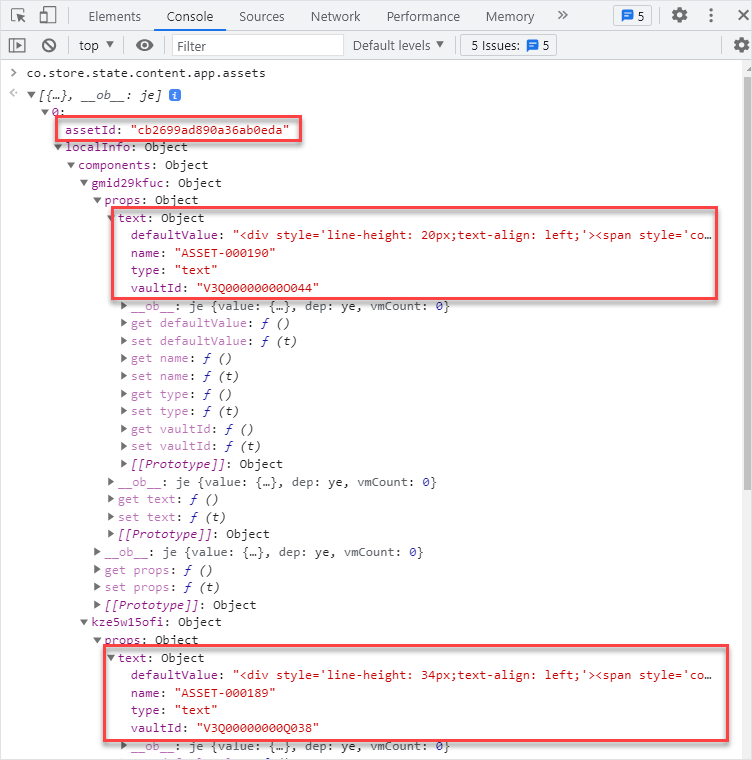
When you add modules from Veeva Vault to the email in eWizard Editor, you can view information about the module assets in your browser console.
Add the Veeva Vault modules in eWizard Editor Edit mode using the BROWSE button in the Properties tab.
You must sign in to Veeva Vault to add the modules with assets.
Open the browser console. In Chrome, press F12 and go to the Console tab.
Enter
co.store.state.content.app.assetsand press Enter.Check the module assets information from Veeva Vault.