Appearance
eWizard.js framework v4.14.0
Custom fonts improvement
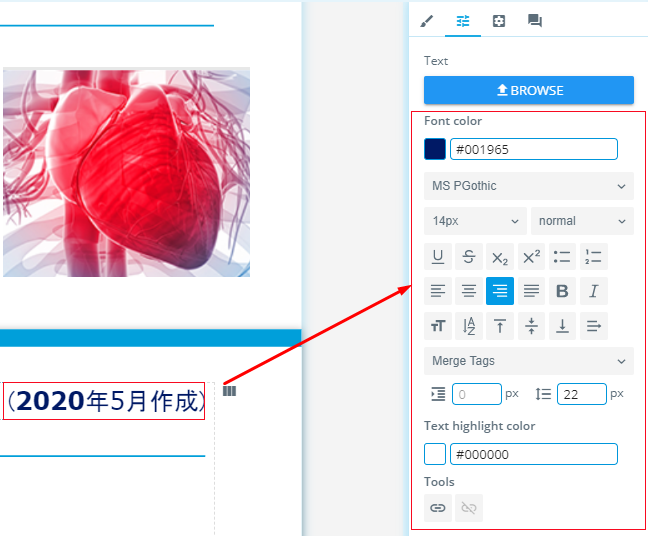
Any font used in an item (an e-Detailer, email or a landing page) appears in the WYSIWYG text editor.
For this, the fonts list is parsed from common/styles/fonts.css.
When a font is not in fonts.css or the required fonts are not in the email content, you can include them within the fonts object in the components.json as follows:
js
{
    "fonts": {
        "alternative": "MS Pゴシック, HiraKakuProN-W3, Droid Sans Japanese, sans-serif",
        "external": [
            "MS PGothic"
        ]
    }
}
Specify the alternative fonts to substitute the required, should they're absent.
To make fonts available in eWizard Editor, specify them in the external field.
Email development
Email fragments
A new item type, an email fragment, is added.
Find it in the list when running wiz init the next time.
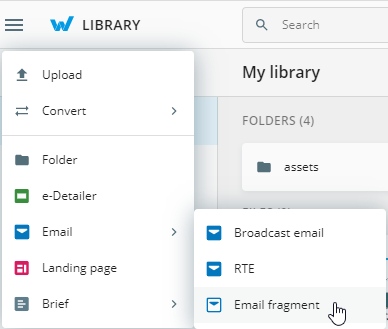
Email fragment build is available for Veeva Vault. To generate it, run wiz-build veeva. The build's index.html file includes styles and body content only.
Fragment component
In support of email fragments functionality, this version also introduces the fragment component. Once added, the fragment component allows for reserving the place for an email fragment.

The fragment component is available in eWizard Editor when the email's target system is Veeva Vault. This component features the following properties:
Min fragment count
Max fragment count
Numeric values provided in these properties define how many fragments can be added to this template in runtime when an approved email is compiled on CLM.
uncss ignore
The ignore option is added to the unscc plugin.
It allows for ignoring selectors without their removal out of the build.
To use this option, add ignore to the settings specifying the selector array to be ignored by uncss.
js
  "uncss": {
    "ignore": [".uncss-ignored-class", "/ignore/"]
  }
Also, you can include here regular expressions. Just put the quotes around.
The option is applicable for the following builds:
HTML5 emails
PDF emails
Mailchimp email builds
OCE Sales email builds
SFMC email builds
Veeva email builds
Non-minified classes
By default, builders minify all classes in order to reduce the resulting HTML size.
However, when you need to leave any classes as they are, add them to minifyClassesFilter in the settings.json file.
wiz-text v2.0.0
The new version of the wiz-text component is introduced. In the new reduced template, all extra div text wrappers are removed. It decreases the number of symbols in a template.
So that we highly recommend you updating wiz-text to the latest version.
e-Detailer development
Pop-up component
The new version brings the pop-up component for e-Detailers.

Pop-up’s default properties are as follows:
Width: 600 px
Height: 380 px
Border: 1 px
Pop-up fill: #FFFFFF
Border fill: #A5B2B8
Also, the pop-up features the following inputs:
the Component name fill-in field.
the Show close pop-up button checkbox; activated by default.
The pop-up includes the Close button with the following default properties:
Width: 48 px
Height: 48 px
The
button-close.svgfor the icon
The Close button position is available for change. It also can be removed at all, and then the pop-up is closed by the outside tap.
Once added to the e-Detailer, the pop-up can be a container for other components.
e-Detailer builds
The following builds are improved:
Single Page Application
Viseven Single Page Application
iQVIA Single Page Application
Rainmaker Single Page Application
OCE Multi Page Application
OCE Single Page Application
...with these new features:
--no-progress-barto inactivate the progress bar.--statto analyze the bundleThe final bundles include several CSS chunks, and the limited number of polyfills; unnecessary polyfills are removed, leaving only those required for the given browser list. As a result, the overall bundle size is significantly reduced.
Except for all abovementioned, OCE builds feature the reduced assembly size due to non-used CSS ignoring, as settings.json is expanded by uncss: boolean.
e-Detailers export as PDF
Companies may need their e-Detailers exported as PDFs to meet diverse requirements. This version covers the next portion of them.
Documents concatenation
PDF concatenation is available now. The feature is applicable for documents in the documents.json file.
To concatenate documents, set the true value for the concatDocuments field in settings.json.
The document.json location can be changed. For this, go to ewizard/settings.json, find the path object, and set the required location in the documents field.
PDF pages order
Now, the screenshots are captured from the starting slide in to the last, and then from the very first - up to the starting one.
For example
Consider your e-Detailer contains four slides. You've set slide 3 as the starting one. The matching between the resulting PDF pages and source slides is as follows:
Page 1 - Slide 3
Page 2 - Slide 4
Page 3 - Slide 1
Page 4 - Slide 2
Open PDF
For e-Detailers exported as PDF for approval: if the e-Detailer includes the open PDF directive, the first page of the reference PDF appears in the resulting PDF after export.
Common components
Upon e-Detailer export, its common components appear in the first page of every chapter in the resulting PDF.
It allows for displaying all component states, if any are contained in the source e-Detailer. The required components must include the activate method. So that the resulting PDF shows these components with each state printed.
Set the component selectors within screenshorter's componentsOnEveryChapter in the settings.json file - and they appear in the first page of each chapter of the resulting PDF.
Among others, this feature is applicable to the following:
wiz-scrollerv-togglev-switchall other common components that feature different state on slides (for example, references).