Appearance
Screenshoter: Component states for PDF files
With the eWizard PDF Export service, you can export e-Detailers and sites as PDF documents. In the resulting PDF, each slide or page transforms into a separate PDF page. However, the slide or page may contain some interactive elements, for example, a pop-up where content is initially hidden and appears after a click. All component states are displayed upon its Activate feature since it allows to include more than one state into the resulting PDF.
Hidden slides, subslides, and chapters are included in the exported PDF.
PDF export service plugin
Activate
The component instance must have the activate method. The PDF Export service iterates through all slide components and calls the activate method of each component. This method must execute a logic that reveals the component content. For example, the function to open a pop-up, to rotate carousel items and others. To generate new states, the activate method must change the component props or data. The PDF Export service checks if props or data were changed during activation and makes a slide or page screenshot.
HTML
<template>
  <div class="example-component">
    <p>The image below is visible on the second screenshot</p>
    <wiz-image v-if="isVisible"></wiz-image>
  </div>
</template>

<script>
import wizImage from "wiz-image"
export default {
  name: "example-component",
  components: {
    wizImage
  },
  data() {
    return {
      isVisible: false
    };
  },
  methods: {
    activate() {
      this.isVisible = true;
    }
  },
};
</script>
Deactivate
After activating the component along with all its nested components, the PDF Export service calls the deactivate method of the component instance.
For example, a wiz-popup component with a nested wiz-tab-group component in the slide. The service activates the pop-up to make the state with the opened pop-up. Then, the service activates the tab group and generates states with each tab opened. The final step calls the deactivate method of the pop-up to hide it. If this slide contains any other pop-up with content, the first pop-up is deactivated and hidden in the rest of the states.
The deactivate function must be defined as a method of the component instance.
js
  methods: {
    deactivate() {
      this.isVisible = true;
    }
  }
PDF Export settings
When exporting e-Detailers or sites to PDF, states of all common components are generated into a single slide or page. This slide or page is defined in the settings.json file of the respective item.
Define the ID of the preferable e-Detailer slide in the slideWithCommonLayout field of the screenshoter object.
JSON
// settings.json

{
  "screenshoter": {
    "slideWithCommonLayout": "customSlideId"
  }
}
Define the ID of the preferable site page in the pageWithCommonLayout field of the screenshoter object.
JSON
// settings.json

{
  "screenshoter": {
    "pageWithCommonLayout": "parent",
  }
}
If the settings are missing, the screenshoter makes common component states in the first slide.
beforeScreenshot hook
When you navigate to the slide or page with the custom animation effect, it takes a certain amount of time before you see the actual element after animation effect ends. The beforeScreenshot hook provides possibility to ignore delay in the custom animation effect on the slide before taking the screenshot of the slide. This feature is useful when you export your e-Detailer or site to PDF.
Add the beforeScreenshot hook to the slide Vue instance.
js
// ./slides/slide_name/index.vue

  created() {
    this.timerId = setTimeout(() => {
      this.setStartValue();
    }, 500);
  },
  beforeScreenshot() {
    clearTimeout(this.timerId);
    this.setStartValue();
  },
Consider the following example where the slider animation starts with the delay of 10,000 ms.
js
// ./slides/slider1/index.vue

<template>
<wiz-slide class="editable-block">
  <wiz-text :text="$t('title')" id="title"></wiz-text><!--    <transition name="fade">-->
  <div class="container" v-if="show">
    <wiz-text :text="value.toString()" class="counter"></wiz-text>
    <wiz-text class="label" :text="$t('text')"></wiz-text>
    <div v-if="show" @slideswipe.stop @chapterswipe.stop class="slider-wrapper">
      <wiz-slider type="horizontal" :value.sync="value" :step="1" :min-value="0" :max-value="100" class="default slider" @change="submitMonitoring"></wiz-slider>
    </div>
  </div><!--    </transition>-->
</wiz-slide>
</template>
<script>
import wizSlider from 'wiz-slider';

export default {
  components: {
    wizSlider,
  },
  data() {
    return {
      counter: '0',
      show: false,
      value: 0,
    };
  },
  mounted() {
    setTimeout(() => this.show = true, 10000);
  },
  beforeScreenshot() {
    return new Promise(resolve => {
      this.show = true;
      setTimeout(() => resolve('test'), 500);
    });
  },
  methods: {
    submitMonitoring() {
      this.$monitoring.submit('slider1', this.value);
    }
  },
};
</script>
<style scoped>
</style>

<style scoped editor>
#title {
  height: auto;
}
</style>
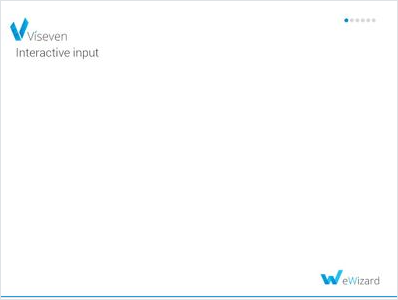
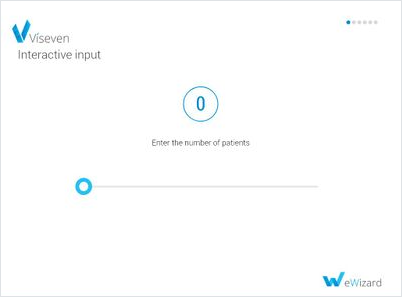
If you don't use the beforeScreenshot hook, the screenshoter service takes the slide screenshot without the slider due to delay in the animation effect. The beforeScreenshot hook sets the start value for the screenshoter service to 500 ms or you can set any other delay value.
To check how the screenshoter service works with the beforeScreenshot hook:
Add the 10,000 ms delay before the animation effect starts on the slide.
js// ./slides.slider1/index.vue mounted() { setTimeout(() => this.show = true, 10000); },Take the slide thumbnail screenshot.
shwiz thumbs -s slider1View the slide thumbnail screenshot without the slider.
Add the
beforeScreenshothook.js// ./slides/slider1/index.vue mounted() { setTimeout(() => this.show = true, 10000); }, beforeScreenshot() { return new Promise(resolve => { this.show = true; setTimeout(() => resolve('test'), 500); }); },Take the slide thumbnail screenshot.
shwiz thumbs -s slider1View the slide thumbnail screenshot with the slider.
nextState method
Use the nextState method to check if there are states available for screenshots. This is useful when exporting PDFs of components that have multiple windows, or windows that could exceed the slide (page) limit, like wiz-slider or wiz-scroller.
You can specify the conditions on how to change the state in the if clause of the method.
For example, to check all states in the wiz-scroller component:
html
<!-- ./slides/scroller1/index.vue -->

<template>
<wiz-slide class="editable-block">
  <wiz-scroller id="wiz-scroller-e363" class="default" :scrollpanelopts="[{'__label':'options','initialScrollY':'50%','initialScrollX':'10px','scrollingX':true,'scrollingY':true,'__id':'7-scrollpanelopts-0'}]" :railopts="[{'__label': 'Options', 'background': '#00ff03', 'gutterOfEnds': 10, 'opacity': 0, '__id': '7-railopts-0'}]" :baropts="[{'__label':'Options','background':'hwb(195, 0%, 0%)','disable':true,'opacity':50,'keepShow':true,'__id':'7-baropts-0'}]">
    <wiz-text :text="$t('text2')" id="wiz-text-4769"></wiz-text>
    <wiz-image id="wiz-image-8e03" class="default" src="./media/images/my_image.jpg"></wiz-image>
  </wiz-scroller>
  <wiz-text id="wiz-text-b070" class="default" :text="$t('wiz_text_c124')"></wiz-text>
</wiz-slide>
</template>

<script>
export default {
  components: {},
  methods: {
    async nextState() {
      if (this.isAvailableSwitchStatesForScreenshot) {
        const { scrollingX, scrollingY } = this.ops.scrollPanel;
        const { v, h } = this.getScrollProcess();

        const dy = this._getOneScreenHeightDistance();
        const dx = this._getOneScreenWidthDistance();
        this.scrollBy({ dy: `${dy}`, dx: `${dx}` });

        if ((scrollingY && v !== 1 && dy > 0) || (scrollingX && h !== 1 && dx > 0)) {
          return {
            done: false,
            value: undefined,
          };
        }
      }
      return {
        done: true,
        value: undefined,
      };
    },
  }
};
</script>
In this example, eWizard.js checks the height of the screen and scrolls one screen down while the function from the if clause returns done: false.
To check all states in the wiz-slider component:
html
<!-- ./slides/slider1/index.vue -->

<template>
<wiz-slide class="editable-block">
  <wiz-slider
    id="slider1"
    ref="slider1"
    class="pa"
    v-bind="sliderOptions"
    :component-name="'Slider 1'"
    @slideswipe.native.stop=""
    @change="setDifference"
  ></wiz-slider>
  <wiz-text id="wiz-text-b070" class="default" :text="$t('wiz_text_c124')"></wiz-text>
</wiz-slide>
</template>

<script>
export default {
  components: {},
  methods: {
    async nextState() {
      if (this.screenshoterStateCounter === 0) {
        this.screenshoterStateCounter = 1;
        this.sliderOptions.value = this.sliderOptions.max;
        this.setDifference(this.sliderOptions.max);
        return {
          done: false,
          value: undefined,
        };
      }

      return {
        done: true,
        value: undefined,
      };
    },
    getSliderValue(value) {
      this.currentSliderValue = value;
    },
    calcDifference() {
      this.difference = +this.sliderOptions.max - +this.currentSliderValue;
    },
    setDifference(value) {
      this.getSliderValue(value);
      this.calcDifference();
      const vueSliderProcess = this.$refs.slider1.$el.getElementsByClassName("vue-slider-process")[0];
      const graph = this.$refs.graph.$el;
      vueSliderProcess.style.setProperty("--difference", `${this.difference}%`);
      graph.style.setProperty("--difference", `${this.difference}%`);
    },
  },
};
</script>
In this example, eWizard.js screenshots every state while the function from the if clause returns done: false.
Delay for generating screenshot
You can set a delay for generating a screenshot in milliseconds.
To set a delay, add the screenshoter.delay option to the settings.json file of your project.
json
// ./settings.json

{
  "screenshoter": {
    "delay": 1000,
    "icons": {
      "blocks": {
        "enabled": true,
        "width": "200px",
        "mode": "view"
      }
    }
  }
}
As a result, the screenshot icon is generated with a delay in 1000 milliseconds.