Appearance
View eWizard content in HTML file
You can locally view your eWizard content in an iframe of an HTML file with a simplified link to eWizard Editor. The preview is available when you open an HTML file in your browser or view the file on localhost.
To view your content:
Create an HTML file with an
<iframe>tag. For example,preview.html:html<!-- preview.html --> <!doctype html> <html lang="en"> <head> <meta charset="UTF-8"> <title>Title</title> </head> <body> <iframe></iframe> </body> </html>Copy a simplified link in eWizard. There're two ways to get a link:
Click the Simplified view link option of the required item version on the SHARE LINKS tab in eWizard Library.
Add the
?simplified=trueparameter to a link shared in eWizard. For example:https://try.ewizard.io/preview/#/share/a25c43fc-84b2-4c1d-84c5-8d572a5987c0/0.0.2?simplified=true
Paste the simplified link to the
<iframe>tag.html<!-- preview.html --> <!doctype html> <html lang="en"> <head> <meta charset="UTF-8"> <title>Title</title> </head> <body> <iframe src="https://try.ewizard.io/preview/#/share/a25c43fc-84b2-4c1d-84c5-8d572a5987c0/0.0.2?simplified=true" width ="900" height="500"></iframe> </body> </html>You can edit the width and height of your iframe with the
widthandheightattributes.
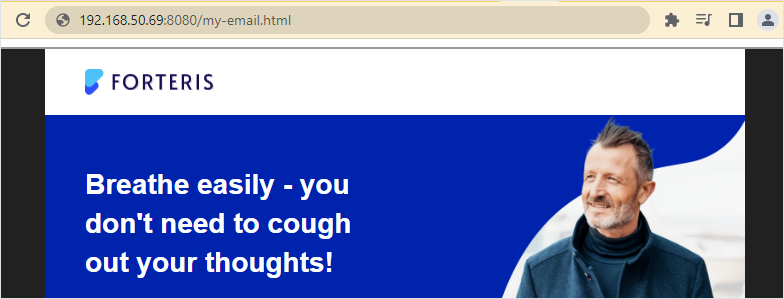
As a result, when you open the file, the item is displayed in an iframe.