Appearance
Store
Use eWizard CLI to set up the Vuex store for state management when you initialize a new e-Detailer project. Every Vuex app is a store.
Installation
When you initialize your e-Detailer or email with the wiz init command, select Yes to use Vuex.
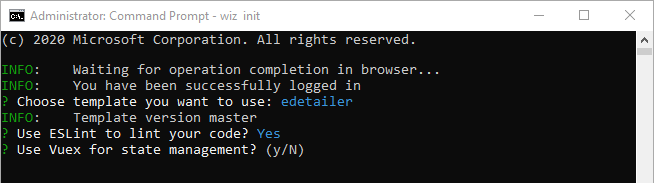
eWizard CLI installs the Vuex store and creates the store directory in the project root directory. This directory contains three files according to the Vuex application structure guidelines.
.
└─ store/
    ├─ actions.js
    ├─ index.js
    └─ mutations.js
To register Vuex, eWizard CLI creates the store.js file in the extensions directory. The Vuex instance is created and passed to the Vue app instance as an option.
The store initialization function is defined in store/index.js along with your app state.
js
// ./store/index.js

import Vuex from 'vuex';
import actions from './actions';
import mutations from './mutations';

export default () => new Vuex.Store({
  state: {},
  actions,
  mutations,
});
The mutations.js and actions.js files store the root mutations and actions.
Limitations for the SPA and MPA builds
You can use the Vuex store without any limitations if you export your e-Detailer as an :SPA: build.
As for the :MPA: builds, only the e-Detailers exported to the Veeva CRM format support Vuex. Direct changes of the Vuex state outside the mutation handlers aren't supported and must be avoided.
Since each slide of the MPA build is a separate instance, the eWizard.js engine initializes the store state once you create the slide instance.
When using conditional rendering (v-if, v-else-if, v-else) and v-for based on the Vuex state in an e-Detailer build for Veeva Vault, and the state is updated after the e-Detailer is loaded, components rendered conditionally can be duplicated or cause errors.
To address this, consider removing the v-if, v-else-if, v-else, and v-for directives that depend on the Vuex state.
Triggered emails
Stores are used as data sources for triggered emails. Get or add data to the data source with the triggered email plugin.
You can create various store modules to work with content.
The slides module name is reserved for triggered emails and can't be used for other modules.
For example, you can use the getCurrentSlide method of the triggered email plugin to manage states in the index.js file.
To use the getCurrentSlide method:
Define the
createStorefunction in the./store/index.jsfile:js// ./store/index.js import Vuex from 'vuex'; import getSlidesModule from './slides'; export function createStore({ settings, navigator, createStoreModule }) { return new Vuex.Store({ modules: { slides: createStoreModule('slides', getSlidesModule(navigator)), }, }); }The function must have the
createStorename, otherwise thesettings,navigator, andcreateStoreModulearguments aren't passed to the function.Make a function where the
statefield returns theimport state from './state.json'value in theslidesmodule. For example, thedefault function:js// ./store/slides/index.js import state from './state.json'; export default function (navigator) { return { namespaced: true, state: () => state, getters: { currentSlide: (state) => navigator.getCurrentSlide().slide, fragments: (state, getters) => state[navigator.getCurrentSlide().slide]?.fragments ?? [], }, mutations: { setStoreProperty(state, { property, value }) { state[navigator.getCurrentSlide().slide][property] = value; }, }, actions: {}, }; }Import the
createStorefunction and export thedefault functionto the./extensions/store.jsfile:js// ./extensions/store.js import Vuex from 'vuex'; import { createStore } from '../store'; export default function (Vue, { settings, navigator, createStoreModule }) { Vue.use(Vuex); return { store: createStore({ settings, navigator, createStoreModule }), }; }
As a result, when you add a Veeva Vault triggered email in the eWizard Editor wiz-menu component, its data is stored in the state.json file.
For example, the triggered emails added to the home slide:
json
{
  "home": {
    "fragments": [
      {
        "id": "fragments-1"
      },
      {
        "id": "fragments-2"
      },
      {
        "id": "fragments-3"
      }
    ]
  }
}
The fragments object shows the IDs of the added email fragments. The IDs correspond to the IDs in the./common/resources/triggeredEmail.json file.
Export eWizard tokens
You can use a store to show eWizard tokens, like country name, company, or approval document number when you publish a Veeva Vault build or export your item to PDF. For more information, see Export eWizard tokens.