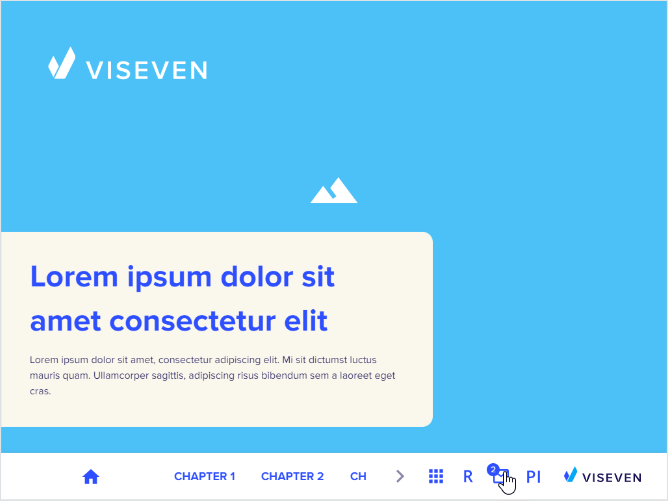
Appearance
Triggered emails
You can create emails or email fragments from e-Detailer slides.
The common/metadata/triggeredEmail.json file stores the info about triggered emails. Add the file and the directory manually to use triggered emails. You can update the file location and filename in the metadata and emailsManifest properties in the ./.ewizard/settings.json file:
json
// ./.ewizard/settings.json

{
  "path": {
    "metadata": "common/metadata",
    "emailsManifest": "common/metadata/triggeredEmail.json"
    }
  }
}
You can modify the file manually or with the Triggered email plugin.
Example of the triggeredEmail.json file:
json
// ./common/metadata/triggeredEmail.json

{
    "emails": {
        "email1": {
            "name":"Email 1",
        }
    },
    "fragments": {
        "fragment1": {
            "name":"Fragment 1",
        }
    }
}
Each email and fragment has an id and data fields. For example, email1 and fragment1 are the id fields, and name is the data of the email and fragment respectively.
The emails object includes the triggered emails:
email1is the triggered email ID for eWizard Editor. It's an object that includes other metadata fields, likename—the email name. For example,Email 1.
fragments is an object that includes the email fragments:
fragment1is the email fragment ID for eWizard Editor. It's an object that includes other metadata fields, likename—the fragment name. For example,Fragment 1.
Triggered email plugin usage examples
You can use the triggered email plugin to edit the triggeredEmail.json file.
addEmail
js
window.ewizardjs.triggeredEmail.addEmail('testemail1', {name: 'Test_email_1', url: 'https://viseven.com'})idis the email ID. For example,testemail1.datais the object that includes the email metadata fields:nameis the email name string. For example,Test_email_1.urlis the email URL address string. For example,https://viseven.com.
As a result, this method adds the following email metadata to the emails field:
json
// common/metadata/triggeredEmail.json

{
    "emails": {
        "testemail1": {
            "name": "Test_email_1",
            "url": "https://viseven.com"
        }
    },
}
addFragment
js
window.ewizardjs.triggeredEmail.addFragment('testfragment1', {name: 'Test_fragment_1', url: 'https://viseven.com'})idis the email ID. For example,testfragment1.datais the object that includes the email fragment metadata fields:nameis the email fragment name string. For example,Test_fragment_1.urlis the email fragment URL address string. For example,https://viseven.com.
As a result, this method adds the following email fragment metadata to the fragments field:
json
// common/metadata/triggeredEmail.json

{
    "fragments": {
        "testfragment1": {
            "name": "Test_fragment_1",
            "url": "https://viseven.com"
        }
    },
}
getEmailById
For example, the triggeredEmail.json file has an email with the testemail1 ID, the name and url fields as data:
json
// common/metadata/triggeredEmail.json

{
    "emails": {
        "testemail1":{
            "name":"Test_email_1",
            "url":"https://viseven.com"
        }
    },
}
To retrieve data from the email with the testemail1 ID, run:
js
window.ewizardjs.triggeredEmail.getEmailById('testemail1')As a result, you can see the following in your browser console:
js
name: "Test_email_1",
url: "https://viseven.com"
getFragmentById
For example, the triggeredEmail.json file has the email fragment with the testfragment1 ID, the name and url fields as data:
json
// common/metadata/triggeredEmail.json

{
    "fragments": {
        "testfragment1": {
            "name": "Test_fragment_1",
            "url": "https://viseven.com"
        }
    },
}
To retrieve data from the fragment with the testfragment1 ID, run:
js
window.ewizardjs.triggeredEmail.getFragmentById('testfragment1')As a result, you can see the following in the browser console:
js
name: "Test_fragment_1",
url: "https://viseven.com"
removeEmail
For example, the triggeredEmail.json file has an email with the testemail1 ID, the name and url fields as data:
json
// common/metadata/triggeredEmail.json

{
    "emails": {
        "testemail1":{
            "name":"Test_email_1",
            "url":"https://viseven.com"
        }
    },
}
To remove the email with the testemail1 ID and its metadata from the triggeredEmail.json file, run:
js
window.ewizardjs.triggeredEmail.removeEmail('testemail1')removeFragment
For example, the triggeredEmail.json file has the email fragment with the testfragment1 ID, the name and url fields as data:
json
// common/metadata/triggeredEmail.json

{
    "fragments": {
        "testfragment1": {
            "name": "Test_fragment_1",
            "url": "https://viseven.com"
        }
    },
}
To remove the email fragment with the testfragment1 ID and its metadata from the triggeredEmail.json file, run:
js
window.ewizardjs.triggeredEmail.removeFragment('testfragment1')updateEmail
For example, the triggeredEmail.json file has an email with the testemail1 ID:
json
// common/metadata/triggeredEmail.json

{
    "emails": {
        "testemail1":{
            "name":"Test_email_1"
        }
    },
}
To add the url field to the email metadata, run:
js
window.ewizardjs.triggeredEmail.updateEmail('testemail1', {name: 'Test_email_1', url: 'https://viseven.com'})The resulting testemail1 looks like this:
json
// common/metadata/triggeredEmail.json

{
    "emails": {
        "testemail1": {
            "name": "Test_email_1",
            "url": "https://viseven.com"
        }
    },
}
updateFragment
For example, the triggeredEmail.json file has the email fragment with the testfragment1 ID:
json
// common/metadata/triggeredEmail.json

{
    "fragments": {
        "testfragment1": {
            "name": "Test_fragment_1"
        }
    }
}
To add the url field to the email fragment metadata, run:
js
window.ewizardjs.triggeredEmail.updateFragment('testfragment1', {name: 'Test_fragment_1', url: 'https://viseven.com'})The resulting testfragment1 looks like this:
json
// common/metadata/triggeredEmail.json

{
    "fragments": {
        "testfragment1": {
            "name": "Test_fragment_1",
            "url": "https://viseven.com"
        }
    }
}
Triggered emails in eWizard Editor
You can use the Trigger email pop-up component to add a pop-up to send email fragments in Veeva Vault.
To use the Trigger email pop-up component in your eWizard Editor template, contact your administrator.
Trigger email pop-up includes components with the style settings for the pop-up title, email fragments, and the action button.
You can configure the pop-up and the fragments in eWizard Editor and send the fragments after publishing the e-Detailer or its brief to Veeva Vault.
To add the Trigger email pop-up component to your e-Detailer:
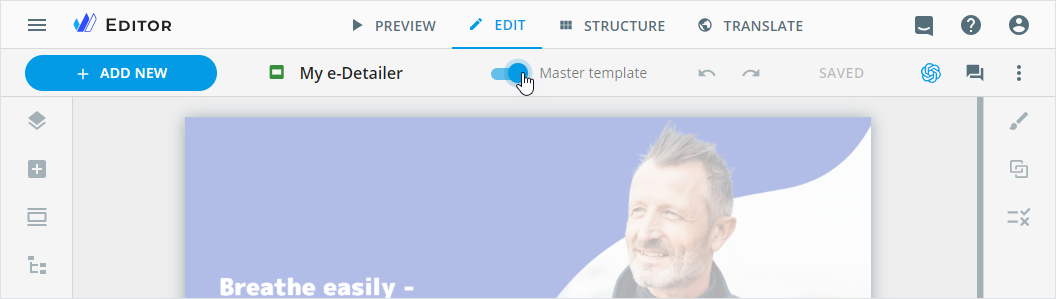
Switch on the Master template toggle.
Select the Trigger email pop-up component on the Tree tab.
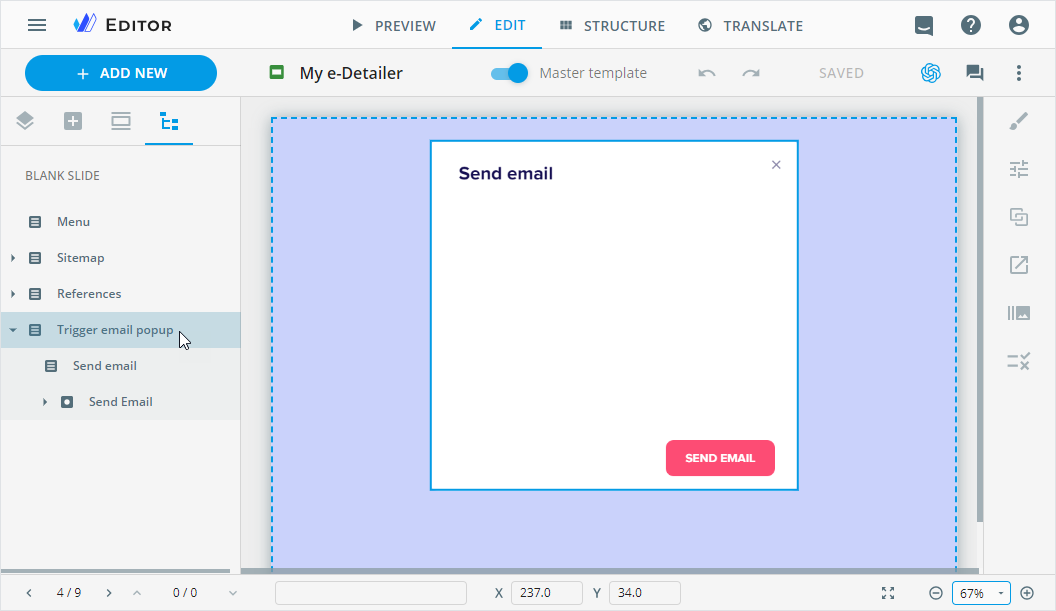
Configure the Trigger email pop-up properties.
Select the pop-up title on the Tree tab.
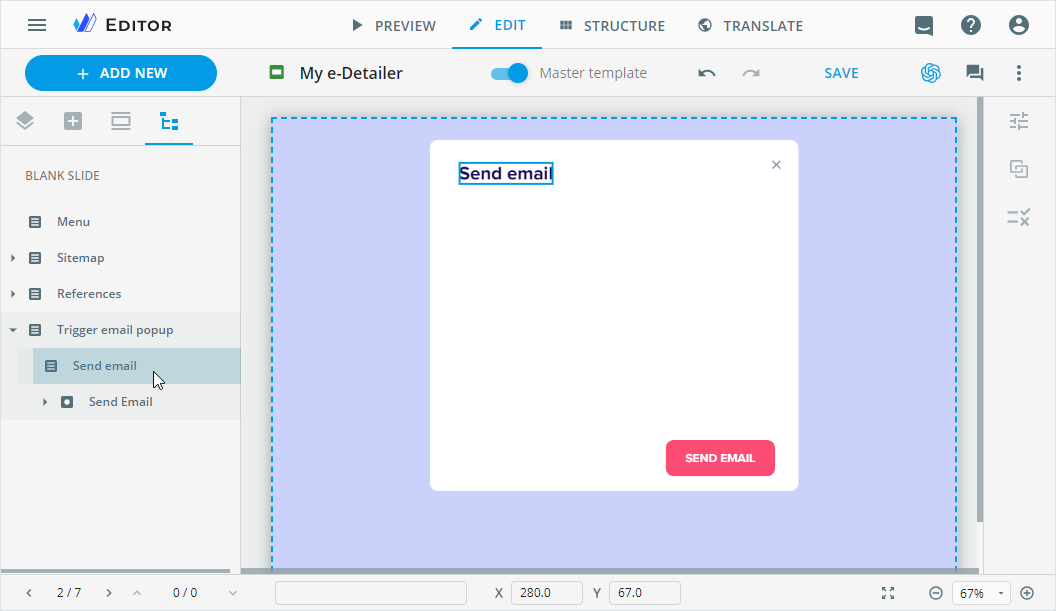
Configure the pop-up title on the Properties tab.
Select the pop-up button text component on the Tree tab.
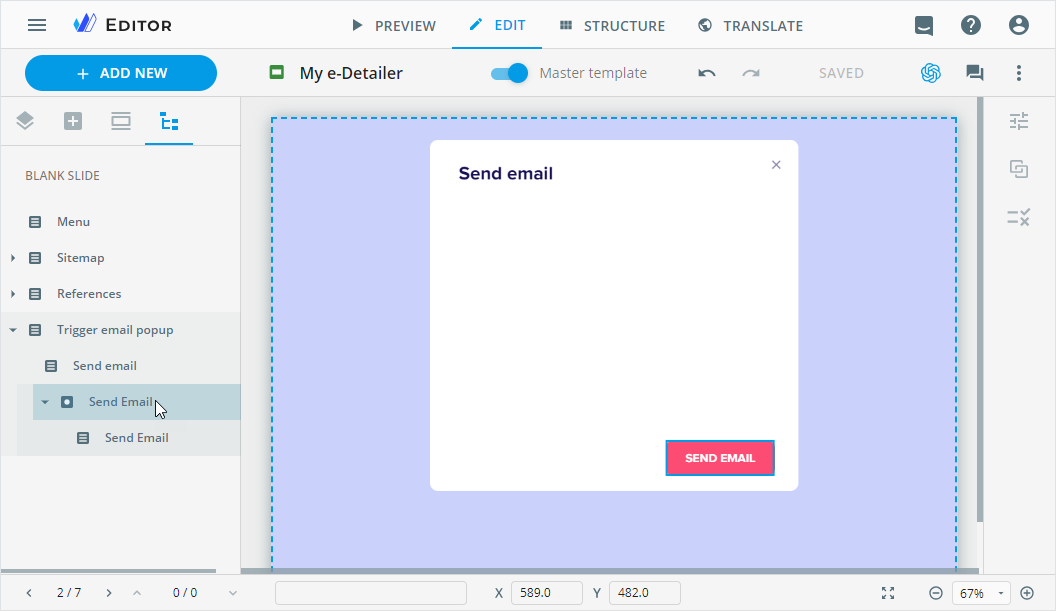
Configure the button text on the Properties tab.
Select the button text style component on the Tree tab.
Configure the button text style on the Properties tab.
Trigger email pop-up properties
On the Properties tab in eWizard Editor, you can configure the following for Trigger email pop-up:
COMPONENT NAME—view and change the component name. It appears on the Tree tab of the elements panel in Editor.
EMAIL TEMPLATE—browse for the Veeva Vault email template that includes the email fragments. You can add only one email template per e-Detailer. The email must be approved in Veeva Vault.
VEEVA INSTANCE—select the Veeva Vault instance the email is sent to.
BUTTON—enter the button text manually or use the BROWSE button.
BUTTON BACKGROUND—set the background color of the email button.
CLOSE BUTTON ICON—upload the icon of the close button.
SELECTED ICON—set the icon for the selected box.
NON-SELECTED ICON—upload the icon for the cleared box.
In the EMAIL FRAGMENTS section, you can add any number of fragments to the component on the current slide only. The email fragments must be approved in Veeva Vault.
After the e-Detailer or its brief is published to Veeva Vault, you can select the fragments in Veeva Vault and send them to an email.