Appearance
Slides and chapters structure
Use the structure.json file to define the e-Detailer structure. This file includes the following objects:
structure.json version 2
Version 2 of the ./structure.json file was introduced in eWizard.js 5.22.0. The differences between versions 2 and 1 are the following:
Additional
structureFileVersionfield that shows the version of the./structure.jsonfile.The updated chapter structure.
The subslides are now added in the
chaptersobject instead of theslidesobject.New
hiddenfield to hide slides, subslides, and chapters.Added the possibility to archive slides.
Update the structure version with the wiz update --structure command.
Example of the ./structure.json file of versions 1 and 2:
json
// ./structure.json

{
  "structureFileVersion": 2,
  "slides": {
    "frontPage": {
      "name": "Brand Page",
      "template": "slides/frontPage/index.vue"
    }
  },
  "chapters": {
    "home": {
      "name": "Home",
      "content": [
        {
          "slide": "frontPage",
          "subslides": [
            {
            "slide": "slider1"
            }
          ]
        }
      ]
    }
  },
  "storyboard": [
    {
      "chapter": "home"
    }
  ],
  "archivedSlides": []
}Slides
A slide is a single page of the e-Detailer that structurally separates its content. You can add slides with the wiz slide [slideId] command or manually edit the structure.json file. For more information about CLI options for managing slides and chapters, see eWizard CLI commands.
The slides object contains a list of all e-Detailer slides. Each key in the slides object is a unique slide ID.
The slide ID must be unique. Use A–Z, a–z, _, and 0–9 characters in the slide ID naming.
The structure of the slides object depends on the structure.json version.
Each slide in the structure.json version 2 has the following fields:
nameis the slide readable name.templateis a reference to the Vue component associated with the slide.
json
// ./structure.json

"slides": {
    "vanillaCookie": {
        "name": "Vanilla Cookies",
        "template": "slides/vanillaCookie/index.vue",
    },
    "cookiePhoto": {
        "name": "cookieRecipe",
        "template": "slides/cookiePhoto/index.vue"
    },
    "cookieRecipe": {
        "name": "cookieRecipe",
        "template": "slides/cookieRecipe/index.vue"
    },
    "chocolateCookie": {
        "name": "Chocolate Cookies",
        "template": "slides/chocolateCookie/index.vue"
    },
    "biscuit": {
        "name": "Chocolate Cookies",
        "template": "slides/biscuit/index.vue"
    }
}
The vanillaCookie, chocolateCookie, and biscuit keys specify the slide IDs. Each object has the name property displayed as the slide name in eWizard Editor. The template value specifies the path to the Vue component that represents the e-Detailer page.
Subslides
Subslides are supplemental slides used with the main slide to reveal the details of the information stated on the main slide. The key point of subslides is that you can configure the horizontal or vertical swipe direction for navigation between the subslides within the main slide. For example, you can configure horizontal navigation between the slides and vertical navigation between the subslides.
The subslide ID must be unique. Use A–Z, a–z, _, and 0–9 characters in the subslide ID naming. The subslide ID mustn't duplicate the ID of any slide in your e-Detailer. For example, if you have my_slide as the slide ID, you can't have the subslide with the same ID.
In structure.json version 2, you can add subslides only in the subslides field of a specific slide in the chapters object. For example, the cookiePhoto and cookieRecipe subslides of the vanillaCookie slide.
json
// ./structure.json

{
  "chapters": {
    "favorite": {
      "name": "Favorite",
      "content": [
        {
          "slide": "vanillaCookie",
          "subslides": [
            "cookiePhoto",
            "cookieRecipe"
          ]
        }
      ]
    }
  }
}Chapters
You can group slides by chapters. Each key in the chapters object is a unique ID of the chapter.
In structure.json version 2 each chapter has the following properties:
nameis the chapter name displayed in eWizard Editor.contentis an array with the IDs of the slides included in the chapter.subslidesis an optional field that defines the list of subslides for the slide. For more information, see Subslides.
For example, the favorite chapter contains the vanillaCookie slide with the cookiePhoto subslide and the chocolateCookie slide:
json
// ./structure.json

{
  "chapters": {
    "favorite": {
      "name": "Favorite",
      "content": [
        {
          "slide": "vanillaCookie",
          "subslides": [
            {
              "slide": "cookiePhoto"
            }
          ]
        },
        "chocolateCookie"
      ]
    }
  }
}Storyboard
With the storyboard array, you can define chapters and their display order during the e-Detailer demonstration.
eWizard.js treats the chapters not included in storyboard as hidden. It's impossible to open such chapters by swiping the e-Detailer. You can access a hidden chapter only by a direct link. For more information, see Hidden slides, subslides, and chapters.
In structure.json version 2, the storyboard array has the following structure:
json
// ./structure.json

{
  "storyboard": [
    {
      "chapter": "favorite",
      "hidden": true
    }
    "other"
  ]
}
The hidden field set to true defines the chapter that isn't visible in the e-Detailer. For more information, see Hidden slides, subslides, and chapters.
Start
Use the start object to define the slide and the chapter from which you want to start demonstration of your e-Detailer.
json
// ./structure.json

"start": {
    "slide": "slideId",
    "chapter": "chapterId"
}
The slide in the start object is highlighted in eWizard Editor, which uses the structure.json file to get this information.
Hidden slides, subslides, and chapters
You can configure your e-Detailer so that certain slides, subslides, or chapters aren't visible during demonstration. It means that these slides don't appear when you preview or demonstrate your e-Detailer. The hidden slides, subslides, and chapters aren't removed from the e-Detailer.
You can't swipe to a hidden chapter. To access a hidden chapter, use a direct link.
To hide a slide, subslide, or chapter in the e-Detailer, define the hidden field as true.
To hide a specific slide, define the
hiddenfield astruein the slide object of thecontentarray of the chapter.For example, hide the
vanillaCookiein thefavoritechapter:json// ./structure.json { "chapters": { "favorite": { "name": "favorite", "content": [ { "slide": "vanillaCookie", "hidden": "true" } ] } } }To hide a specific subslide, define the
hiddenfield astrueinsubslidesarray for each subslide in thechaptersobject.For example, hide the
cookiePhotosubslide in thesubslidesarray of thevanillaCookieslide object:json// ./structure.json { "chapters": { "favorite": { "name": "Favorite", "content": [ { "slide": "vanillaCookie", "subslides": [ { "slide": "cookiePhoto", "hidden": "true" } ] } ] } } }To hide a specific chapter, define the
hiddenfield astruein the chapter object within thestoryboardarray.For example, hide the
favoritechapter in thestoryboardarray:json// ./structure.json { "storyboard": [ { "chapter": "favorite", "hidden": true }, ] }If a chapter is hidden, all the slides of the chapter are treated as hidden. If at least one of the slides or subslides of the hidden chapter is visible, the whole chapter becomes visible.
Define the hidden field as false, or remove the hidden field to make the slides, subslides, or chapters visible.
Archived slides
You can archive slides and subslides to remove them from an e-Detailer. You can't swipe to archived slides or open them with a direct link.
To archive a slide, add an object with the slide ID and its chapter ID to the archivedSlides array of the structure.json file. If a slide is removed from a chapter it is also considered as archived.
For example, the archived vanillaCookie slide in the favorite chapter:
json
// ./structure.json

{
  "archivedSlides": [
    {
      "slide": "vanillaCookie",
      "chapter": "favorite"
    }
  ]
}
To restore an archived slide or subslide, remove it from the archivedSlides array and add the slide back to a chapter.
Structure plugin
The e-Detailer structure is defined in the structure.json file. You can access these settings using the structure plugin on any slide or component in your e-Detailer project. Use the structure plugin to access the e-Detailer structure in raw format.
The structure plugin exposes its methods with the this.$structure context of a slide/component instance. The slide instance is in the ./slides directory. For example, the index.vue file.
The structure plugin retrieves standard and custom fields for both structure.json versions 1 and 2. The custom fields are shown in the custom object. For example, the response of the getSlides method:
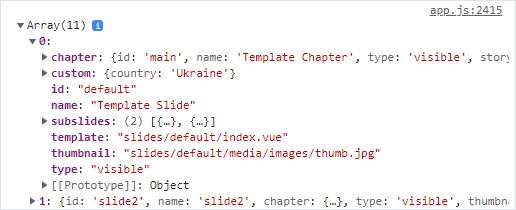
All the structure plugin methods available are described below.
getRaw
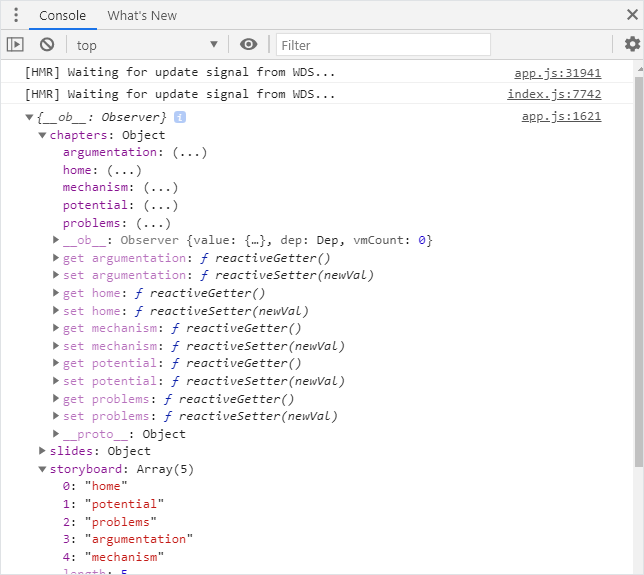
You can use the getRaw method to get the e-Detailer structure:
The names and order of chapters
The names and templates of slides
The storyboard length
js
beforeMount() {
    const structure = this.$structure.getRaw()
    console.log(structure)
},
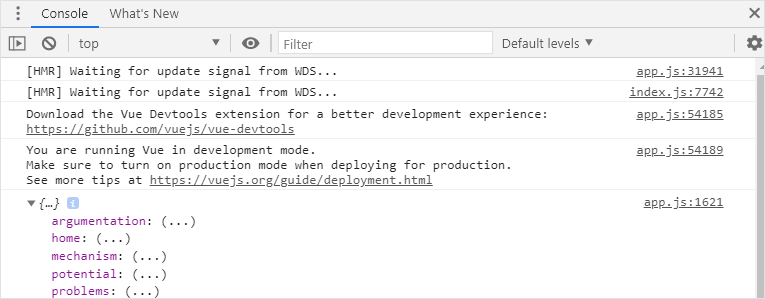
You can use the structure API method to get the specific object from the structure.json file. For example, use this.$structure.getRaw().chapters to get only the chapters structure.
js
beforeMount() {
    const chapters = this.$structure.getRaw().chapters
    console.log(chapters)
}
getSlides
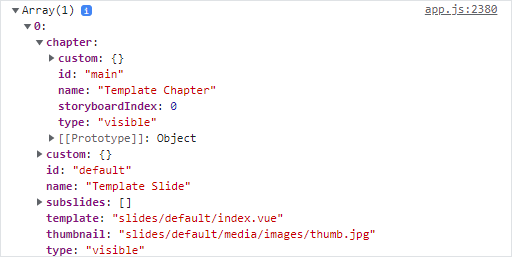
You can use the getSlides method to get an array of nested slide data from structure.json:
The chapter it belongs to
The subslides it has, whether it's visible or hidden
For example, to view the slides data in the browser console, add the following to the index.vue file of an e-Detailer slide:
html
<!-- ./slides/[SLIDE_ID]/index.vue -->

<script>
export default {
  mounted() {
    console.log(this.$structure.getSlides());
  },
};
</script>
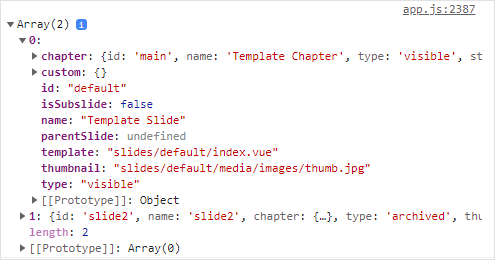
As a result, you can view the data of each slide in the browser console:
getFlatSlides
You can use the getFlatSlides method to get an array with flat slide data from structure.json:
The chapter it belongs to
The subslides it has, whether it's visible or hidden
For example, to view the slides data in the browser console, add the following to the index.vue file of an e-Detailer slide:
html
<!-- ./slides/[SLIDE_ID]/index.vue -->

<script>
export default {
  mounted() {
    console.log(this.$structure.getFlatSlides());
  },
};
</script>
As a result, you can view the data of each slide in the browser console:
getVisibleSlides
Use the getVisibleSlides method to get nested data of all visible slides. Hidden and archived slides are not shown as a result.
For example, the e-Detailer has the following structure, where slide1 is visible and slide2 is hidden, because it doesn't belong to a chapter:
json
// ./structure.json

{
  "slides": {
    "slide1": {
      "name": "slide1",
      "template": "slides/default/index.vue"
    },
    "slide2": {
      "name": "slide2",
      "template": "slides/slide2/index.vue"
    }
  },
  "chapters": {
    "main": {
      "name": "Template chapter",
      "content": [
        "slide1"
      ]
    }
  },
  "storyboard": [
    "main"
  ]
}
To view the data for all the visible slides in the browser console, add the following to the index.vue file of an e-Detailer slide:
html
<!-- ./slides/[SLIDE_ID]/index.vue -->

<script>
export default {
  mounted() {
    console.log(this.$structure.getVisibleSlides());
  },
};
</script>
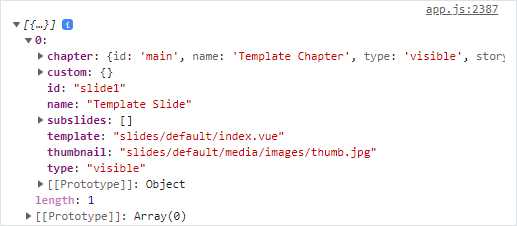
As a result, only slide1 is shown in the console. The type field indicates that the slide is visible.
getFlatVisibleSlides
Use the getFlatVisibleSlides method to get flat data of all visible slides. Hidden and archived slides are not shown as a result.
For example, the e-Detailer has the following structure, where slide1 is visible and slide2 is hidden, because it doesn't belong to a chapter:
json
// ./structure.json

{
  "slides": {
    "slide1": {
      "name": "slide1",
      "template": "slides/default/index.vue"
    },
    "slide2": {
      "name": "slide2",
      "template": "slides/slide2/index.vue"
    }
  },
  "chapters": {
    "main": {
      "name": "Template chapter",
      "content": [
        "slide1"
      ]
    }
  },
  "storyboard": [
    "main"
  ]
}
To view the data for all the visible slides in the browser console, add the following to the index.vue file of an e-Detailer slide:
html
<!-- ./slides/[SLIDE_ID]/index.vue -->

<script>
export default {
  mounted() {
    console.log(this.$structure.getFlatVisibleSlides());
  },
};
</script>
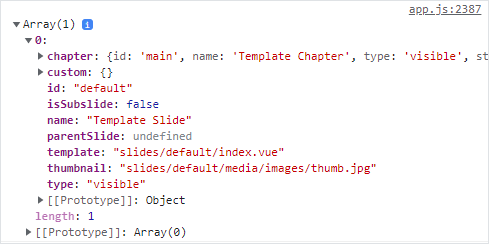
As a result, only slide1 is shown in the console. The type field indicates that the slide is visible.
getHiddenSlides
Use the getHiddenSlides method to get nested data of all hidden slides. The method doesn't retrieve visible and archived slides.
For example, the e-Detailer has the following structure, where slide1 is visible, slide2 is archived, and slide3 is hidden:
json
// ./structure.json

{
  "structureFileVersion": 2,
  "slides": {
    "slide1": {
      "name": "Brand page",
      "template": "slides/slide1/index.vue"
    },
    "slide2": {
      "name": "Canvas",
      "template": "slides/slide2/index.vue"
    },
    "slide3": {
      "name": "Interactive input",
      "template": "slides/slide3/index.vue"
    }
  },
  "chapters": {
    "home": {
      "name": "Home",
      "content": [
        "slide1",
        {
          "slide": "slide3",
          "hidden": true
        }
      ]
    }
  },
  "storyboard": [
    "potential",
    {
      "chapter": "problems"
    }
  ],
  "archivedSlides": [
    {
      "slide": "slide2",
      "chapter": "home"
    }
  ]
}
To view the data for all the hidden slides in the browser console, add the following to the index.vue file of an e-Detailer slide:
html
<!-- ./slides/[SLIDE_ID]/index.vue -->

<script>
export default {
  mounted() {
    console.log(this.$structure.getHiddenSlides());
  },
};
</script>
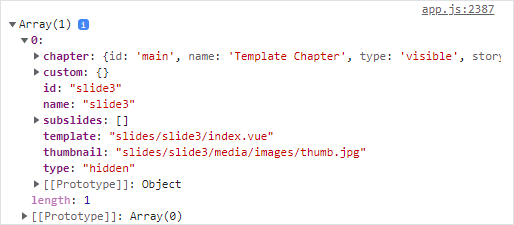
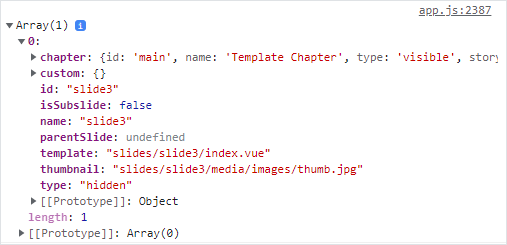
As a result, only slide3 is shown in the console. The type field indicates that the slide is hidden.
getFlatHiddenSlides
Use the getFlatHiddenSlides method to get flat data of all hidden slides. The method doesn't retrieve visible and archived slides.
For example, the e-Detailer has the following structure, where slide1 is visible, slide2 is archived, and slide3 is hidden:
json
// ./structure.json

{
  "structureFileVersion": 2,
  "slides": {
    "slide1": {
      "name": "Brand page",
      "template": "slides/slide1/index.vue"
    },
    "slide2": {
      "name": "Canvas",
      "template": "slides/slide2/index.vue"
    },
    "slide3": {
      "name": "Interactive input",
      "template": "slides/slide3/index.vue"
    }
  },
  "chapters": {
    "home": {
      "name": "Home",
      "content": [
        "slide1",
        {
          "slide": "slide3",
          "hidden": true
        }
      ]
    }
  },
  "storyboard": [
    "potential",
    {
      "chapter": "problems"
    }
  ],
  "archivedSlides": [
    {
      "slide": "slide2",
      "chapter": "home"
    }
  ]
}
To view the data for all the hidden slides in the browser console, add the following to the index.vue file of an e-Detailer slide:
html
<!-- ./slides/[SLIDE_ID]/index.vue -->

<script>
export default {
  mounted() {
    console.log(this.$structure.getHiddenSlides());
  },
};
</script>
As a result, only slide3 is shown in the console. The type field indicates that the slide is hidden.
getArchivedSlides
Use the getArchivedSlides method to get nested data of all archived slides. The method doesn't retrieve visible and hidden slides.
For example, the e-Detailer has the following structure, where slide1 is visible, slide2 is archived, and slide3 is hidden:
json
// ./structure.json

{
  "structureFileVersion": 2,
  "slides": {
    "slide1": {
      "name": "Brand page",
      "template": "slides/slide1/index.vue"
    },
    "slide2": {
      "name": "Canvas",
      "template": "slides/slide2/index.vue"
    },
    "slide3": {
      "name": "Interactive input",
      "template": "slides/slide3/index.vue"
    }
  },
  "chapters": {
    "home": {
      "name": "Home",
      "content": [
        "slide1",
        {
          "slide": "slide3",
          "hidden": true
        }
      ]
    }
  },
  "storyboard": [
    "potential",
    {
      "chapter": "problems"
    }
  ],
  "archivedSlides": [
    {
      "slide": "slide2",
      "chapter": "home"
    }
  ]
}
To view the data for all the archived slides in the browser console, add the following to the index.vue file of an e-Detailer slide:
html
<!-- ./slides/[SLIDE_ID]/index.vue -->

<script>
export default {
  mounted() {
    console.log(this.$structure.getArchivedSlides());
  },
};
</script>
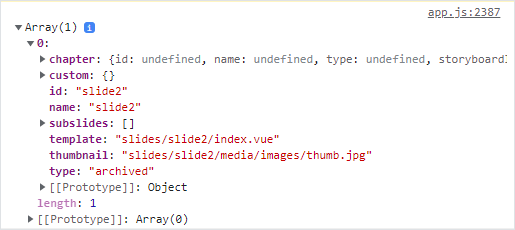
As a result, only slide2 is shown in the console. The type field indicates that the slide is archived.
getSlide
Use the getSlide method to get nested data of a specific slide. The method retrieves data for visible, hidden, and archived slides.
For example, the e-Detailer has the following structure, where the default slide is visible, and slide2 is archived:
json
// ./structure.json

{
  "slides": {
    "default": {
      "name": "Template slide",
      "template": "slides/default/index.vue"
    },
    "slide2": {
      "name": "slide2",
      "template": "slides/slide2/index.vue"
    }
  },
  "chapters": {
    "main": {
      "name": "Template chapter",
      "content": [
        "default",
        "!slide2"
      ]
    }
  },
  "storyboard": [
    "main"
  ]
}
To view the data for the default slide in the browser console, add the following to the index.vue file of an e-Detailer slide:
html
<!-- ./slides/[SLIDE_ID]/index.vue -->

<script>
export default {
  mounted() {
    console.log(this.$structure.getSlide('default'));
  },
};
</script>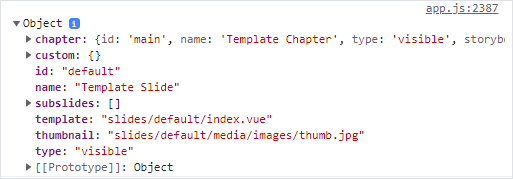
getFlatSlide
Use the getFlatSlide method to get flat data of a specific slide. The method retrieves data for visible, hidden, and archived slides.
For example, the e-Detailer has the following structure, where the default slide is visible, and slide2 is hidden:
json
// ./structure.json

{
  "slides": {
    "default": {
      "name": "Template slide",
      "template": "slides/default/index.vue"
    },
    "slide2": {
      "name": "slide2",
      "template": "slides/slide2/index.vue"
    }
  },
  "chapters": {
    "main": {
      "name": "Template chapter",
      "content": [
        "default",
        "!slide2"
      ]
    }
  },
  "storyboard": [
    "main"
  ]
}
To view the data for slide2 in the browser console, add the following to the index.vue file of an e-Detailer slide:
html
<!-- ./slides/[SLIDE_ID]/index.vue -->

<script>
export default {
  mounted() {
    console.log(this.$structure.getFlatSlide('slide2'));
  },
};
</script>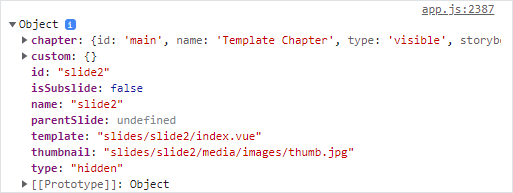
getChapters
Use the getChapters method to get nested data of all chapters in the structure.json file. The method retrieves data for visible and hidden chapters.
For example, the e-Detailer has three chapters, the visible main chapter and the hidden chapter2:
json
// ./structure.json

{
  "storyboard": [
    "main",
    "!chapter2"
  ]
}
To view the chapter data in the browser console, add the following to the index.vue file of an e-Detailer slide:
html
<!-- ./slides/[SLIDE_ID]/index.vue -->

<script>
export default {
  mounted() {
    console.log(this.$structure.getChapters());
  },
};
</script>
The type field indicates if the chapter is visible, hidden, or archived.
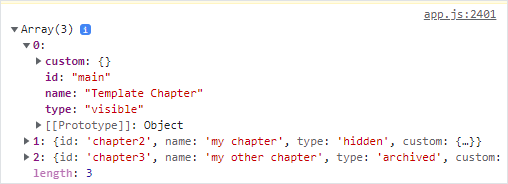
getHiddenChapters
Use the getHiddenChapters method to get nested data of all hidden chapters in the structure.json file. The method doesn't retrieve data for visible chapters.
For example, the e-Detailer has three chapters, the visible main chapter and the hidden chapter2:
json
// ./structure.json

{
  "storyboard": [
    "main",
    "!chapter2"
  ]
}
To view the chapter data in the browser console, add the following to the index.vue file of an e-Detailer slide:
html
<!-- ./slides/[SLIDE_ID]/index.vue -->

<script>
export default {
  mounted() {
    console.log(this.$structure.getHiddenChapters());
  },
};
</script>
The type field indicates that the chapter is hidden.
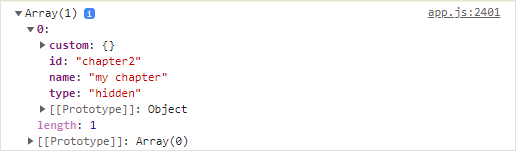
getVisibleChapters
Use the getVisibleChapters method to get nested data of all visible chapters in the structure.json file. The method doesn't retrieve hidden chapters.
For example, the e-Detailer has three chapters, the visible main chapter, the hidden chapter2, and the archived chapter3, not present in the storyboard:
json
// ./structure.json

{
  "storyboard": [
    "main",
    "!chapter2"
  ]
}
To view the chapter data in the browser console, add the following to the index.vue file of an e-Detailer slide:
html
<!-- ./slides/[SLIDE_ID]/index.vue -->

<script>
export default {
  mounted() {
    console.log(this.$structure.getVisibleChapters());
  },
};
</script>
The type field indicates that the chapter is visible.
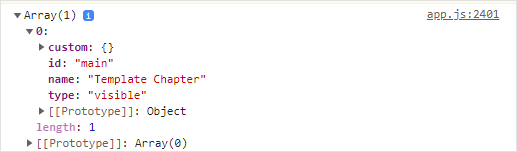
getChapter
Use the getChapter method to get data about a specific chapter in the structure.json file. The method retrieves visible and hidden chapters.
For example, the e-Detailer has two chapters, the visible main chapter and the hidden chapter2:
json
// ./structure.json

{
  "storyboard": [
    "main",
    {
      "chapter": "chapter2",
      "hidden": true
    },
  ]
}
To view the main chapter data in the browser console, add the following to the index.vue file of an e-Detailer slide:
html
<!-- ./slides/[SLIDE_ID]/index.vue -->

<script>
export default {
  mounted() {
    console.log(this.$structure.getChapter('main'));
  },
};
</script>
The type field indicates if the chapter is visible, hidden, or archived.

getChapterSlides
Use the getChapterSlides method to get data about all slides of a specific chapter. The method retrieves visible, hidden, and archived slides.
For example, the main chapter has a visible default slide, and a hidden slide2:
json
// ./structure.json

{
  "structureFileVersion": 2,
  ...
  "chapters": {
    "main": {
      "name": "Main",
      "content": [
        "default",
        {
          "slide": "slide2",
          "hidden": true
        }
      ]
    }
  }
}
To view the slides of the main chapter in the browser console, add the following to the index.vue file of an e-Detailer slide:
html
<!-- ./slides/[SLIDE_ID]/index.vue -->

<script>
export default {
  mounted() {
    console.log(this.$structure.getChapterSlides('main'));
  },
};
</script>
The type field indicates if the chapter is visible, hidden, or archived.
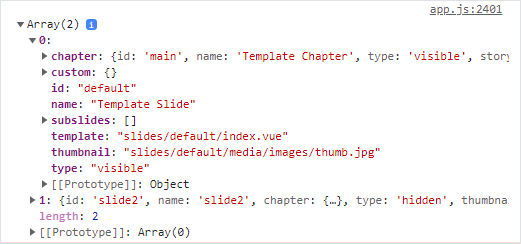
getSlideSubslides
Use the getSlideSubslides method to get data about all subslides of a specific slide. The method retrieves visible, hidden, and archived subslides.
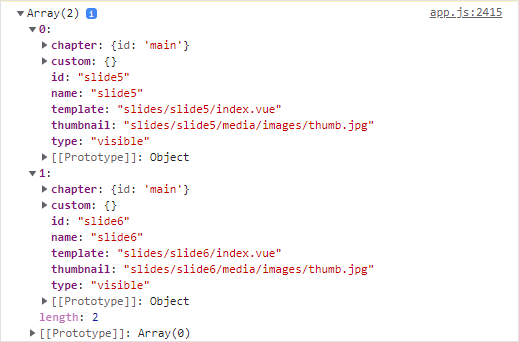
For example, the default slide has a visible slide5, and a hidden slide6:
json
// ./structure.json

{
  "structureFileVersion": 2,
  "chapters": {
    "main": {
      "name": "Main",
      "content": [
        {
          "slide": "default",
          "subslides": [
            "slide5",
              {
                "slide": "slide6",
                "hidden": "true"
              }
          ]
        }
      ]
    }
  }
}
To view the subslides of the default slide in the browser console, add the following to the index.vue file of an e-Detailer slide:
html
<!-- ./slides/[SLIDE_ID]/index.vue -->

<script>
export default {
  mounted() {
    console.log(this.$structure.getSlideSubslides('default'));
  },
};
</script>
The type field indicates if the chapter is visible, hidden, or archived.
getStartSlide
Use the getStartSlide method to get the data about the starting slide. The method retrieves the slide from the start object of the structure.json file. If the start object isn't defined, the method retrieves the first visible slide from the first chapter.
For example, the start object has the default slide from the main chapter:
json
// ./structure.json

"start": {
    "slide": "default",
    "chapter": "main"
}
To view the data of the start object in the browser console, add the following to the index.vue file of an e-Detailer slide:
html
<!-- ./slides/[SLIDE_ID]/index.vue -->

<script>
export default {
  mounted() {
    console.log(this.$structure.getStartSlide());
  },
};
</script>
getStoryboard
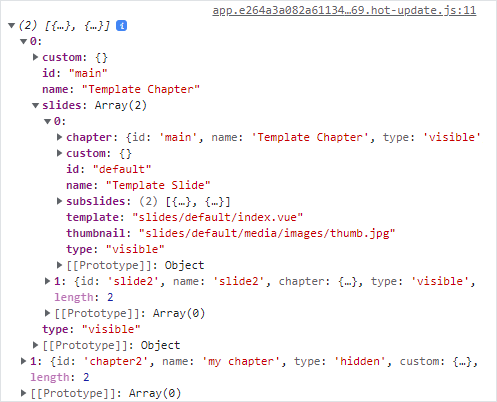
Use the getStoryboard method to get data about all the chapters that belong to the storyboard.
For example, an e-Detailer with the following structure:
json
{
  "chapters": {
    "main": {
      "name": "Template Chapter",
      "content": [
        "default",
        "slide2"
      ]
    },
    "chapter2": {
      "name": "my chapter",
      "content": [
        "!slide3"
      ]
    }
  },
  "storyboard": [
    "main",
    "!chapter2"
  ]
}
To view the storyboard data in the browser console, add the following to the index.vue file of an e-Detailer slide:
html
<!-- ./slides/[SLIDE_ID]/index.vue -->

<script>
export default {
  mounted() {
    console.log(this.$structure.getStoryboard());
  },
};
</script>
As a result, you can view all the chapters from the storyboard. You can also see the data of each slide that belongs to a chapter from the storyboard.
getStructureFileVersion
Use the getStructureFileVersion method to get the data about the structure.json file version.
To view the version of the structure.json file in the browser console, add the following to the index.vue file of an e-Detailer slide:
html
<!-- ./slides/[SLIDE_ID]/index.vue -->

<script>
export default {
  mounted() {
    console.log(this.$structure.getStructureFileVersion());
  },
};
</script>
As a result, you can see the version of the structure.json file: 1 or 2.
