Appearance
eVa AI chat
The eVa AI chat is a tool for interacting with eWizard AI agents, providing AI assistance directly within Editor. You can create texts and images, request documents from the client-specific knowledge base, generate interactive emails, and translate selected or manually entered texts. eVa AI supports persona-driven content generation for emails created from either user-facing or underlying outlines, enhancing message relevance, aligning communication with specific goals, and reducing manual effort for content customization.
eVa AI also provides contextual suggestions and synchronizes your requests between Editor and the conversational hub. For greater flexibility, you can switch from the compact chat view in Editor to the centralized hub interface at any time to work in a larger workspace.
eVa AI provides context-aware asset suggestions based on the component you select on the content item layout in Editor and on the prompt you enter in the chat. You can select suggested assets in the eVa AI chat for further prompting or apply them directly to your content layout. To add specific documents or assets to your prompt, use the integrated Assets popup within the chat to search for and select them.
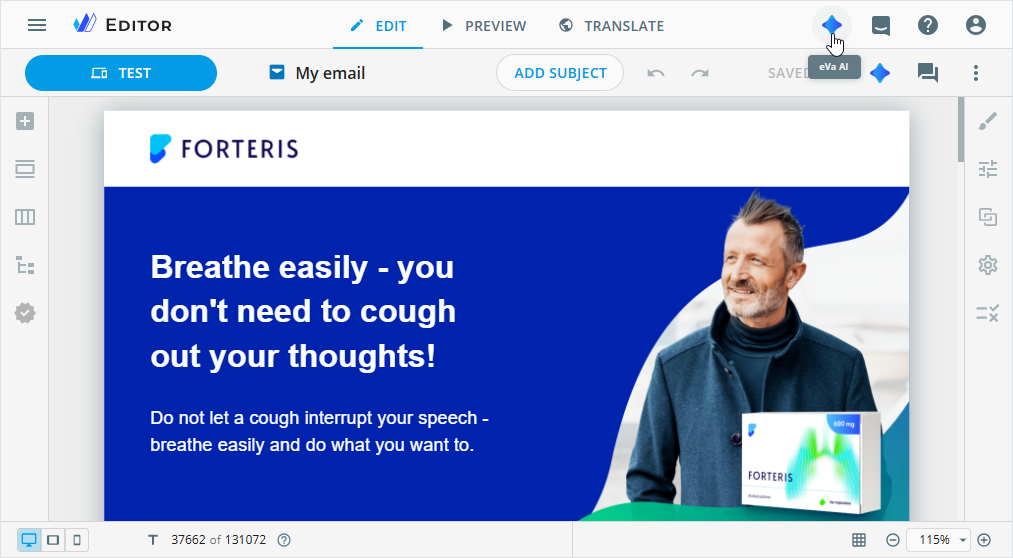
To open the eVa AI chat, click the eVa AI button on the quick access toolbar.
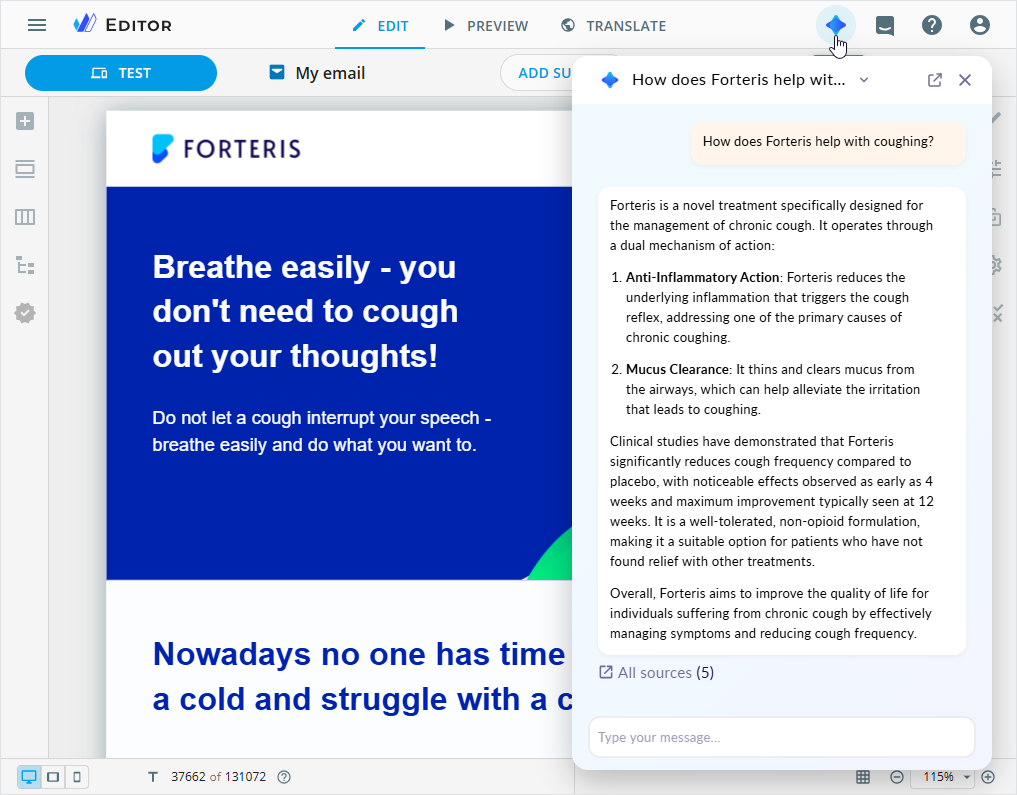
The eVa AI chat appears on the right as follows:
New chat—when you access it for the first time, in a new browser, or on a new device.
Most recent chat—when you continue previous work.
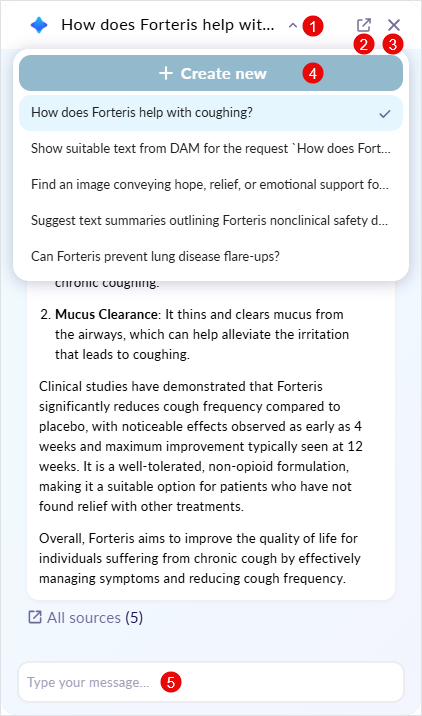
In the eVa AI chat, you can:
Unfold your chat history by clicking the chat name [1].
In the chat dropdown, you can:
Hover over a chat to view its full name.
Start a new chat without previous context using the
+ Create newbutton [4].Select an existing chat to make a new request in it.
To manage chats, go to the eVa AI conversational hub.
Open the eVa AI conversational hub in a new browser tab using the
 button [2].
Close the eVa AI chat with the
 button [3].
Enter a request for eVa AI in the prompt field [5].
Chat requests in Editor and eVa AI conversational hub are synced.
Asset suggestions
To get and apply asset suggestions in Editor:
Open the eVa AI chat in the Editor EDIT mode.
Select the required text or image component on the content item layout.
You can select only one component on the layout for asset suggestion in a single prompt. However, you can add several previously suggested texts, images, and an email template from your eVa AI chat to the same prompt.
As a result, previews of any selected component and template appear in the prompt field. Previews of text or image components selected on the layout are labeled with
 .
.Contact your administrator to configure the quick suggestion buttons with predefined prompts for text, images, or the entire content item variations.
You can use context-aware quick suggestion buttons to apply common actions instantly.
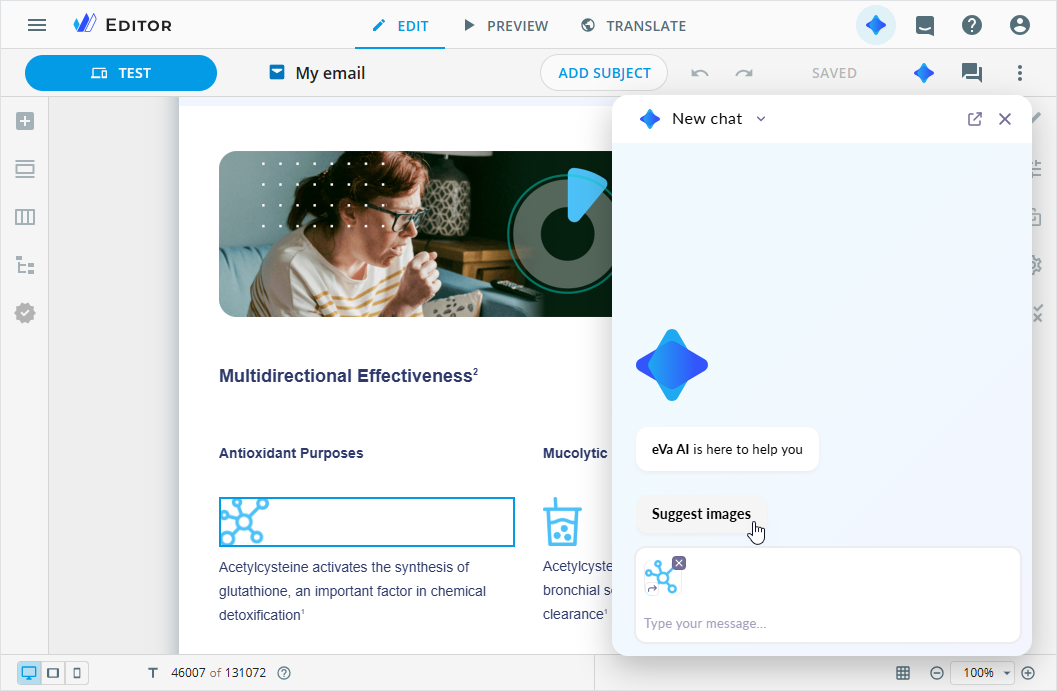
Each quick suggestion button is automatically converted into a prompt in the chat history, reducing manual input and saving your time.
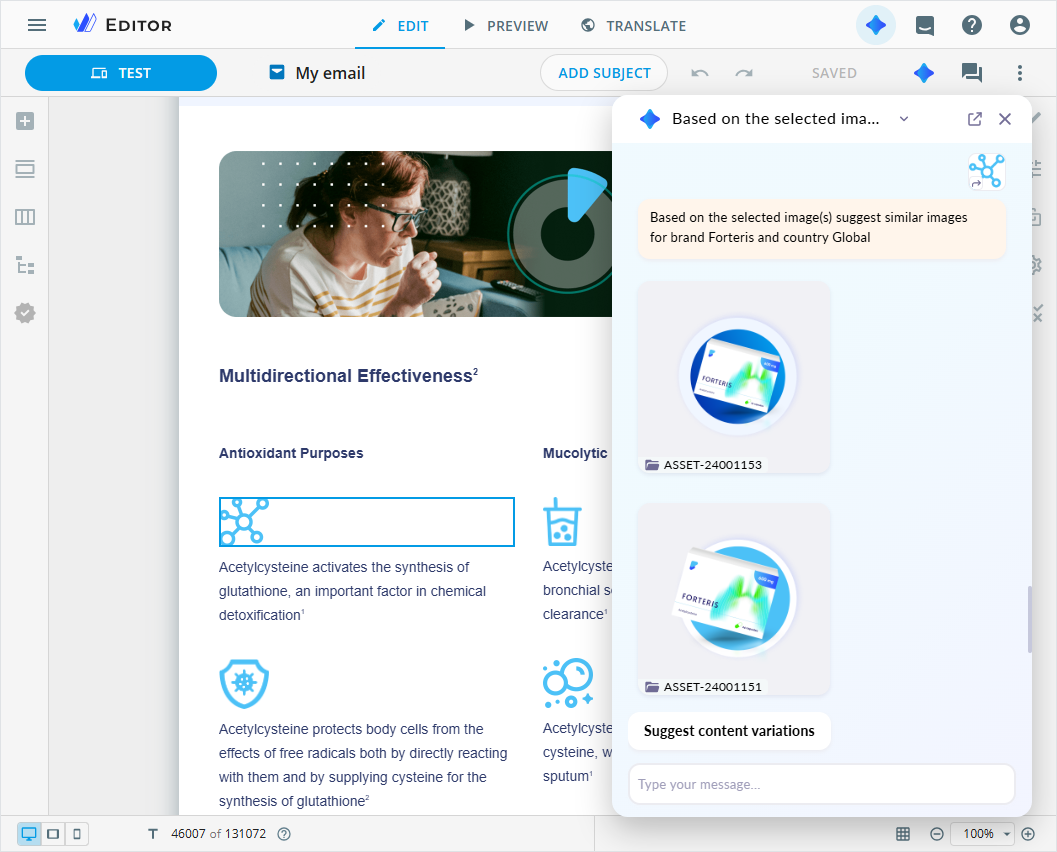
Enter your prompt and include the word "selected" to indicate that eVa AI should use the selected component for suggestions.
Once the text or image is suggested, double-click it in the eVa AI chat to apply it directly to the selected component on the layout.
Text
Double-click works only for text from your knowledge base and labeled
DAMin the eVa AI chat. Other text types can't be applied to the selected text component on the content item layout with this action. If you need to use non-DAM text, copy it from the eVa AI chat with the button and paste it in the text component on the layout.
You can also verify text suggestions using direct links to source documents in Veeva Vault PromoMats.
Image
Contact your administrator to activate filtering based on usage rights for image selection in the knowledge base. VVPM rights management rules evaluate permitted channels, geographies, usage type, and license validity. Images with additional restrictions display a warning icon, indicating usage limitations that you can review before selecting them.
After applying the suggested texts and images, you can edit them and reuse in the current or new eWizard items.
Claims
In Editor, you can apply suggested claims directly from the eVa AI chat. As a result, the system automatically updates the associated references in the interactive email. Superscript citations are inserted on the layout, and the reference list is dynamically updated to reflect changes and remain consistent with the citations.
If the claims library is available in Veeva Vault PromoMats, all claims assigned to the content from the eVa AI chat are automatically displayed and linked on the Veeva text assets tab in Editor. For claims with anchors, you can view the exact location of the referenced text in the VVPM source document with the View in VVPM button in the References popup.
Note: Contact the administrator to configure dynamic superscript citations and claims synchronization in Editor.
All interactions are saved in the chat history, allowing you to return to previous work, build on earlier results, and keep content aligned with your campaign goals.
Assets popup in the eVa AI chat
Available in the eVa AI chat in Editor and in the conversational hub
With the integrated Assets popup in the eVa AI chat, you can search for and add specific documents, text, and images for your content creation and customization. To do this:
Click the
 (
(Select assets) button in the prompt field.Select the required asset type:
Documents,Claims, orMedia.Contact your administrator to configure the availability of the
Select assetsbutton and the asset types shown in the list.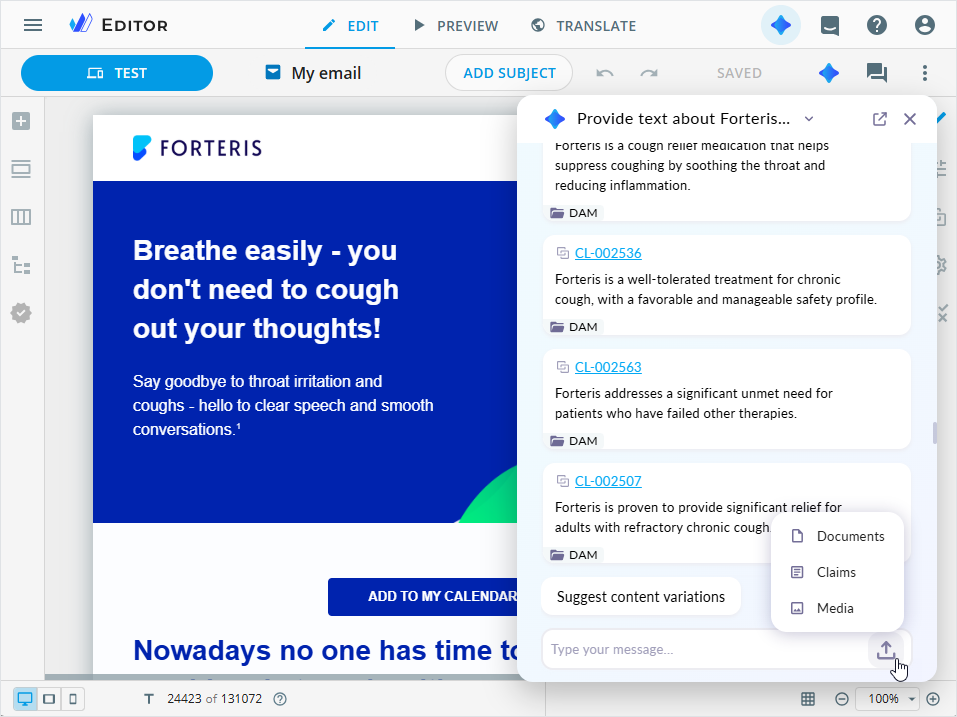
In the Assets popup that appears, select the required tab for the asset search and selection:
VEEVA VAULT—displays the list of available documents, claims, and media in VVPM.Log in to your Veeva Vault account if required. On the
VEEVA VAULTtab, you can:Use the metadata filters.
Contact the administrator to configure a set of filters and their value lists.
Reset all filters with the
CLEAR ALLbutton.Search for the required asset by its metadata.
Launch the asset preview in Veeva Vault PromoMats with
 on its card.
View the asset metadata on the
DETAILSpanel.
LIBRARY—displays the list of documents and media available in your Library or the Shared with me space.Libraryis selected by default. To change the space, click the button and select the required option. You can also upload assets from your device with the
  button.
To find the required document or media, use the search box in the upper-right corner.
NAVIGATE—displays the list of available documents and media in the internal eWizard storage.On the NAVIGATE tab, you can:
Select the required environment.
Use the metadata filters or enter the asset name in the search box.
Reset all filters with the
CLEAR ALLbutton.Select asset and view its metadata on the
DETAILSpanel.
Supported formats
You can add assets of the following file formats to the eVa AI chat:
Documents: PPT, PPTX, PDF, DOCX, DOC, XLSX, XLS.
Claims: TXT.
Media: PNG, JPEG, JPG, GIF, SVG.
Select one or several required assets.
Click
SELECT.
All selected assets are automatically added to the eVa AI prompt field. Type your prompt and hit Enter on the keyboard. eVa AI suggests the content based exclusively on your selection and request.
Reference source documents in VVPM
You can verify references added to eVa AI-generated interactive emails directly from Editor. When an email is opened in Editor, the References popup displays a complete list of all references associated with the email.
The View in VVPM button appears in the References popup when references are added in one of the following ways:
Automatically by eVa AI.
Manually with the
ADD FROM VAULTbutton.
When you click the View in VVPM button, it opens the source document in Veeva Vault PromoMats at the specific page in a new browser tab. This allows you to quickly review and confirm citation accuracy without leaving your workflow.
For referenced content with anchors, the system automatically retrieves and stores anchor metadata—the exact text and specific location in the VVPM source document. Clicking the View in VVPM button redirects you to the referenced text in the document.
Contact the administrator to configure anchor search prioritization in the knowledge base.
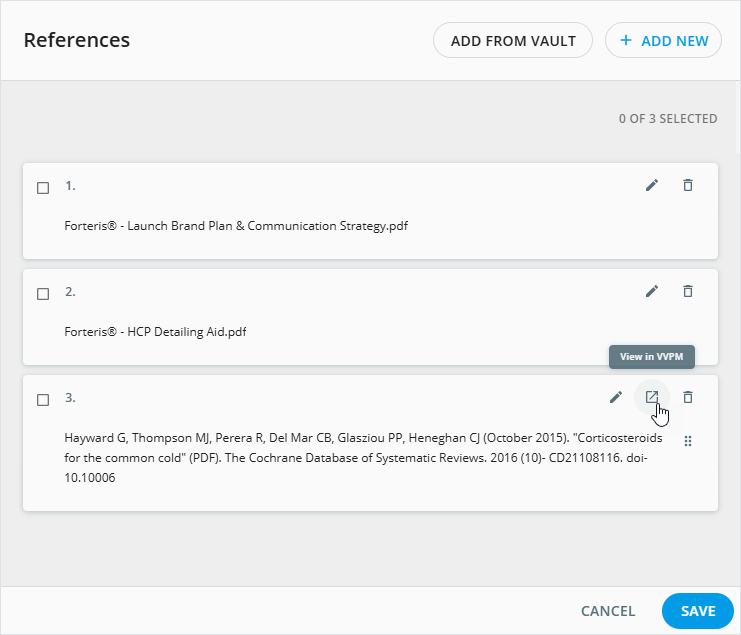
The button label is customizable in the localization file to align with specific terminology or language requirements.
Contact your administrator to configure the accessibility and localization of the View in VVPM button.