Appearance
Upload
To fill your Library with content, go to the My library space and drag the selected ZIP archive or media file in the eWizard-compatible format from your device. Hold the Ctrl key to upload several files/ZIP archives.
Find the supported file formats for uploading here.
Once the progress bar at the bottom displays a successful upload result, you can find the files in My library.
Don't close the progress bar until your file appears in your Library.
To add files to My library with the dedicated uploader:
Click
+ ADD NEWat the upper left of your Library.Select
Upload.
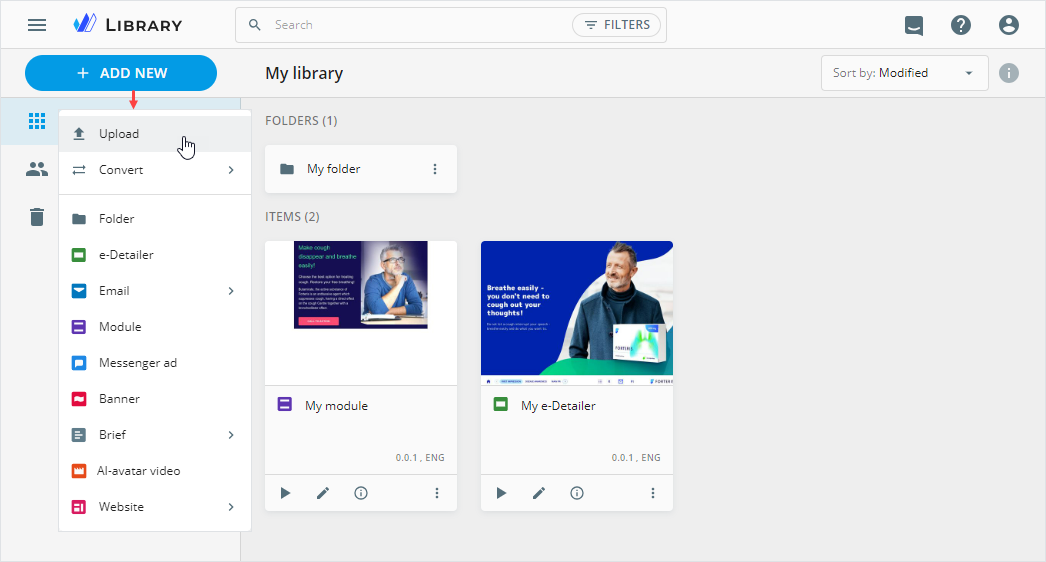
In the popup that appears, add the required ZIP archive or file from your device.
Ensure your ZIP archive or file size is up to 2 GB — eWizard can't process larger files.
Find the uploaded content item in your Library.
Broadcast emails with SFMC as a target system
The uploaded content item is automatically assigned External as the Audience metadata value.
Portfolio e-Detailers
Uploading portfolio e-Detailers to My library isn't supported.