Appearance
Coded
The CODED component is a placeholder for complex combinations of resources from Veeva Vault PromoMats: source code, images, videos, texts, graphs, charts, tables. The combination appears on the layout as a single unit, and you can customize its inner assets individually with inline editing or on the Properties tab.
You can add the coded component to the block or any other place on the layout. For this, drag CODED from the Components tab on the elements panel to the required place on the layout.
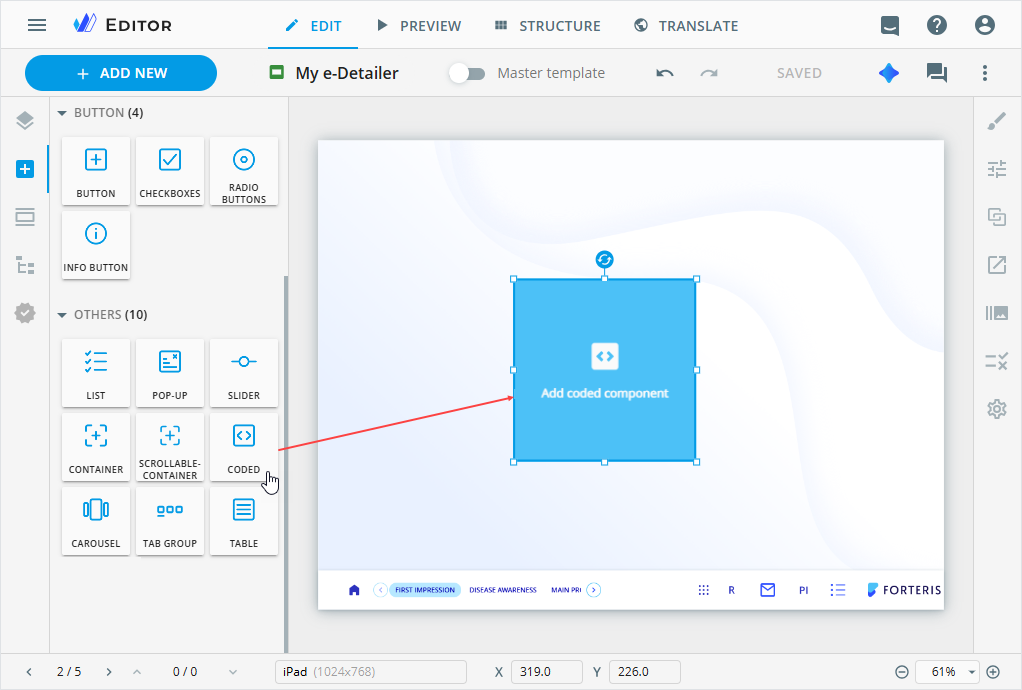
To upload an asset to the coded component:
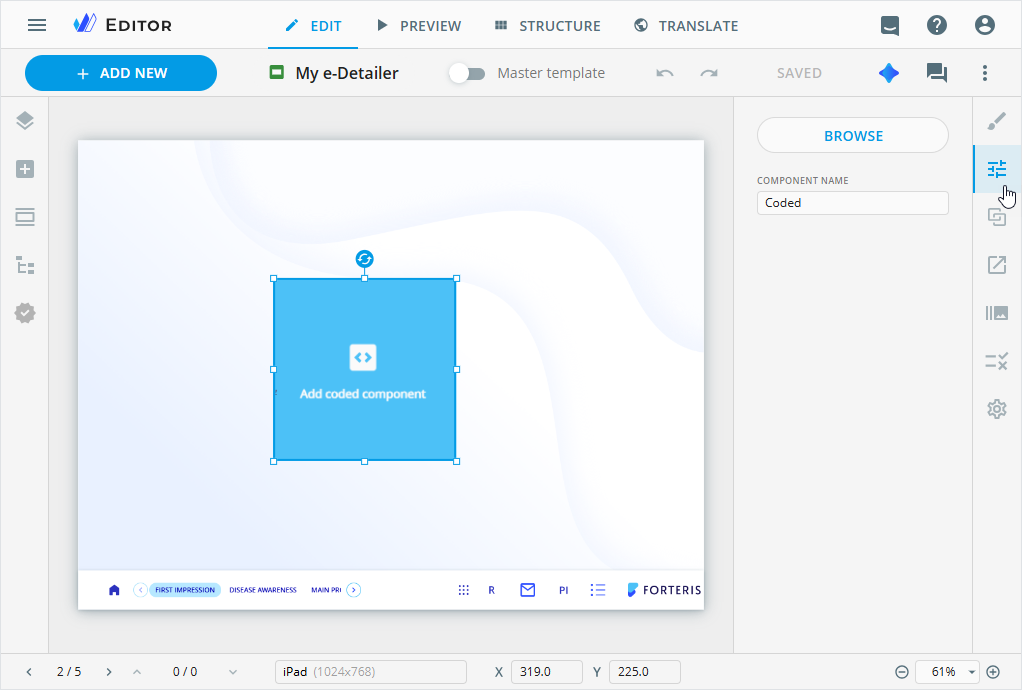
Select the coded component on the layout.
Go to the Properties tab and click
BROWSE.Here, you can also rename the
CODEDcomponent.
Log in to your Veeva Vault account, if required.
In the Assets popup that appears, select the asset.
Its
DETAILSpanel opens on the right.Find the required asset faster with metadata filters or search.
Click
ADD.
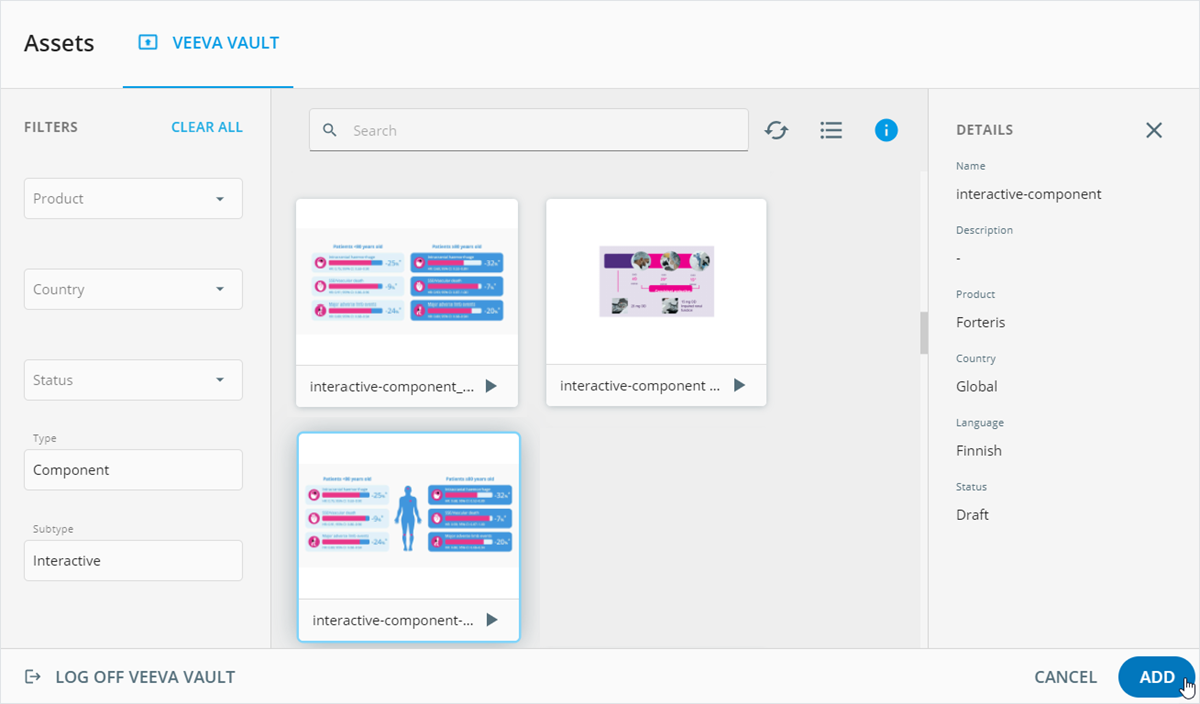
For the successful asset upload, make sure that the channel type of the selected asset matches the content item type you're editing. You can find the asset channel type on its DETAILS panel or on the document information page in Veeva Vault.
The uploaded asset appears inside the coded component on the layout. Now, you can customize the asset on the Properties tab.
The set of asset properties and editability are determined by its configuration.
You can also configure the coded component position and styles, add actions and animation to it on the dedicated Editor tabs.
To upload a new coded component, select the added one on the layout and click BROWSE placed after all properties.
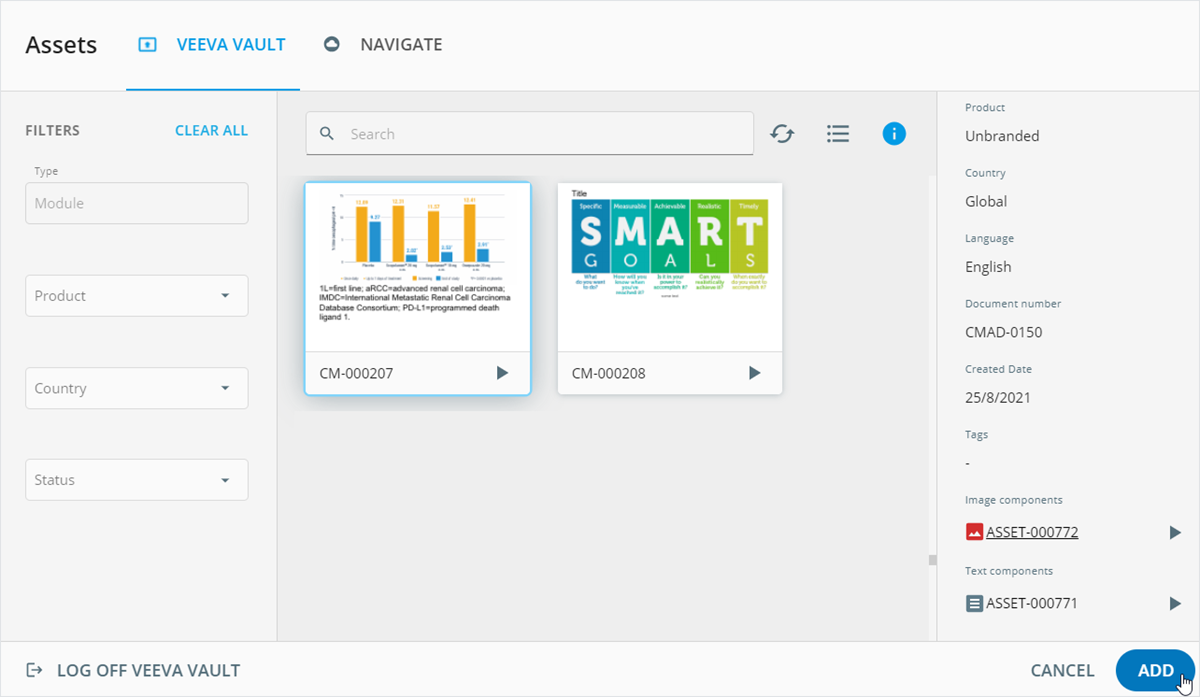
You can add Veeva Vault modules with the coded component to your content item. For this, drag the coded component to any block on the layout. Then select the required module in the Assets popup.
When the module with the coded component appears on the layout, you can customize its assets and use the Assets popup to replace the required ones.