Appearance
SFMC component in emails
You can publish email projects from the eWizard platform to Salesforce Marketing Cloud (SFMC). For this, add the SfmcCode component to the App.vue file of your email project. Use the SFMC code to send emails from Salesforce Marketing Cloud CLM.
To add the SfmcCode component to your email:
Add the
<sfmc-code></sfmc-code>tag to the template root.Import the
SfmcCodecomponent from eWizard.js.Add the
SfmcCodecomponent to the components inexport default.js// ./App.vue <template> <div> <wiz-root> <wiz-block></wiz-block> <wiz-block></wiz-block> <sfmc-code></sfmc-code> </wiz-root> </div> </template> <script> import { SfmcCode } from "ewizardjs"; export default { name: 'wiz-app', components: { SfmcCode } }; </script>Specify SFMC as the target CLM system in the
settings.jsonfile.json// ./settings.json { "targetCLM": { "name": "Salesforce Marketing Cloud", "code": "sfmc" }, }
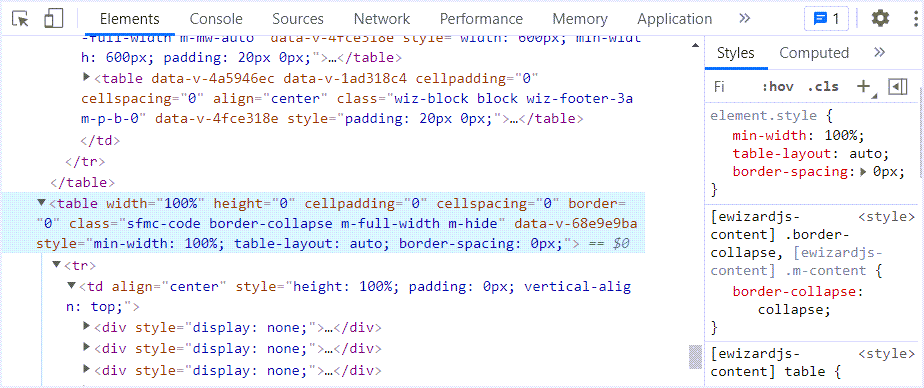
The SfmcCode component adds the SFMC code to the email markup. To check the result:
Build the email project.
shwiz devOpen the
./index.htmlfile in your browser DevTools.Find the SFMC code in the email markup.
You can add your custom HTML code to the <sfmc-code></sfmc-code> tag.
js
// ./App.vue

<sfmc-code>
   <div>{{Some tokens}}</div>
</sfmc-code>