Appearance
Initialize project
Use eWizard CLI to create an email project from a scaffolding template.
Log in to your eWizard instance by following the instructions in the Login section.
Go to a directory where you want to initialize your email project.
Initialize your project.
shwiz initSelect the email template.
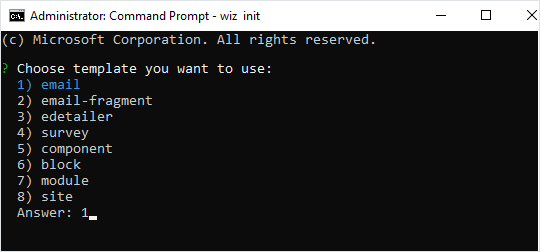
To skip the template selection step, you can initialize the email template with
wiz init email. For more options, see eWizard CLI commands.Select if you want to use Vuex.
Enter the project description, name, and author.
The email project is initialized with the default template.
Build your email project and serve it on a local server as a static site.
shwiz dev --liveeWizard CLI starts a hot-reloading development server at http://localhost:3000/
The
--liveoption tracks the changes and continuously builds the email project.See eWizard CLI commands for a complete list of commands with options.