Appearance
Monorepo projects
In eWizard.js, you can create monorepo projects for emails based on multi-layout templates stored in a repository.
For optimization purposes, monorepo projects created from a multi-layout template use the same node modules with a symlink. It simplifies installation, as the node modules with all required dependencies is installed only once for a "core" template, and each project derived from this core template contains a symlink that points to the original node_modules in the core template.
As a result, instead of handling multiple copies of the same dependencies, you have one copy and multiple symlinks pointing to it. It leads to the following:
- Reduced version conflict since all projects use the same version of dependencies
- Faster setup, for you don't have to update dependencies in new projects
- Easier updates, as you need to update only the core template—all linked projects automatically use the updated versions
Understanding monorepo projects
An eWizard template is a monorepo project created from a multi-layout template stored in a centralized repository. You can create an eWizard template based on a required layout of a multi-layout template, taking specific blocks, components, and content.
A workspace is an eWizard template customized in eWizard Editor and uploaded back to the centralized repository. The workspace uses the node modules of the multi-layout template with a symlink.
Since the eWizard template and workspace use the multi-layout template's dependencies, their package.json relies on the multi-layout template as well.
Creating monorepo projects
To implement a monorepo project, create three entities in the following order:
- eWizard template.
- Monorepo workspace.
- Monorepo repository.
eWizard template creation
Prerequisites:
- Implement a multi-layout template.
- For the monorepo project approach, your multi-layout template must reside in a centralized repository.
- Make sure your multi-layout template's repository features the
masterbranch, as this branch will be used to create content item templates. - Generally, multi-layout templates for monorepo projects use the
^alias. Learn more about aliases in monorepo projects and make the required adjustments.
To create an eWizard template, you need to have your multi-layout template locally. Once done, run wiz create, specifying the required layout name:
sh
wiz create ewizard-template --from [LAYOUT_NAME]By default, the wiz create command creates eWizard templates from the master branch.
As a result, the layout folder is created and archived. The multi-layout template settings are added as a dependency to your eWizard template's package.json file:
json
// ./package.json
{
  "dependencies": {
    "ewizard.js": "5.51.1",
    "master": "git+https://git.com/my-multi-layout-template-repository"
  }
}
Create a monorepo workspace
To create a monorepo workspace, do the following:
- Modify an eWizard template in eWizard Editor as required.
- Download the source archive.
- Upload the unzipped archive to a repository.
Create a monorepo repository
The monorepo repository must contain a content item folder (such as emails) where you store all monorepo workspaces of that type. For convenience, you can create country folders inside these content folders to organize workspaces by country.
The root folder of the project must contain the package.json file with the monorepo property set to true:
json
{
  "monorepo": true,
  // other properties
}
Install node modules to your monorepo project using the wiz i command.
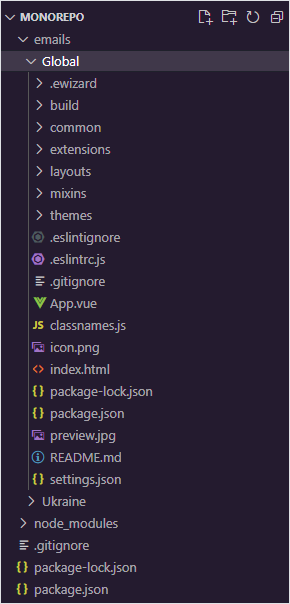
The node_modules directory of each eWizard template and workspace contains symlinks to the node modules of the multi-layout template.
For example, a monorepo structure with the Global and Ukraine workspaces for emails:
CLI commands for monorepo
You can use the following eWizard CLI commands to work with monorepo:
Creating templates:
shwiz create ewizard-template --from [LAYOUT_NAME]Development:
sh# Build with a specific workspace wiz dev --from [WORKSPACE_NAME] # Build with all workspaces wiz dev --from-allArchiving:
sh# Archive a specific workspace wiz archive --from [WORKSPACE_NAME] # Archive all workspaces from a specific folder wiz archive --from '[FOLDER_NAME]/**' # Archive all workspaces wiz archive --from-all
For more information about the wiz create command, see wiz create [options].
Aliases in monorepo projects
For monorepo projects to work correctly, use appropriate aliases in the relative paths of the monorepo multi-layout template, such as ^, @, or ~.
Caret ^
The caret alias redirects to the eWizard template root directory, multi-layout template layout directory, or the multi-layout template root directory. Use ^ when you need to show a path to a file that can be displayed in both the workspace and the multi-layout template.
For example, when the block themes for the workspace and the master template are stored in ./common/blocks-library/blocks-themes.json file, use caret to import themes to App.vue:
js
import { themes } from '^/common/blocks-library/blocks-themes.json';Instead of the full path:
js
import { themes } from './common/blocks-library/blocks-themes.json';Omitting aliases for constant paths
When the file relative path remains the same, you can omit ^.
For example, the path to the ../mixins/dynamic-template in ./extensions/common.js:
js
// ./extensions/common.js

import DynamicTemplateOptions from '../mixins/dynamic-template';
At sign @
At sign redirects to the eWizard template root directory.
For example, import the project preview image in the ./extensions/globalComponents.js file:
js
// ./extensions/globalComponents.js

import previewImage from '@/preview.jpg';
Tilde ~
Use tilde together with the caret and at sign to ensure that eWizard.js builders load the SCSS files correctly.
For example, import the components.scss file in the App.vue file:
html
<style lang="scss">
@import "~@/common/styles/components.scss";
</style>