Appearance
Semantic tags in site components
eWizard.js supports semantic HTML tags. Semantic tags clearly describe their meaning to both the browser and the developer, which makes them useful for SEO purposes. You can define semantic tags in site components or select them in eWizard Editor.
Define semantic tags in site components
In some site components, you can define what semantic tags to use.
You can change the default tags to semantic tags in the following components:
| Site component | Default HTML tag |
|---|---|
wiz-block | <section> |
wiz-column | <div> |
wiz-layout | <div> |
wiz-page | <article> |
wiz-placeholder | <div> |
wiz-root | <div> |
wiz-viewer | <main> |
To change the component semantic tag, specify the value in the tag property of a Vue file.
For example, set the tag to section in the App.vue file:
html
<!-- App.vue -->

<template>
  <wiz-root :tag="rootTag"></wiz-root>
</template>

<script>
export default {
  name: 'wiz-app',
  components: {},
  data() {
    return {
      rootTag: 'section',
    }
  }
};
</script>
As a result, the semantic tag is <section>.
Heading tags for wiz-text in Editor
When you update the Heading for the wiz-text component in eWizard Editor, the text is wrapped in a heading tag from <h1> to <h6>.
For example, if you select Heading 1:
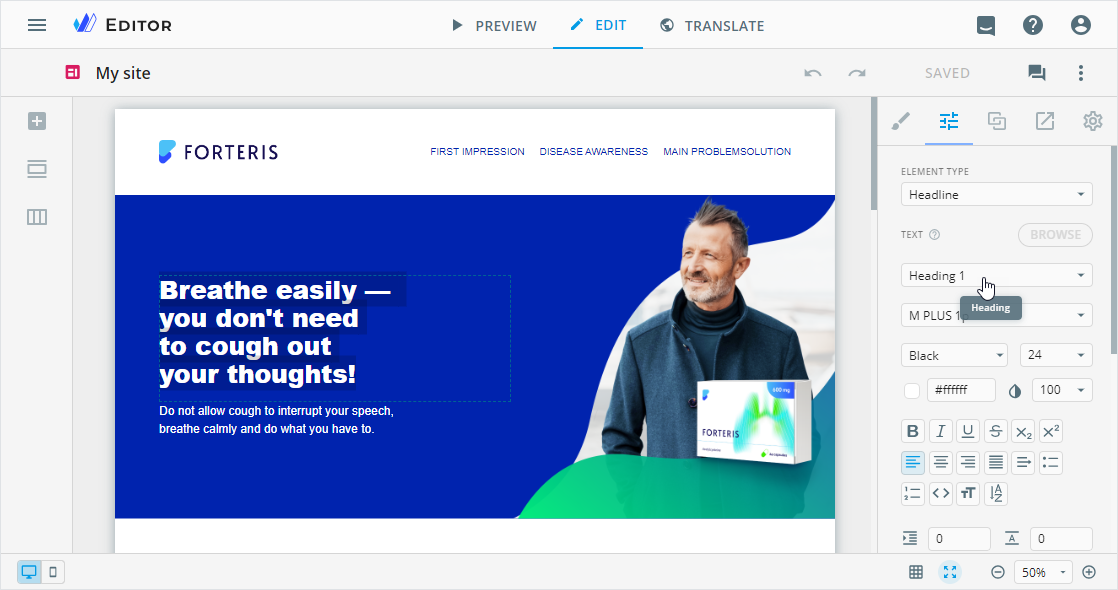
The resulting text is wrapped in the <h1> tag.
html
<i18n>
{
  "eng": {
    "title": "<h1><span style='color: {colorToken};'>Breathe easily — <br>you don't need<br> to cough out<br> your thoughts!</span></h1>",
  }
}
</i18n>