Appearance
Site analytics
You can use analytics to track various site actions and events, such as clicks, page transitions, and PDF downloads. To collect analytics in eWizard.js, use the $analytics plugin, which emits standard, component, and DOM events from site pages and directives that listen to and process the events.
Page analytics are available starting from eWizard.js version 5.35.0 and above.
To collect page analytics, configure where to store analytics data in a JS file in the extensions directory of your site.
For example, you can collect data from Google Analytics to the window.dataLayer in the analytics.js file. To configure where you store analytics, call the setOutput function in the $analytics plugin. The function receives the analytics data and writes it to the dataLayer.
js
// ./extensions/analytics.js

export default function (Vue) {
  Vue.prototype.$analytics.setOutput((data) => {
    window.dataLayer = window.dataLayer ?? [];
    window.dataLayer.push(data);
  });
}
Analytics from standard events
Use the v-analytics directive in the App.vue file of a landing page or index.vue file of a multipage site page to listen to standard events: actions and pageview.
For example, to track when a user opens a page, listen to the pageview event in the wiz-page component with an empty handler.
html
<!-- ./pages/home/index.vue -->

<wiz-page v-analytics:pageview>
</wiz-page>
As a result, the data about the page is sent to the data layer when you open the home page. You can verify it in the browser console.
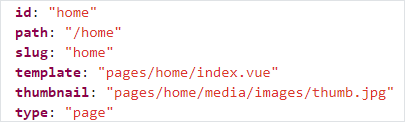
You can also send specific parts of the data with:
Handler objects
For example, to send the event type, handler type, and page ID data:
html<!-- ./pages/home/index.vue --> <wiz-page v-analytics:pageview="{ event: 'pageview', handlerType: 'object', id: '$event.id', }"> </wiz-page>As a result, the event, the handler type, and the page ID data are sent to the data layer when you open the
homepage. You can verify it in the browser console.
Handler functions
For example, to send the event type, handler type, and page ID data:
html<!-- ./pages/home/index.vue --> <wiz-page v-analytics:pageview="($event) => { return { event: 'pageview', handlerType: 'function', id: $event.id, } }"> </wiz-page>As a result, the event, the handler type, and the page ID data are sent to the data layer when you open the
homepage. You can verify it in the browser console.
You can also subscribe to eWizard actions, such as v-goto, v-open.popup, v-open.link, and v-open.pdf.
To track a specific action in a component, add the v-analytics directive to the component tag in the App.vue or index.vue file in the following format: v-analytics:[ACTION].
For example, to track transitions of the v-goto action when a user clicks the wiz-button component:
html
<wiz-button
    text="Go to page"
    v-goto="'page1'"
    v-analytics:v-goto
></wiz-button>
Analytics from components
Use the v-analytics directive to listen to events in the site and custom components and the $analytics plugin to emit analytics events.
To collect analytics from components:
Add the events emitted by the component in the
index.vuefile of the component.For example, a custom
wiz-analyticscomponent. The component emits events with the$analyticsplugin; theinput-changeevent is used to track input clicks.html<!-- ./common/components/wiz-analytics/index.vue --> <template> <div> <input type="range" :min="min" :max="max" @input="emitInputAnalytics"> </div> </template> <script> export default { props: { value: { type: Number, default: 0 }, min: { type: Number, default: 0 }, max: { type: Number, default: 100 }, link: { type: String, default: 'https://google.com' } }, methods: { emitInputAnalytics(event) { this.$analytics.emit('input-change', { name: 'range', value: event.target.value, min: this.min, max: this.max, }, this); } } </script>Add the
v-analyticsdirective to theindex.vueorApp.vuefile of a site page or landing page layout to listen to the specific events you want to send to analytics. For example, thehomepage of a multipage site:html<!-- ./pages/home/index.vue --> <template> <wiz-page> <wiz-h3-title text="Send all data from the component"></wiz-h3-title> <wiz-analytics v-analytics:input-change ></wiz-analytics> <wiz-h3-title text="Handler object"></wiz-h3-title> <wiz-analytics v-analytics:input-change="{ event: 'input-change', eventAttrs: { value: '$event.value', } }" ></wiz-analytics> <wiz-h3-title text="Handler function"></wiz-h3-title> <wiz-analytics v-analytics:input-change="($event) => { return { event: 'input-change', eventAttrs: { value: parseInt($event.value), timestamp: Date.now(), } }; }" ></wiz-analytics> </wiz-page> </template> <script> export default {}; </script>When listening to events, you can either send all emitted data to analytics or use handler objects or functions to send specific data.
Analytics from DOM events
You can listen to DOM events by adding the v-analytics directive to the index.vue or App.vue file of a site page or landing page layout. The directive must include a handler with a native modifier to send DOM event data to components. You can use a handler object or function.
For example, a handler object for the click event:
html
<template>
  <wiz-page>
    <wiz-h3-title text="Handler object"></wiz-h3-title>
    <wiz-button
      text="Click me"
      v-analytics:click.native="{
        event: 'click',
        eventAttrs: {
          value: '$event.target.innerText',
        }
      }"
    ></wiz-button>
  </wiz-page>
</template>

<script>
export default {};
</script>
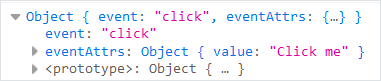
As a result, the click data is sent to the data layer. You can verify it in the browser console.
Handler types
You can send all emitted data with an empty handler or specific data with handler objects or functions for standard, component, or DOM. You can also send data from non-analytics events.
Empty handler
Use an empty handler to send all the data emitted by the component to analytics. For this, add the v-analytics directive with the event name.
It's impossible to use an empty handler for DOM events.
For example, to send all emitted data from the input-change event to analytics:
html
<template>
  <wiz-page>
    <wiz-h3-title text="Send all data from the component"></wiz-h3-title>
    <wiz-analytics
      v-analytics:input-change
    ></wiz-analytics>
  </wiz-page>
</template>
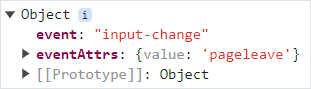
As a result, the input-change data is sent to the data layer. You can verify it in the browser console.
Handler object
To send specific data, add the v-analytics directive with the event name and a handler in a JSON-compatible format. The handler can be an object or a string. Use $event to reference specific data. For example, $event.value references the data from the value field of the input-change event.
For example, the handler for the input-change event:
html
<template>
  <wiz-page>
    <wiz-h3-title text="Handler object"></wiz-h3-title>
    <wiz-analytics
      v-analytics:input-change="{
        event: 'input-change',
        eventAttrs: {
          value: '$event.value',
        }
      }"
    ></wiz-analytics>
  </wiz-page>
</template>

<script>
export default {};
</script>
As a result, the data about the value change of the input-change event is sent to the data layer. You can verify it in the browser console.
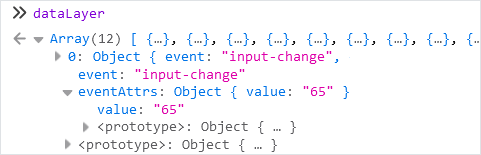
To send multiple data fields to analytics, use the $data array.
For example, to send data from the name and value fields:
html
<template>
  <wiz-page>
    <wiz-h3-title text="Handler object with multiple data fields"></wiz-h3-title>
    <wiz-analytics
      v-analytics:input-change="{
        $data: [
          {
            event: 'input-change',
            eventAttrs: {
              value: '$event.name',
            }
          },
          {
            event: 'input-change-2',
            eventAttrs: {
              value: '$event.value',
            }
          }
        ]
      }"
    ></wiz-analytics>
  </wiz-page>
</template>
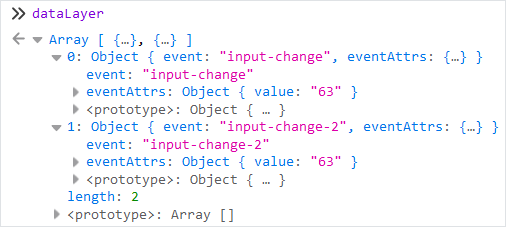
As a result, the data about the name and value change of the input-change and input-change-2 events is sent to the data layer. You can verify it in the browser console.
Handler function
You can also send specific data by adding a v-analytics directive with a function handler. Use $event to reference specific data. For example, event.value references the data from the value field of the input-change event. You can also add other JavaScript code in the directive, for example, a timestamp:
html
<template>
  <wiz-page>
    <wiz-h3-title text="Handler function"></wiz-h3-title>
    <wiz-analytics
      v-analytics:input-change="($event) => {
        return {
          event: 'input-change',
          eventAttrs: {
            value: parseInt($event.value),
            timestamp: Date.now(),
          }
        };
      }"
    ></wiz-analytics>
  </wiz-page>
</template>

<script>
export default {};
</script>
To send multiple data fields to analytics, use the $data array.
For example, to send data from the name and value fields:
html
<template>
  <wiz-page>
    <wiz-h3-title text="Handler function with multiple data fields"></wiz-h3-title>
    <wiz-analytics-example
      v-analytics:input-change="($event) => {
        return {
          $data: [
            {
              event: 'input-change',
              eventAttrs: {
                value: parseInt($event.name),
                timestamp: Date.now(),
              }
            },
            {
              event: 'input-change-2',
              eventAttrs: {
                value: parseInt($event.value),
                timestamp: Date.now(),
              }
            }
          ]
        };
      }"
    ></wiz-analytics-example>
  </wiz-page>
</template>
Data from non-analytics events
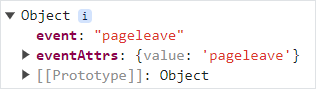
Use the submit method in the App.vue file of a landing page or index.vue file of a multipage site page to send data without using v-analytics for events, such as clicks or form submissions. This is useful when a component doesn't emit analytics events.
For example, to track when a user leaves a site page with the pageleave event:
html
<script>
export default {
  mounted() {
    this.$navigator.onleave(function () {
      this.$analytics.submit({
        event: 'pageleave',
        id: this.$navigator.getCurrentPage().id,
      });
    }.bind(this));
  },
};
</script>
As a result, the data about the pageleave event is sent to the data layer. You can verify it in the browser console.