Appearance
Set up rating in emails
The RATING component helps you track the recipient reactions to your email. To use it, make the preparations in your CRM system and then proceed with eWizard Editor.
By default, every RATING component consists of five star rating items. You can change their look, add, or delete them. Each rating item refers to a unique link that can be tracked in your CRM system. To set up tracking, create the dedicated pages—for example, PDF files, or landing pages—in the CRM system or hosting services for each rating item and retrieve the unique links to them.
The landing page or PDF file may contain any message you want the email recipient to see once they rate your email. As a result, the recipient clicks the required rating item and is automatically redirected to the specified page that displays this message.
Use-case example
The email recipient selects one of the five stars available to rate your email. Once they click the star of their choice, they're redirected to the page you've prepared. The page displays "Thank you for your rating!".
You, in your turn, see the rating result in your CRM report.
Retrieve the unique links to your prepared PDF files or landing pages. The number of links must match the number of rating items in your email. For example, if you keep the 5-star rating, you can publish the PDF five times to your CRM.
In eWizard, add the rating component to your email layout and customize each rating item on the component Properties tab.
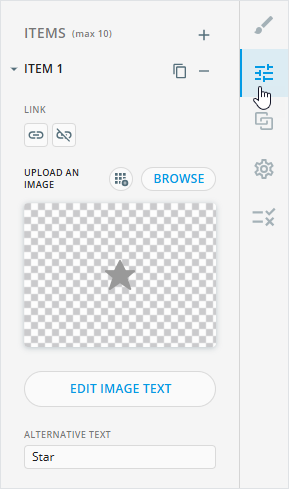
Insert the unique link to the item Link field.
Modify the rest of the rating items the same way, adding different unique links for each item.
As a result, each item of your rating component redirects to the different link. Save your email.
Export the email or publish to your target system for its end usage.
Be aware, that data gathered in the test email on the production environment is recorded to the report as well.
Contact eWizard Support for more details on the RATING component usage in Veeva CRM or other target systems.