Appearance
Create new items
Log in to your eWizard account. The first thing you see is your library of items.
New items are created with the + ADD NEW button menu in the upper-left corner. You can create a new item from scratch or based on a template, or upload the item from your device as a ZIP file. Moreover, you can convert a PDF or PPTX file to create a new item or find the item you need in NaviGate.
In general, the creation workflow looks as follows:
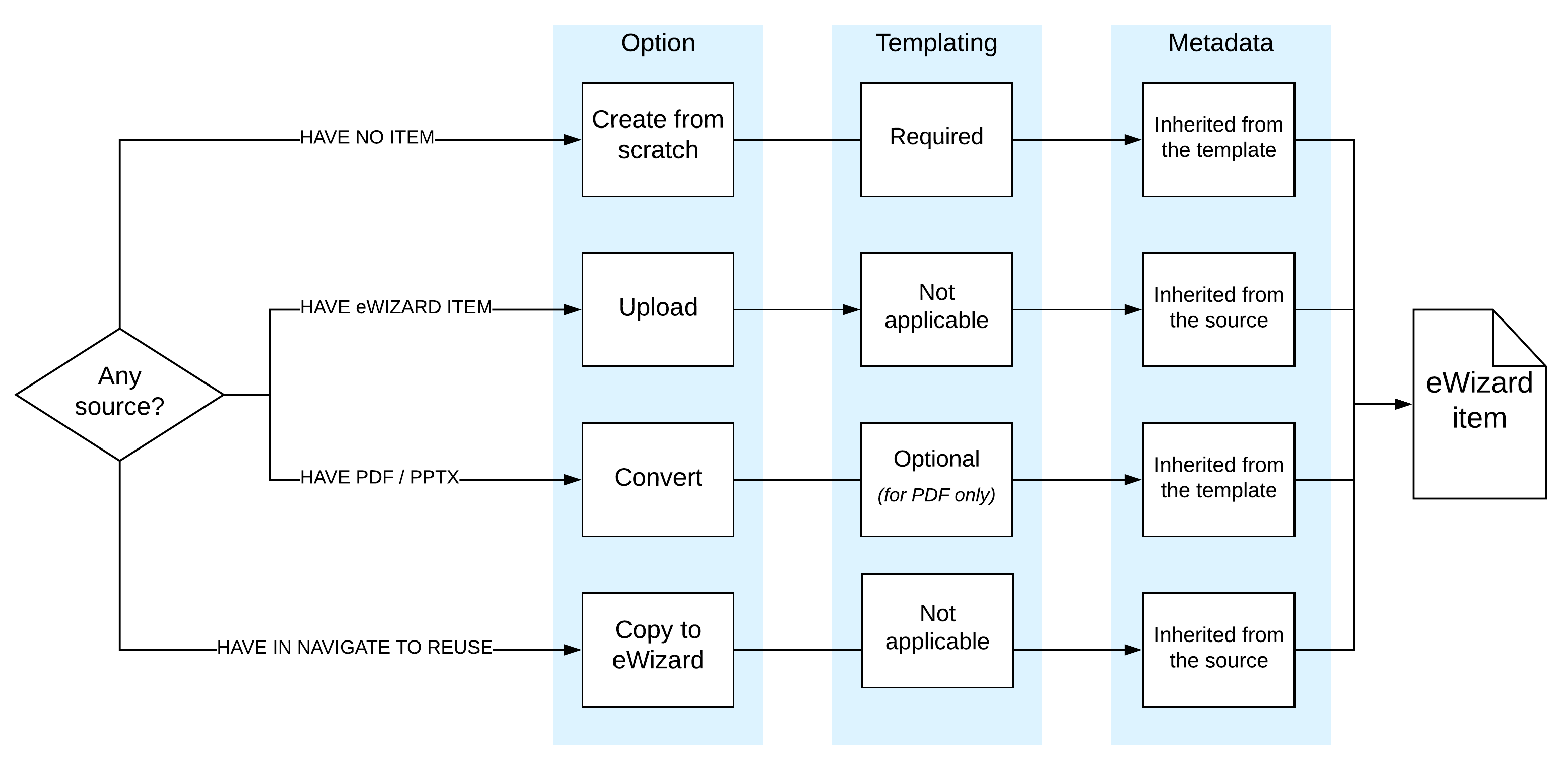
Find more details on each creation option in the eWizard Classic and eWizard user guides.
Template-based item
You can create items based on a template developed specifically for your company. In this case, you have a number of pre-designed slides, general structure, and some content that you can adapt.
For this, click + ADD NEW and select the required item type. Then choose the template and specify the item details.
As a result, your new item appears in eWizard library.
Make the item as template
eWizard items are made as templates in NaviGate. You can get it in the following ways:
Create your item in eWizard Library.
Develop your item with the eWizard.js framework.
Then, add your eWizard item to NaviGate as a new channel. Again, you have two options:
Publish your item directly to NaviGate from eWizard Library.
Upload the ZIP archive with the developed eWizard item as a new NaviGate channel.
Then, add this channel to templates with its more options.
As a result, this particular template becomes available in the Create new popup in eWizard and is ready for use by your teammates.
Uploaded item
A ZIP archive for upload must be created in the Cobalt.js framework (for eWizard Classic) or the eWizard.js framework (for eWizard). This ensures that the source code is compatible with eWizard.
The uploaded e-Detailer supports all Editor features. Should your e-Detailer upload fail, make sure whether its format is supported by eWizard.
Converted item
To convert your PDF or PPTX file into e-Detailer, please prepare the source file according to the eWizard requirements. Select the required conversion option and add the file from your device.
If your PDF or PPTX contains custom fonts that aren't included to the list of the eWizard-supported fonts, please contact eWizard Support to handle this question for you.
Found in NaviGate
Alternatively, you can access the already approved items added to NaviGate by your teammates. Using clear meta tagging and advanced search options, regional affiliates and agencies can easily find Global Master Templates for e-Detailers, identify key visuals, and reuse your company best practices.
To create your eWizard item from the existing NaviGate channel, go to NaviGate, select the required channel, and copy it to your eWizard library.