Appearance
Service desk
We offer support to all customers as a part of their subscription. You can contact the eWizard Support team through the following channels:
Support requests are submitted as Jira service desk tickets. A ticket is assigned to a Support team member with the Agent role. The agent interacts with the end-user to resolve the issue. The ticket goes through particular stages and can be assigned to any number of agents until it is resolved. The agent and the end-user can add the required people as watchers or participants to the ticket. The involved agents can add public and private comments, while end-users can add comments only publicly. All the parties can track the ticket.
Create a request
To create a request with eWizard Service desk:
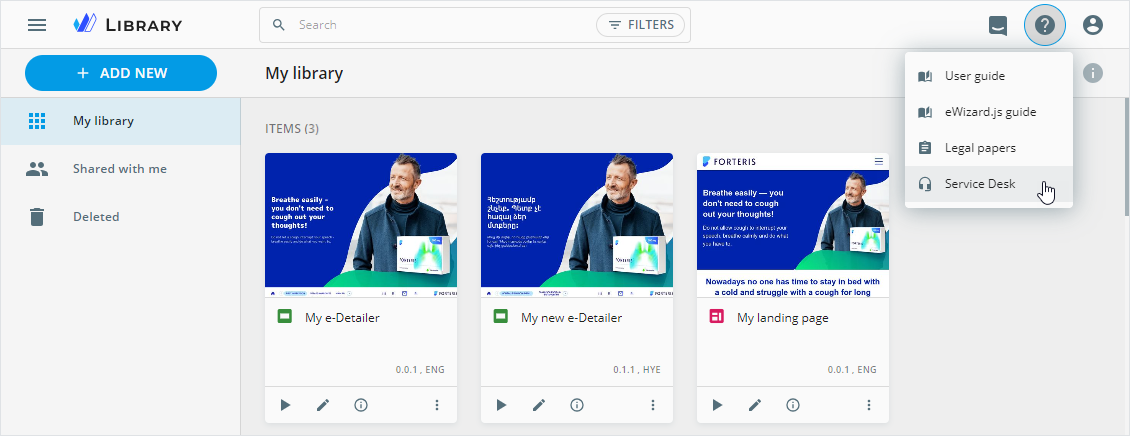
On the top panel of any eWizard page, click
 .
.Select
Service desk.
On the Service desk page, you can find the following:
Request types
My Requests
All the tickets where I am a participant
You can use the Search field to find the required request type faster.
Select the request type:
Product issue
Task/Service request
Access
Content deployment
Instance setup
Suggest an improvement
Fill in the following fields depending on the request type:
| Field | Action | Required |
|---|---|---|
| Summary | Describe a problem briefly | Yes |
| Priority | Select the priority for your request—critical, high, medium, or low | No |
| Due date | Set the due date to resolve the problem | No |
| Description/Preconditions | Enter the required details | Yes |
| Attachment | Add attachments, if any | No |
| Content type | Select the required content types | Yes |
- Click
Createto submit your request.
After accepting your request, the assigned agent notifies you with the email.
View your requests
The My requests section contains the list of your requests. Click the required request to view its details.
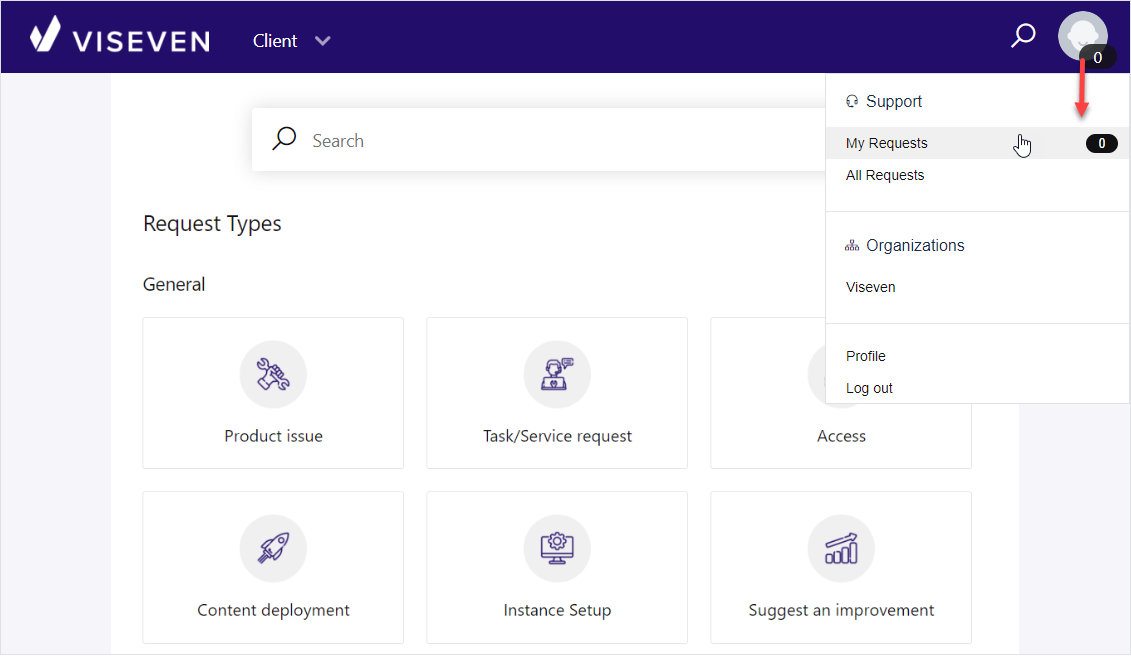
You can also view requests in the user menu. For this:
- Click
User menuin the upper-right corner.
You can see the number of your open requests indicated on the profile icon and in the My requests section.
- Select
My requests/All requests.
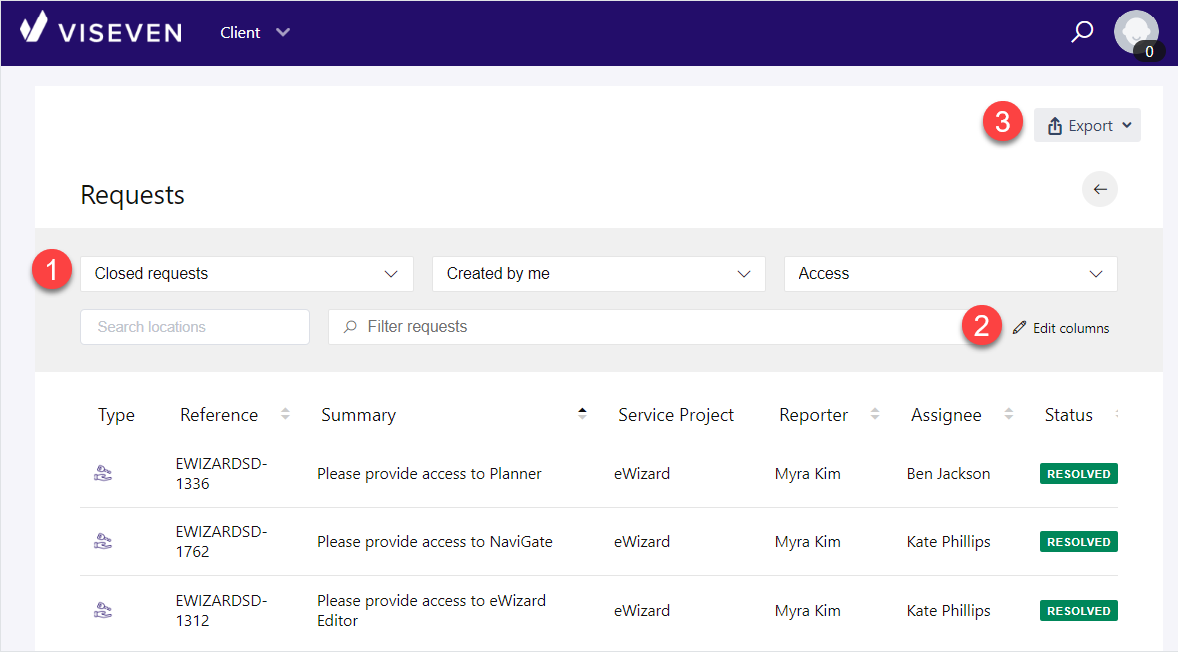
On the Requests page, you can do the following:
[1]: Filter requests by status, role, and type.
[2]: Customize the filter panel with the Edit columns button.
[3]: Export the CSV file with all existing or current (filtered) requests to your device.
To go back to the Service desk page, click  .
.
When the issue is resolved, the assigned agent notifies you with the email.