Appearance
Introduction
The eWizard—Veeva Vault PromoMats (VVPM) integration is a double-side bridge that allows you to start your workflow from eWizard or VVPM. The combination of Veeva Vault PromoMats for review and approval and eWizard for content authoring—is the ultimate solution. eWizard empowers Veeva users with advanced content management and delivery automation opportunities for CLM content, approved emails and fragments, newsletter templates.
Within the two-system integration, you can:
Convert VVPM documents into the eWizard-compatible format. Synchronization with NaviGate, Veeva Vault PromoMats, and Salesforce is supported.
Add VVPM documents as external materials to eWizard content items stored in NaviGate.
Add VVPM assets and modules when editing content items in eWizard.
Publish eWizard items to VVPM.
Initiate editing VVPM documents with the
Edit in eWizardweb action.Launch publishing VVPM documents originated from the published content items to external systems with the
Publish to <external system>web action.
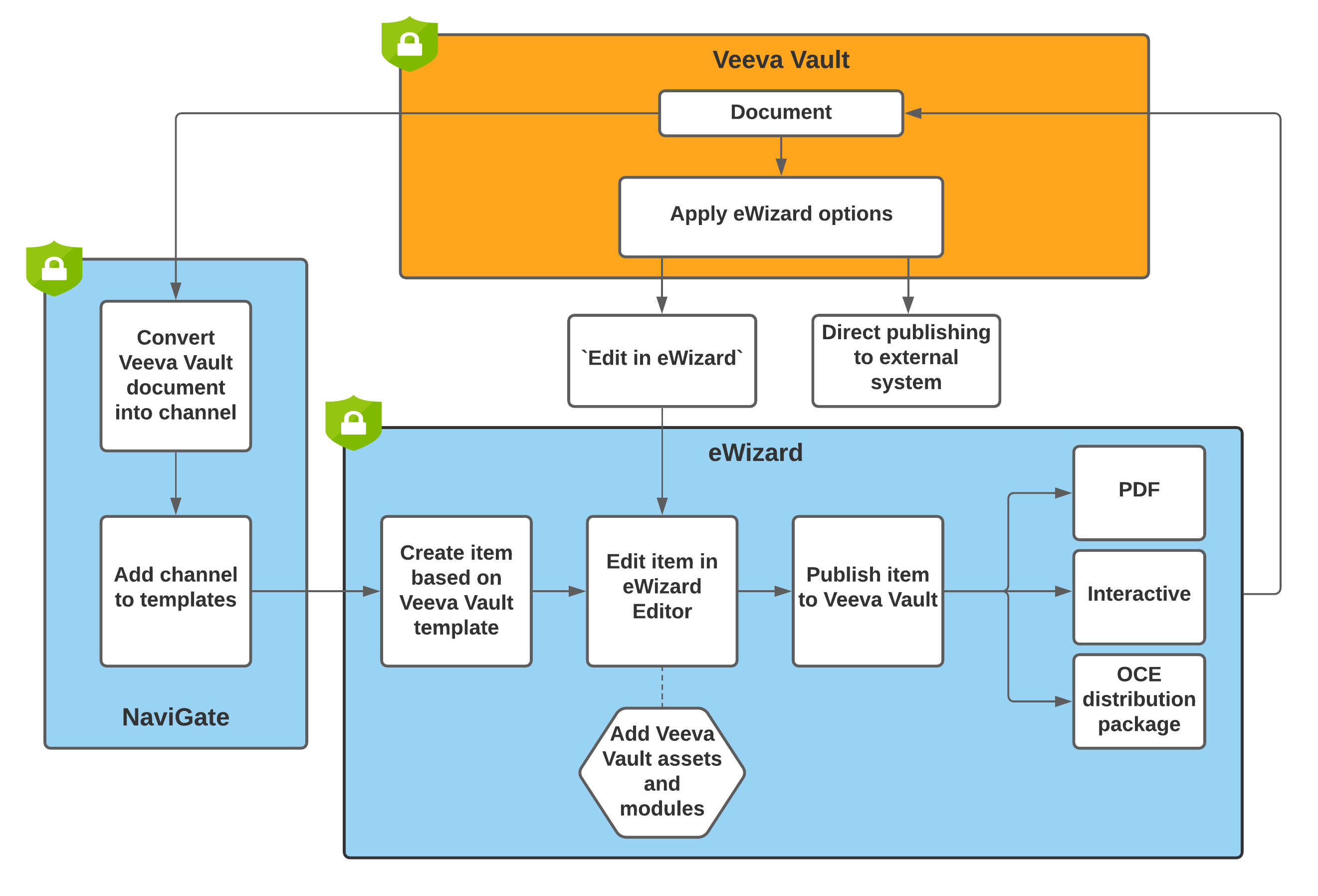
This article gives an overview of the eWizard—VVPM integration features and their peculiarities.
Access
Access to Veeva Vault PromoMats from eWizard requires your identity and VVPM permissions check.
Once your user is confirmed, you can log in to your VVPM account and select the required environment.
To configure the cross-domain authorization for your organization, contact the administrator.
If SSO is active for your account, you can log in once and access the required services without re-entering your credentials.
The authorized session timeout in VVPM is 20 minutes. After this time, you must re-login to VVPM and select the environment, if required.
Convert Veeva documents
With NaviGate Converter, you can convert VVPM email fragments and emails with their related email fragments, into the NaviGate channels.
During the conversion, you can also activate synchronization between the documents converted from VVPM and NaviGate channels. As a result, the converted documents are automatically published to Salesforce. Once you make changes to the converted document in Veeva Vault PromoMats and launch synchronization again, these changes are also applied in NaviGate and Salesforce.
You can also use VVPM t documents as templates for new eWizard items.
To do this, after the VVPM document conversion, add the resulting channel to templates in NaviGate.
The newly added template is ready to use for the new content item creation.
Once you remove the item from templates or the item expires, the template is no longer available for use in eWizard.
Veeva assets and references
eWizard supports adding VVPM :veeva_vault_/assets:/assetsveeva vault referencesreferences: to your content items.
You can find VVPM assets and references in your content item Editor, under the VEEVA VAULT tab in the Assets and References popup, respectively.
To find the required VVPM assets faster, use the available metadata filters. The asset type and subtype are predefined by the component selected on the layout and are available in the read-only mode.
Modular approach
eWizard supports ModCon 1.0 and 2.0 of the VVPM modular standard. Here is the general information related to both approaches. To read more about the key updates, go to the Modular approach guide.
A module is a ready-made piece of content that combines one or more components (text documents, images, etc.) from VVPM approved for reuse as a unit. Thus, modules streamline the creation and approval processes of the resulting item.
You can create an eWizard module and fill it in with the required components and assets. Then, you can publish this module to VVPM.
As a result, the Content Module object with its Approval Document are created in VVPM. The Approval Document summarizes the Content Module assets into a single readable document for the reviewers to approve.
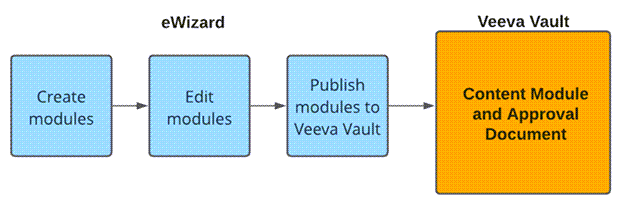
Once the eWizard module is published to VVPM, you can use it for emails or e-Detailers in eWizard Editor. Then, you can publish the email or e-Detailer to VVPM.
As a result, the modules used in your email or e-Detailer are linked with the resulting PDF document. With this linkage, the modules undergo the approval process together with the resulting PDF and are available for further reuse.